How to Calibrate Your Phone Battery in 2026: Fix Ghost Drain and Wrong Percentage (Android & iPhone)
Quick Highlights – (How To Calibrate Phone Battery)
If your phone suddenly drops from 40% to 15% without warning, shuts down at 10%, or behaves like it’s draining too fast in the middle range, there’s a strong chance your battery isn’t actually damaged. In many cases, the battery is physically fine, but the battery percentage meter has become unreliable—making the phone look like it has terrible battery life when the real issue is inaccurate reporting.
This problem is becoming more common in 2026 because modern phones are using bigger cells, faster charging systems, and more aggressive battery protection features. When your phone’s software loses track of where “full” and “empty” actually are on the battery’s real voltage curve, you get percentage jumps, early shutdowns, and what users call ghost drain. The good news is that this is often fixable at home using a safe recalibration cycle.
This guide explains the correct way to recalibrate your phone battery in 2026 without repeating outdated myths that can harm long-term battery health.
What Battery Calibration Actually Does (And What It Doesn’t)
Battery calibration is not a battery repair trick. It doesn’t increase capacity, it doesn’t “boost health,” and it doesn’t fix physical battery degradation. What it actually does is help your phone’s operating system re-learn two important reference points: what the battery looks like when it is genuinely full, and what it looks like when it is genuinely empty.
Modern Android and iPhones rely on advanced battery algorithms that estimate charge levels using voltage curves, temperature behavior, and charging history. Over time, especially after major OS updates or unusual charging habits, the system’s percentage mapping can drift. When that happens, the percentage you see on screen stops matching the real battery state, and the phone begins behaving unpredictably.
That is why some phones show 100% for too long, then drop rapidly from 60% to 20%, and finally shut down at 8–15%. The battery may still be healthy, but the meter is out of sync.
Signs Your Phone Needs Battery Calibration
You don’t need to calibrate your phone on a fixed schedule. Calibration should only be used when your battery percentage behavior becomes clearly unreliable. The most common signs include sudden percentage drops without heavy use, early shutdowns where the phone powers off above 1%, and situations where the battery gets stuck at 100% or holds at one number for an unusually long time.
Another strong indicator is when your phone dies at a certain percentage, but after restarting it immediately shows a much higher number. This is usually a sign that the software estimation is confused. Battery problems appearing right after a major Android update or iOS update are also extremely common, because system updates often reset or disrupt the phone’s battery learning behavior.
However, if your phone is overheating, the back panel is bulging, the battery is swelling, or the device drains even while powered off, calibration is not the solution. Those symptoms point toward hardware damage or battery failure.
Why Battery Percentage Becomes Inaccurate in 2026
Battery meter issues happen for real technical reasons, not because the battery is instantly “dead.” Major Android or iOS updates can reset battery learning models, while switching chargers or fast charging standards can cause the system to misinterpret charging curves. Phones that sit unused for weeks can also lose accuracy, because the system has fewer recent data points to calculate percentage behavior correctly.
Heat exposure is another major reason, especially in warmer climates. High temperature affects voltage behavior and can distort the percentage estimation. Battery protection modes—especially the 80% charge limit found on Samsung, Pixel, and other brands—can also prevent the phone from regularly reaching a full-charge reference point, which is necessary for accurate mapping.
Third-party battery replacements are another common trigger. Even if the battery is new, the system may still be using old estimation behavior unless it goes through a proper learning cycle again.
The 7-Step – How to Calibrate Phone Battery (2026-Safe)
Time required: 3–8 hours (depending on your battery size)
Recommended frequency: once every 2–3 months (only if needed)
This method works on all major Android brands and iPhone models. It is safe if done occasionally, but it should not become a habit. Frequent full discharge cycles create unnecessary stress on lithium batteries and can reduce long-term lifespan.
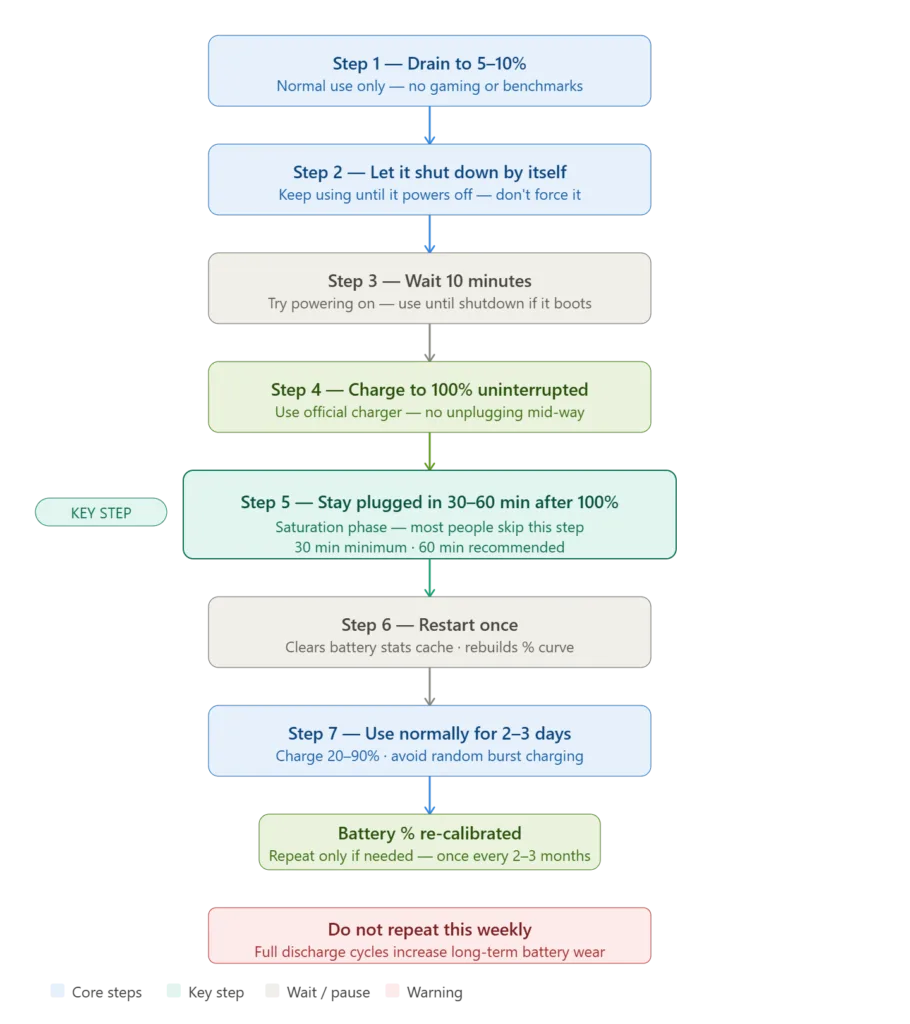
Step 1 — Drain to 5–10% Through Normal Use
Use your phone normally—calls, browsing, social media, or video streaming—until the battery reaches around 5–10%. Do not force-drain it by running heavy games or benchmarks specifically to kill the battery. Artificial heavy load creates heat, and heat can interfere with the voltage readings your phone is trying to learn during this process.
Once you reach 5–10%, continue to the next step.
Step 2 — Let the Phone Shut Down by Itself
Continue using the phone at low battery until it powers off naturally. Do not manually switch it off. When a phone shuts down on its own, it registers the real low-voltage cutoff point, which becomes an important reference for recalibration.
Step 3 — Wait 10 Minutes, Then Try Turning It On Again
After shutdown, wait about ten minutes and then try powering the phone on. If it boots, use it until it shuts down again. If it does not boot, that is completely fine and usually means the battery is already at its true cutoff.
This step is important because lithium batteries can briefly recover a small amount of voltage after resting. Testing again ensures the phone is truly at the lowest usable threshold.
Step 4 — Charge to 100% Without Interrupting
Now plug the phone into the charger and charge it to 100% without interruption. Avoid unplugging halfway or charging in short bursts. Ideally, use your official charger or a trusted fast charger so the charging curve stays stable.
During this phase, avoid heavy phone usage. Let it charge cleanly until it reaches full.
Step 5 — Stay Plugged In for 30–60 Minutes After It Hits 100%
This is the most important step and the one most people skip.
When your phone shows 100%, the battery may not be fully saturated. Many phones continue charging at very low current even after displaying 100%. This final saturation phase helps the system lock in the correct full-charge reference point.
Leave it plugged in for at least 30 minutes after it hits 100%. If possible, one hour is better. Keeping it plugged in for five extra hours is unnecessary and can add heat stress.
Step 6 — Restart the Phone Once
After the charging session is complete, restart the phone once. A restart refreshes background battery monitoring services and encourages the OS to rebuild percentage mapping using the updated full and empty reference points.
On iPhones, this also helps stabilize percentage reporting if an iOS update triggered the problem.
Step 7 — Use Normally for the Next 2–3 Days
Calibration is not instant. Your phone continues refining its battery percentage curve over the next few charge cycles. For the next two to three days, try to charge normally and avoid draining to near zero again. Ideally, keep charging between 20% and 90% during this period and avoid random burst charging throughout the day.
After this window, your battery percentage behavior should become noticeably more stable.
Brand-Specific Settings to Check Before Calibration
Some brands have features that can interfere with calibration unless you temporarily disable them.
Samsung users should check Battery Protection. If the 80% charge limit is enabled, the phone may never reach a true full-charge reference point, reducing calibration effectiveness. Disable it temporarily for the recalibration cycle, then turn it back on afterward.
On OnePlus, realme, and OPPO phones, smart charging and overnight optimization features can pause charging at 80% and complete later. Disable these features for the calibration session so the phone can reach a consistent full-charge state.
Xiaomi, Redmi, and POCO users should know that HyperOS updates often cause percentage fluctuations for a few days after installation. If your phone was updated recently, it’s smart to wait three to four days first. If the issue continues, then calibration becomes worth doing.
Google Pixel phones use Adaptive Battery aggressively, so even after calibration, you should allow a few days for the system to re-learn your usage behavior before judging battery performance.
On iPhones, calibration is rarely needed, but percentage misreporting after updates does happen. A full discharge, uninterrupted full charge, and restart is usually enough.
What Calibration Fixes — And What It Won’t
Battery calibration is excellent for fixing percentage-related issues, but it is not a cure-all.
If your phone is shutting down early, dropping rapidly in the middle range, getting stuck at certain percentages, or behaving strangely after a software update, calibration can often restore normal battery reporting. It can also fix “ghost drain” when the drain is actually just incorrect meter reporting.
However, calibration will not fix physical battery degradation. If your battery health is genuinely low, the phone will still drain faster even after recalibration. It also will not fix overheating caused by hardware failure, water damage, charging port issues, or background drain caused by a broken app or malware.
If your phone is older than two to three years and still drains quickly even after calibration, the battery itself is likely worn and replacement is the practical fix.
When You Should NOT Calibrate Your Battery
Calibration should be avoided if your battery percentage is already stable and predictable. It should also be avoided if the phone overheats badly during normal use, if the back panel is bulging or raised, or if you suspect battery swelling.
If you recently installed a third-party battery from a non-authorized repair shop, running a full discharge cycle may be risky. In those situations, it’s better to visit an official service center rather than experimenting with calibration cycles.
Who Should Do Battery Calibration?
- Do it if your battery percentage jumps randomly or drops suddenly
- Do it if your phone shuts down at 7–15%
- Do it if your battery gets stuck at 100% or drains unpredictably after updates
- Skip it if your battery behavior is stable and normal
- Skip it if your phone overheats or shows physical swelling signs
- Never repeat it weekly, because repeated full discharge cycles increase long-term battery wear
The Verdict
Battery calibration in 2026 is a meter fix, not a battery fix. If your phone started showing strange battery behavior after an update, a long idle period, or a major change in charging habits, running this recalibration cycle once is the smartest first step. It costs nothing, takes less than a day, and often restores stable percentage behavior.
If the issue persists after calibration, the problem is likely deeper than the gauge. At that point, the culprit is usually real battery wear, overheating stress, or background app drain that requires further troubleshooting or battery replacement.
Do it when you need it. Don’t do it as a habit.
No. Calibration fixes the percentage meter, not the battery’s physical health or capacity.
Doing it frequently is not ideal. But doing it occasionally for calibration is safe.
Only when the percentage behavior becomes inaccurate. Once every 2–3 months is the maximum sensible frequency.
No. Overheating is caused by apps, charging heat, or hardware problems.
Yes, if the “ghost drain” is caused by incorrect percentage reporting. If it’s caused by a background app, you’ll need to identify the real drain source.
Rarely, but if an iOS update caused strange battery percentage behavior, this method is worth trying before assuming hardware damage.