How to Clean Up Gmail Storage Without Deleting Important Emails (Guide)
Quick Highlights
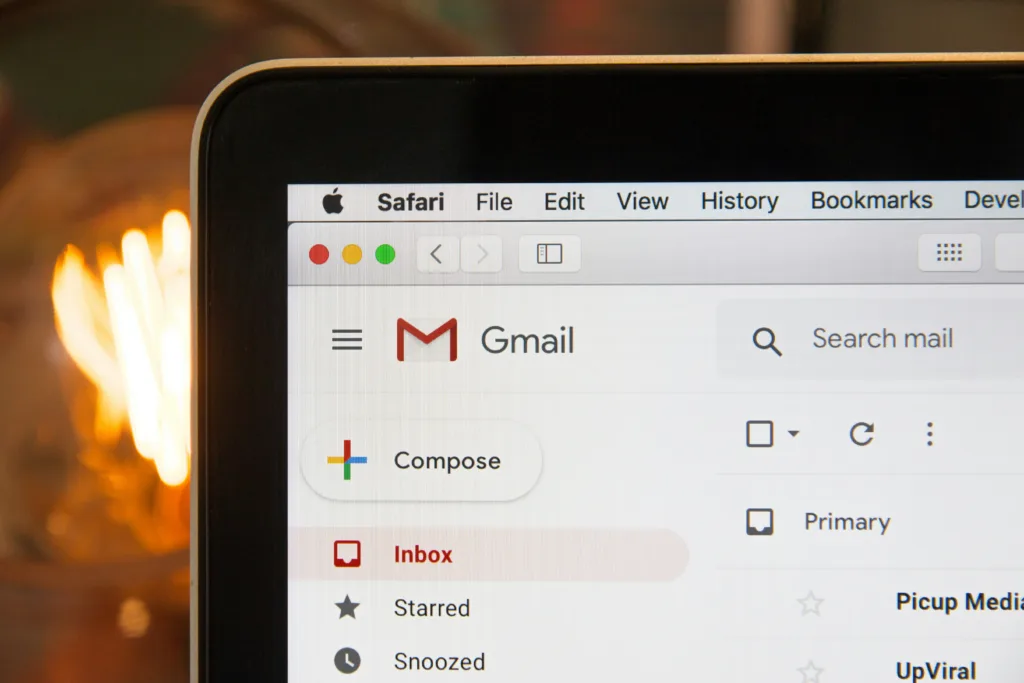
Few things are more frustrating than seeing Google’s dreaded storage warning just as an important email arrives.
Once your Google account reaches its storage limit, Gmail can stop receiving new messages entirely. Many users immediately begin deleting emails in panic, only to discover later that they removed conversations, documents, or attachments they actually needed.
The good news is that most Gmail storage problems are caused by a relatively small number of large files rather than the emails themselves.
With the right cleanup strategy, you can often recover several gigabytes of storage while keeping every important conversation intact.
Before deleting anything, review your storage breakdown using Google’s official storage management dashboard to see exactly how much space Gmail, Drive, and Photos are consuming.
Why Gmail Storage Fills Up So Quickly
Many people assume thousands of emails are responsible for storage problems.
In reality, text-based emails consume very little space.
The real storage offenders are usually:
- Large PDF attachments
- Video files
- High-resolution images
- Old Google Drive backups
- Google Photos uploads
- Shared project files
Because Google combines storage across Gmail, Drive, and Photos, the problem may not even originate inside Gmail itself.
This is similar to storage-related performance issues discussed in How to Make Android Faster Without Root (2026 Speed Guide), where excessive storage consumption can impact device responsiveness as well.
Before deleting anything, you should first identify exactly where the storage is being used.
Check Your Google Storage Breakdown
The first step is understanding which Google service is consuming the most space.
Open Google’s storage management page and review usage across:
- Gmail
- Google Drive
- Google Photos
Many users are surprised to discover that Gmail is not actually the largest contributor.
For example:
- Gmail = 2GB
- Drive = 7GB
- Photos = 6GB
In that situation, deleting emails would barely solve the problem.
Always start with the storage dashboard before making changes.
Find Large Attachments Quickly
Large attachments account for the majority of Gmail storage consumption.
Fortunately, Gmail includes powerful search operators that make them easy to locate.
Inside Gmail search, type:
has larger:10M
This displays emails containing attachments larger than 10 megabytes.
You can increase the threshold if needed:
has larger:20M
or
has larger:50M
Review these emails carefully.
Many contain:
- Old presentations
- Project files
- Downloadable reports
- Large PDFs
- Archived videos
Deleting only a handful of these messages can free significant storage.
Save Important Attachments Before Deleting
If an attachment is valuable but the email itself is not, download the attachment first.
Store it in:
- Google Drive
- External hard drive
- Local computer
- Cloud storage service
Once safely stored elsewhere, you can delete the original email without losing the file.
This approach provides the best balance between preserving important content and reducing Gmail usage.
Empty Spam and Trash
Spam and Trash folders continue consuming storage until permanently emptied.
Many users assume deleting an email immediately frees storage.
It doesn’t.
The email simply moves into Trash.
To clear unnecessary storage:
Open:
Spam → Delete All Spam Messages
Then:
Trash → Empty Trash Now
Depending on how long these folders have accumulated content, this step alone can free hundreds of megabytes.
Remove Old Promotional and Newsletter Emails
Promotional emails often arrive daily for years.
Individually they are small, but collectively they become substantial.
Search for:
label older_than:2y
This helps locate old newsletters and mailing lists that are no longer useful.
Review results carefully and bulk-delete content you genuinely no longer need.
This approach is much safer than deleting messages randomly.
Clean Up Google Drive Backups
One of the most overlooked storage consumers is Google Drive Backups.
Old Android phone backups can remain stored long after the device has been replaced.
Open Google Drive and navigate to:
Backups
Review any devices you no longer own.
Deleting obsolete backups can sometimes recover several gigabytes instantly.
This is especially valuable for users who regularly upgrade phones.
Review Google Photos Storage
Photos and videos frequently consume more storage than Gmail itself.
Open Google Photos and check upload settings.
Users currently storing files in original quality may benefit from switching future uploads to:
Storage Saver
Storage Saver reduces file sizes while maintaining good visual quality for everyday use.
Google Photos also includes a storage recovery feature that can reduce space used by existing uploads.
However, this process is irreversible, so it should be used carefully.
If your Google Photos backup is also experiencing upload problems, our guide on How to Fix Google Photos Stuck on “Preparing Backup” or “Backing Up 1 of XXX” (2026 Guide) explains how to resolve common synchronization issues before performing large cleanups.
Export Important Emails Before Major Cleanup
If you’re nervous about deleting older content, create a backup first.
Google Takeout allows users to export:
- Gmail messages
- Attachments
- Labels
- Archives
This creates a downloadable copy that can be stored safely before any major deletion project.
For users with years of accumulated email, this provides valuable peace of mind.
Consider Local Archiving
Another effective approach is moving old emails off Google’s servers entirely.
Email clients such as Thunderbird can download messages locally through IMAP.
Once archived on your computer, those emails can be removed from Gmail while remaining accessible whenever needed.
This approach is particularly useful for:
- Business archives
- University records
- Long-term projects
- Historical communications
When Upgrading Storage Makes More Sense
Sometimes cleanup is not the best solution.
If you genuinely need:
- Large email archives
- Original-quality photos
- Multiple device backups
- Large Drive projects
then upgrading storage may be more practical than continuously deleting files.
Google One plans often cost less than the time spent repeatedly managing storage limits.
The key is determining whether storage usage comes from unnecessary clutter or genuinely valuable data.
⚡ TechularZtrix Scan
📌 Bottom Line: Most Gmail storage problems are caused by large attachments, Drive backups, and Photos uploads—not the emails themselves.
⏱ Difficulty Level: Easy
⌛ Time Required: 10–30 minutes for most users.
✅ Best For: Users receiving Google storage warnings or struggling to receive new Gmail messages.
🏆 Biggest Win: Using Gmail search operators to locate large attachments often recovers the most storage with the least effort.
⚠️ Biggest Compromise: Aggressive cleanup without reviewing files can result in accidental loss of important attachments.
📈 Why It Matters: Once Google storage fills completely, Gmail can stop receiving messages, affecting personal communication, work, and account security notifications.
🔍 What Happens Next: After cleaning Gmail, review Google Drive backups and Google Photos storage, as those services frequently consume more quota than Gmail itself.