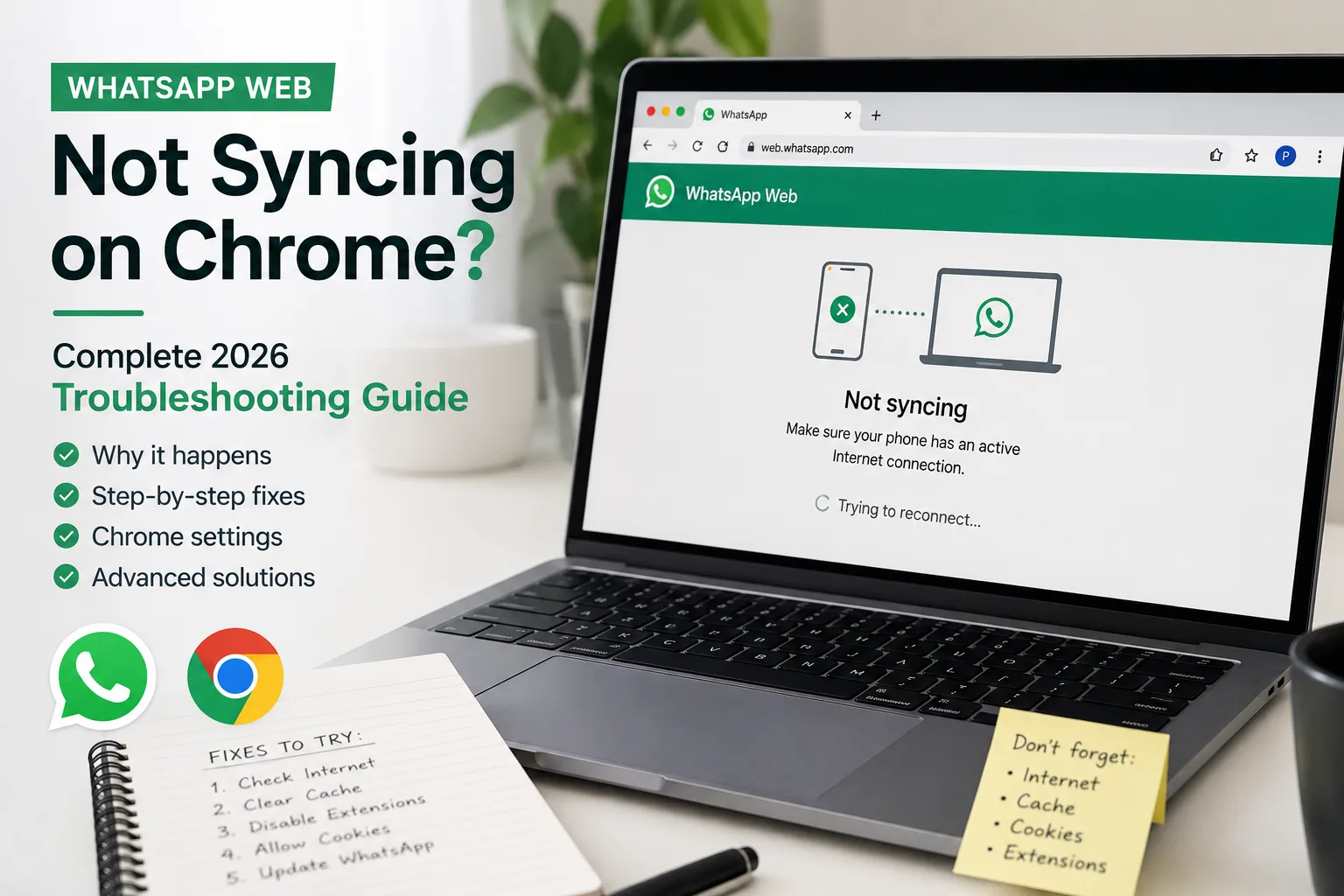
How to Fix WhatsApp Web Not Syncing, Freezing, or Loading QR Code (2026 Guide)
Quick Highlights
WhatsApp Web has become an essential productivity tool for students, professionals, and businesses. Replying to messages from a keyboard, sharing documents directly from a computer, and managing multiple conversations is much faster than constantly switching back to a phone.
However, when WhatsApp Web suddenly stops syncing, freezes after connecting, refuses to load the QR code, or repeatedly disconnects, it can interrupt your entire workflow.
The good news is that these problems are rarely caused by WhatsApp servers. In most cases, the issue comes from browser cache, network instability, outdated linked sessions, or restrictions on your phone.
Instead of randomly reinstalling apps or clearing everything, work through the fixes below in order. Most users solve the problem before reaching the advanced troubleshooting section.
Why WhatsApp Web Stops Working
Unlike many messaging services that run independently on every device, WhatsApp Web still relies on secure communication between your phone, browser, and WhatsApp servers.
Even with Multi-Device support, several things must work correctly at the same time:
- Your phone must remain connected to the internet.
- Your browser must establish secure encrypted connections.
- Cached login data must remain valid.
- Linked device sessions must stay authenticated.
If any of these components fail, WhatsApp Web may:
- Stop syncing new messages
- Freeze after opening
- Fail to display the QR code
- Disconnect repeatedly
- Show endless loading screens
Fortunately, nearly all of these situations can be fixed without losing chats.
Step 1 — Make Sure Your Phone Is Connected
Before touching your computer, check your phone.
Open WhatsApp and verify that messages send and receive normally. If WhatsApp itself cannot connect, the web version has nothing to synchronize with.
Also make sure your phone is not running in aggressive battery-saving mode. Many Android manufacturers automatically restrict background activity, which can interrupt WhatsApp synchronization.
If notifications have also become unreliable recently, our guide on How to Stop Background Apps on Android Permanently (2026 Method) explains how battery restrictions can silently interrupt messaging apps.
Step 2 — Restart Both Devices
This sounds obvious, but it remains one of the most effective fixes.
Restart both:
- Your phone
- Your computer
Many synchronization issues disappear immediately after both devices reconnect.
Step 3 — Refresh the QR Code
If the QR code refuses to pair, generate a completely new one.
On your phone:
WhatsApp → Settings → Linked Devices → Link a Device
Then:
- Refresh WhatsApp Web on your browser.
- Wait for a new QR code.
- Scan it again.
If the code expires before scanning, simply refresh the page and try again.
Also verify that your phone camera has permission to scan QR codes.
Step 4 — Try Another Browser
Browser-specific issues are surprisingly common.
If WhatsApp Web fails in Chrome, test it in:
- Microsoft Edge
- Mozilla Firefox
- Brave
If it suddenly works elsewhere, you’ve confirmed the problem is browser-related rather than a WhatsApp issue.
Step 5 — Disable Browser Extensions
Extensions often interfere with WhatsApp Web.
The most common offenders include:
- Ad blockers
- Privacy extensions
- Script blockers
- Cookie managers
- VPN browser plugins
Instead of disabling everything permanently, open an Incognito or Private window first.
If WhatsApp works there, an extension is almost certainly responsible.
Disable them one at a time until the problem disappears.
Step 6 — Clear Browser Cache
Corrupted cached files frequently prevent WhatsApp Web from loading correctly.
Clear:
- Browser cache
- Cookies
- Site data for web.whatsapp.com
Then reopen the site.
If you don’t want to clear your entire browser, simply testing in Incognito Mode often confirms whether cached files are the culprit.
Step 7 — Check Date and Time
Incorrect system time can break encrypted connections.
WhatsApp uses secure certificates that depend on accurate timestamps.
Verify:
- Date
- Time
- Time zone
on both your phone and computer.
Once corrected, reload WhatsApp Web.
Step 8 — Check Your Internet Connection
WhatsApp Web constantly exchanges encrypted messages between devices.
Even if webpages load normally, unstable internet can interrupt these real-time connections.
If possible:
- Switch Wi-Fi networks
- Try mobile hotspot
- Disconnect VPN
- Restart your router
Corporate networks sometimes block the WebSocket connections WhatsApp requires.
If WhatsApp suddenly works on another network, the original network is responsible.
Step 9 — Remove Old Linked Devices
Many users accumulate years of linked sessions.
Old computers and inactive browsers occasionally create authentication conflicts.
Open:
WhatsApp → Settings → Linked Devices
Remove:
- Old laptops
- Previous browsers
- Devices you no longer own
Then reconnect your current computer using a fresh QR code.
Step 10 — Update WhatsApp and Your Browser
Older software versions occasionally introduce compatibility issues.
Check for updates:
- Google Play Store
- Apple App Store
- Chrome
- Edge
- Firefox
Running outdated versions increases the chance of synchronization bugs.
Advanced Troubleshooting
If nothing has worked so far, continue with these deeper fixes.
Reinstall WhatsApp
Before uninstalling:
Settings → Chats → Chat Backup
Complete a fresh backup first.
Then:
- Remove WhatsApp
- Restart the phone
- Install WhatsApp again
- Restore backup
- Link your computer again
Since conversations are restored from backup, this process is generally safe.
Check Firewall or Security Software
Some antivirus software blocks secure browser connections.
Temporarily disable:
- Firewall
- Antivirus web protection
- Network filtering software
Reload WhatsApp Web.
If the issue disappears, create an exception rather than leaving protection disabled permanently.
Quick Diagnostic Table
| Problem | Most Likely Cause | Best Fix |
| QR code won’t load | Browser cache or extensions | Clear cache or use Incognito |
| QR scans but won’t connect | Old linked sessions | Remove linked devices and reconnect |
| Messages stop syncing | Weak internet or phone restrictions | Check phone connection and battery settings |
| WhatsApp freezes after opening | Browser issue | Try another browser |
| Disconnects repeatedly | Network instability | Change Wi-Fi or disable VPN |
| Endless loading | Corrupted browser data | Clear cookies and cache |
Common Mistakes to Avoid
Many users accidentally make troubleshooting harder.
Avoid:
- Repeatedly refreshing the QR code every few seconds
- Using multiple browsers simultaneously
- Keeping dozens of old linked sessions
- Ignoring WhatsApp updates
- Leaving VPN enabled during troubleshooting
Working through one fix at a time makes it much easier to identify the real cause.
If you’re also improving your overall WhatsApp privacy setup, our guide How to Hide Online Status on WhatsApp (Android and iPhone) explains how to control your visibility while continuing to use the app normally.
Similarly, if your computer browser feels sluggish during messaging sessions, How to Make Android Faster Without Root (2026 Speed Guide) also covers system optimization techniques that improve overall device responsiveness.
For official troubleshooting information and service status updates, users can also visit WhatsApp’s official Help Center.
⚡ TechularZtrix Scan
📌 Bottom Line: Most WhatsApp Web problems are caused by browser cache, unstable internet, outdated linked sessions, or phone-side synchronization—not server outages.
⏱ Difficulty Level: Easy
⌛ Time Required: 10–20 minutes
✅ Best For: Users experiencing QR code issues, frozen chats, syncing failures, or repeated WhatsApp Web disconnects.
🏆 Biggest Win: Refreshing linked devices, clearing browser cache, and checking phone connectivity resolve the vast majority of WhatsApp Web problems without reinstalling anything.
⚠️ Biggest Compromise: Reinstalling WhatsApp should always be the last step, and only after confirming your chats have been backed up successfully.
📈 Why It Matters: WhatsApp Web has become a daily productivity tool for millions of users. Restoring reliable synchronization keeps conversations flowing across devices without disrupting work or personal communication.
🔍 Our Recommendation: Start with your phone connection, then move through browser cache, linked devices, and network troubleshooting in order. Most users solve the problem long before reaching the advanced fixes.