Easy Guide: How to Clear Cache on Android in 2026 (App, Browser, and System Cache)
Quick Highlights
Android stores temporary files called cache to help apps load faster and reduce repeated downloads. Every time you open Instagram, Chrome, YouTube, WhatsApp, or other apps, Android saves certain files locally so those apps can launch more quickly the next time you use them.
Over time, however, these temporary files can become outdated, corrupted, or unnecessarily large. When that happens, apps may start crashing, storage space can disappear unexpectedly, and performance may feel inconsistent.
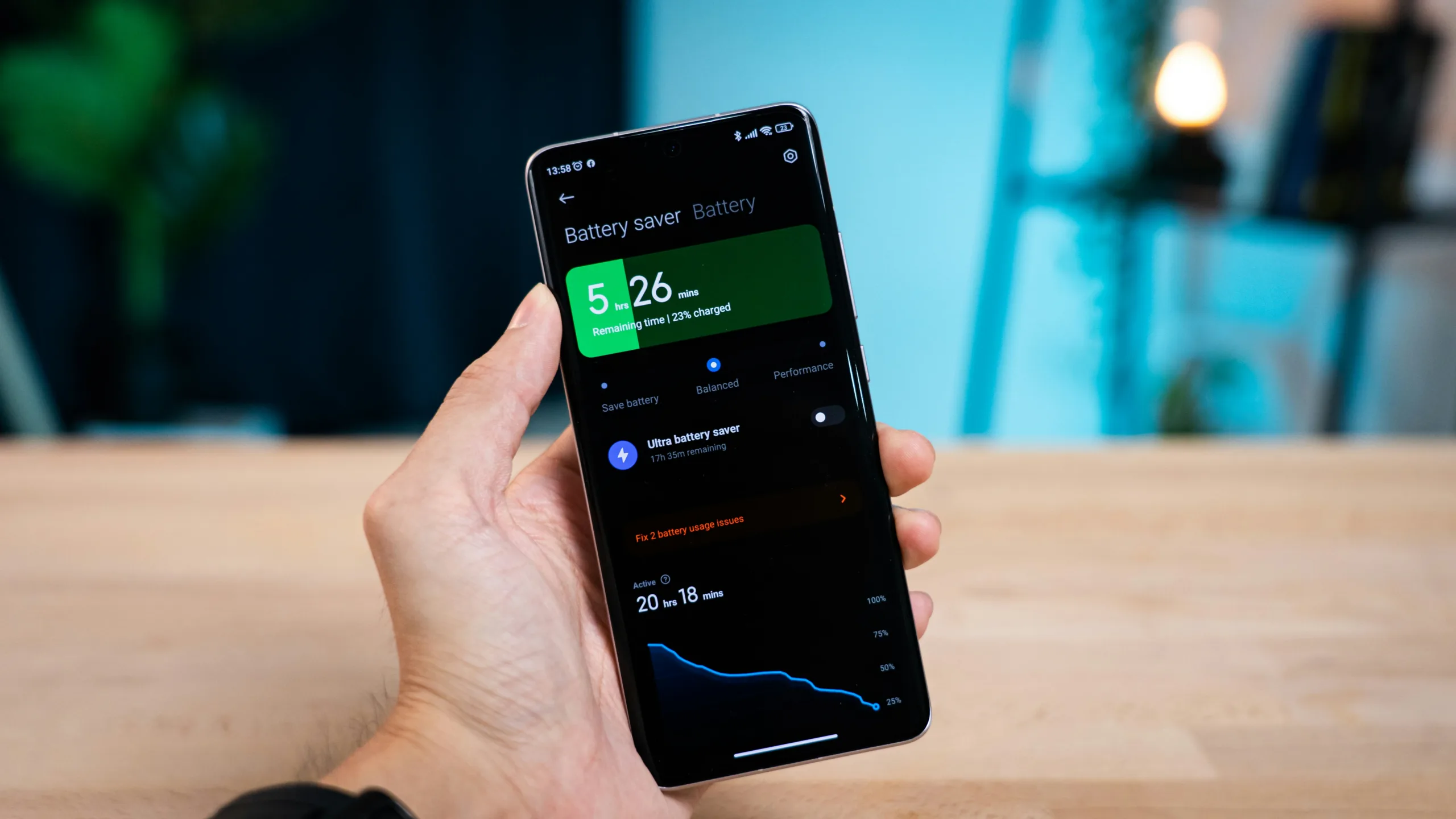
In some situations, users mistake cache-related slowdowns for battery degradation. If your phone is draining unusually fast, it’s worth checking its actual condition using our How to Check Battery Health on Android in 2026 (Samsung, OnePlus, Xiaomi, Pixel, Realme) guide before assuming cache is responsible.
This guide covers how to clear app cache, browser cache, and system cache safely on virtually any Android phone.
What Is Cache and Why Does It Matter?
Cache consists of temporary files that help apps load content more quickly.
For example:
- Instagram stores image thumbnails
- YouTube stores frequently accessed media files
- Chrome stores website assets
- Google Maps stores recently viewed map data
Normally, cache improves performance. Problems begin when cache files become outdated, corrupted, or excessively large.
Common symptoms include:
- Apps taking longer to open
- Random crashes
- Missing storage space
- Websites displaying old content
- Unusual app behaviour after software updates
Clear Cache for a Single App
This is the most useful method because it targets the specific app causing problems.
Step 1
Open Settings.
Step 2
Tap Apps.
Depending on your device, this may appear as:
- Apps
- Apps & Notifications
- Application Manager
Step 3
Tap See All Apps.
Step 4
Select the app causing issues.
Common examples include:
- Chrome
- YouTube
- Snapchat
Step 5
Tap Storage & Cache.
Some phones may simply show Storage.
Step 6
Tap Clear Cache.
The temporary files are removed immediately.
Your:
- Account
- Login information
- Messages
- Photos
- Settings
remain untouched.
Cache vs Data
Many users confuse these two options.
Clear Cache
Removes temporary files only.
Clear Data
Resets the app completely.
Using Clear Data usually logs you out and restores default settings.
For most issues, start with Clear Cache.
How to Clear Cache for All Apps
Stock Android no longer includes a universal “Clear All Cache” button, but there are still easy options.
Method 1: Files by Google
Google’s own cleaning tool remains one of the safest options.
Step 1
Install Files by Google from the Play Store if it’s not already installed.
Step 2
Open the app and tap Clean.
Step 3
Review the recommendations.
Step 4
Tap Clean Junk Files.
This removes temporary cached files across the system without affecting personal data.
Method 2: Storage Settings
Some Android versions still include:
Settings → Storage → Cached Data
If available, tap it and confirm.
Not all manufacturers support this option.
Google’s own Files by Google app remains one of the safest tools for removing temporary files and reclaiming storage without affecting personal data. Users can download it directly from the official Files by Google page.
How to Clear Chrome Browser Cache
Browser cache is separate from app cache.
Clearing Chrome cache inside Android Settings is not enough if you’re trying to refresh website data.
Step 1
Open Chrome.
Step 2
Tap the three-dot menu.
Step 3
Select:
History → Clear Browsing Data
Step 4
Set the time range to:
All Time
for a complete cleanup.
Step 5
Select:
- Cached Images and Files
Optionally select:
- Cookies and Site Data
Keep in mind that clearing cookies logs you out of websites.
Step 6
Tap Clear Data.
For Samsung Internet users:
Menu → Settings → Privacy → Delete Browsing Data
How to Clear System Cache
The Android operating system also stores temporary files known as system cache.
Most users never need to clear it, but it can help after major Android updates if performance suddenly feels unstable.
That said, system cache is not always the cause of poor performance. If your phone slows down mainly during gaming, video editing, or heavy multitasking, overheating could be the real problem. Our How to Stop Thermal Throttling on Android & iPhone (2026): The Pro Guide to Sustained Performance explains why modern smartphones intentionally reduce performance when temperatures rise.
Step 1
Power off your device completely.
Step 2
Enter Recovery Mode.
Common combinations:
Samsung
Volume Up + Power
Xiaomi / Redmi
Volume Up + Power
OnePlus
Volume Down + Power
Google Pixel
Volume Down + Power
Step 3
Navigate using the volume buttons.
Select:
Wipe Cache Partition
Step 4
Confirm the action.
Step 5
Wait for the process to complete.
Step 6
Choose:
Reboot System Now
No personal data is removed.
Only temporary system files are deleted.
Built-In Android Cleaning Tools
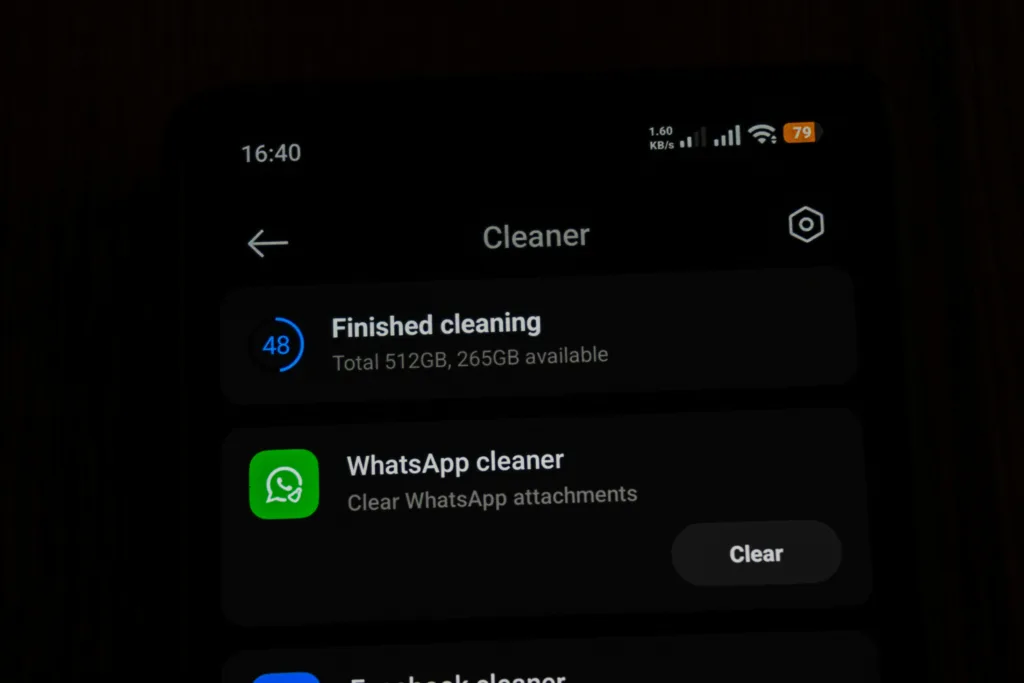
Most Android brands now include their own cleaning utilities.
Samsung
Settings → Battery and Device Care → Storage → Clean Now
Xiaomi / Redmi / POCO
Security App → Cleaner → Scan → Clean Up
OnePlus
Files App → Cleanup
realme
Phone Manager → Cleanup
vivo
iManager → Phone Cleanup
OPPO
Phone Manager → Cleanup
These tools are generally safe because they come directly from the manufacturer.
What You Should Not Clear
Certain system components should usually be left alone.
Avoid routinely clearing:
- Google Play Services
- Google Play Store
- Contacts Storage
- Phone Dialer Data
Doing so can create syncing, notification, and account-related issues.
If you’re unsure, clear only the specific app causing problems.
Important FAQs That You Should Know:
1. Will clearing cache delete my photos or messages?
No.
Cache contains temporary files only.
Your photos, videos, messages, contacts, and accounts remain untouched.
2. How often should I clear cache?
Only when needed.
Regularly clearing cache provides little benefit and may temporarily slow apps down while they rebuild their data.
3. Will clearing cache speed up my phone?
It can help if a specific app’s cache has become corrupted or excessively large.
Clearing cache often fixes app crashes, loading issues, and unusual storage consumption.
However, it won’t magically transform an older phone into a faster device because hardware limitations remain the same.
If battery percentages seem inaccurate or your phone suddenly loses charge after an update, the issue may not be cache-related at all. In that situation, our How to Calibrate Your Phone Battery in 2026: Fix Ghost Drain and Wrong Percentage (Android & iPhone) guide covers common battery reporting problems that can affect overall usability.
4. Does clearing cache free storage space?
Yes.
Depending on how long it’s been since the last cleanup, you may recover anywhere from a few hundred megabytes to several gigabytes of storage.
⚡ TechularZtrix Scan
📌 Bottom Line: Clearing cache remains one of the simplest ways to fix common Android app issues without deleting personal data.
⏱ Difficulty Level: Easy
⌛ Time Required: 2–5 minutes
✅ Best For: Users experiencing app crashes, storage shortages, loading issues, or unusual behaviour after software updates.
🔍 Why It Matters: Cache is designed to improve performance, but when temporary files become corrupted or oversized, they can create exactly the opposite effect.
💡 Best Practice: Clear cache only when needed rather than on a schedule. Target individual problem apps first before attempting broader system cleanup.