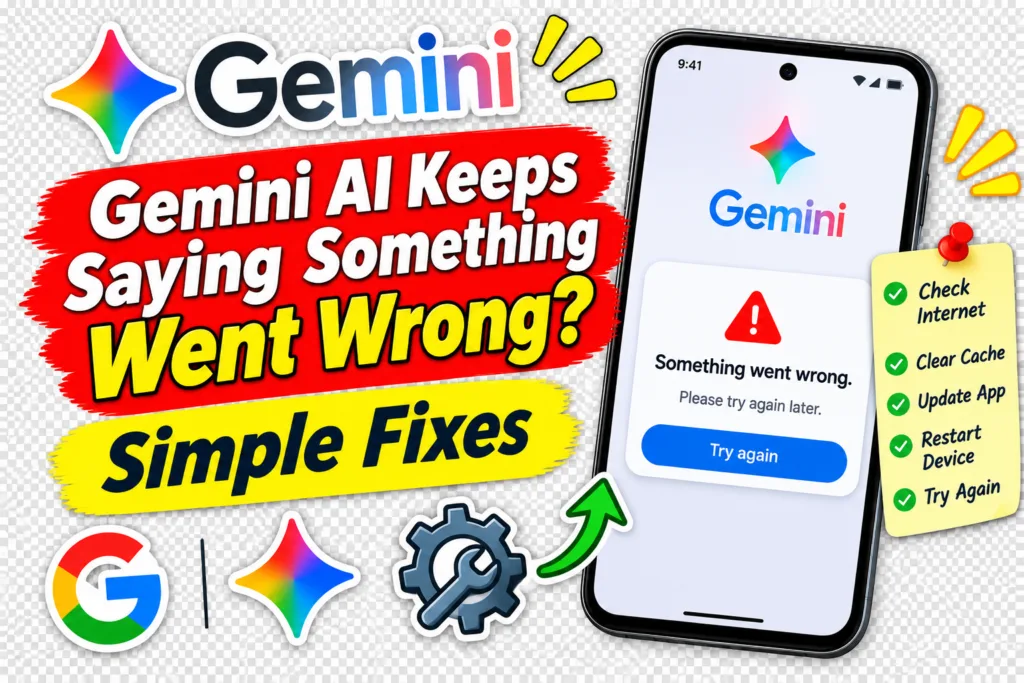
Gemini AI Keeps Saying “Something Went Wrong”? Simple Fixes That Actually Help
Gemini can work perfectly one moment and suddenly display “Something went wrong. Please try again later.” when you submit a prompt. Sometimes the error disappears after another attempt. In other cases, every new request fails, even when your internet connection…
TechularZtrixEDITORIAL DESK · UPDATED
ON THIS PAGE · 17 SECTIONS
Quick Highlights & Key Takeaways
Gemini AI keeps saying “Something went wrong”? The cause can be a temporary service problem, unstable connection, app issue or account restriction.
Starting a new chat can fix errors tied to a particular conversation or prompt.
Removing attachments and retrying with plain text helps identify whether an uploaded file, image or video is causing the failure.
Switching between Wi-Fi and mobile data can reveal whether your connection is interfering with Gemini.
Clearing the Gemini app cache or browser data can help when the problem is limited to one device or browser.
Repeated errors across different devices and networks may point to a Gemini-side issue rather than something you can fix through Android settings.
Gemini can work perfectly one moment and suddenly display “Something went wrong. Please try again later.” when you submit a prompt. Sometimes the error disappears after another attempt. In other cases, every new request fails, even when your internet connection appears normal.
The important thing is not to assume that Gemini is broken or that your phone needs a reset.
Google’s own troubleshooting guidance identifies several possible causes, including temporary processing problems, high demand, connection issues, unsupported attachments and account or availability restrictions.
The most useful approach is to find out whether the error is connected to one prompt, the Gemini app, your browser, your Google account or Google’s service itself.
First, Check Whether Gemini Is Failing on Every Prompt
Before changing settings, try a simple test.
Open a new chat and enter a short text prompt, such as asking Gemini to explain a basic concept in two sentences.
Avoid uploading files, generating images or using voice input during this test.
The result tells you quite a bit:
What happens
What to investigate
New chat works normally
Original conversation or prompt
Text works, file upload fails
Attachment or upload restrictions
Every prompt fails
Connection, app, account or service
Gemini app fails but web works
Mobile app or device
App and web both fail
Account, network or service-side issue
This first test is important because not every Gemini error requires an app-level fix.
Start a New Chat and Retry the Prompt
One of Google’s recommended troubleshooting steps is to start a fresh conversation.
A particular chat can encounter a processing problem, especially when it contains a long history, multiple attachments or complicated instructions.
Open Gemini, select New chat and submit the request again.
If the new conversation works, the issue may have been limited to the original chat rather than your entire Gemini account.
You can also simplify the original prompt.
For example, instead of submitting a long request with several instructions, divide it into smaller requests and test them individually.
This helps identify whether the error is associated with the request itself.
Check Whether an Uploaded File Is Causing the Error
If Gemini works with normal text but fails when you upload a PDF, image or video, investigate the attachment before changing your phone settings.
Google specifically recommends removing attachments and retrying when troubleshooting Gemini errors.
Try this:
Open a new chat.
Submit the same request without an attachment.
If it works, upload the file separately.
Check whether the file type and size meet Gemini’s current upload requirements.
If the plain-text request succeeds but the attachment repeatedly fails, the issue may involve the file format, upload limits or file processing.
Check Whether Gemini Is Experiencing a Service Problem
Sometimes the error has nothing to do with your phone, browser or internet connection.
Gemini can experience temporary service interruptions, elevated error rates or periods of high demand.
Google’s troubleshooting documentation recommends waiting a few minutes and retrying when Gemini encounters unexpected processing problems or high traffic.
A useful way to investigate is to compare:
Gemini on the Android app, Gemini in a browser, and Gemini on another device or network.
If the same error appears across different devices and connections, a service-side problem becomes more likely.
Google also maintains a Workspace Status Dashboard with Gemini incident history. It can help identify reported service disruptions, although it should not be treated as a guarantee that every Gemini consumer-app problem will appear there.
Don’t keep changing your phone settings when the evidence points to a problem on Google’s side.
For example, certain codes indicate an unexpected processing problem, while 1060 can indicate that Gemini Apps may not be available in the user’s country or region.
If you see a numerical code, record it before troubleshooting.
This matters because a region-availability problem cannot be fixed by clearing an app cache or restarting your phone.
Likewise, account eligibility restrictions can affect access to particular Gemini features. Work or school accounts may have different access conditions from personal Google accounts.
Check Account and Feature Restrictions
If Gemini works with basic questions but fails when you try a particular feature, investigate the feature’s requirements.
For example, some requests depend on connected apps, account permissions or access to specific content.
If Gemini says it cannot fulfil a request because it cannot access connected content, check whether the required Connected App is enabled.
If you see a policy or account eligibility message, follow the explanation provided by Google rather than treating it as a general connection error.
A feature restriction and a technical failure are two different problems.
Don’t Reinstall Gemini Immediately
Reinstalling the app may help if the installation itself is damaged, but it should come after simpler tests.
Use this order:
New chat → plain-text prompt → attachment test → network comparison → restart app → clear cache → update app → browser comparison → reinstall if necessary.
This sequence helps isolate the cause without unnecessarily disturbing your device or account setup.
Also, avoid factory-resetting Android because Gemini displays one error message. A factory reset is disproportionate when the problem may be temporary or service-side.
When to Report the Problem to Google
If Gemini continues failing across different networks, new conversations and supported devices, reporting the issue is more useful than repeating the same fixes.
Use the Send feedback or Report a problem option in Gemini.
Include:
The exact error message or numerical error code.
Whether the issue happens in the Android app, browser or both.
Whether a new chat and plain-text prompt also fail.
Your device and app/browser version.
A screenshot of the error, with personal information removed.
This gives Google more useful diagnostic information than a general report saying Gemini is not working.
The Fastest Diagnostic Path
If you want to narrow the problem down quickly, follow this order:
Start a new chat → test a short text prompt → remove attachments → switch networks → restart Gemini → clear app cache or browser data → update the app → test another device → check error codes and service status.
The result matters more than the number of fixes you try.
If a new chat works, investigate the original conversation. If text works but attachments fail, investigate the upload. If the app fails but the browser works, focus on Android. If everything fails across devices and networks, investigate account or service-side issues.
TECHULARZTRIX SCANDIAGNOSTIC MATRIX
Gemini’s “Something went wrong” error doesn’t have one universal fix.
Start with a new chat and plain-text prompt, then separate connection, attachment, app, browser and service-side problems.
Easy to Moderate.
Most checks are straightforward, although browser and account troubleshooting may require a few extra steps.
5–15 minutes
for the initial diagnosis. A temporary Google service issue may require waiting longer.
Best For
Users facing repeated Gemini AI Something Went Wrong errors on Android, Chrome or the Gemini web app, particularly when normal prompts stop generating responses.


 Ai Lab