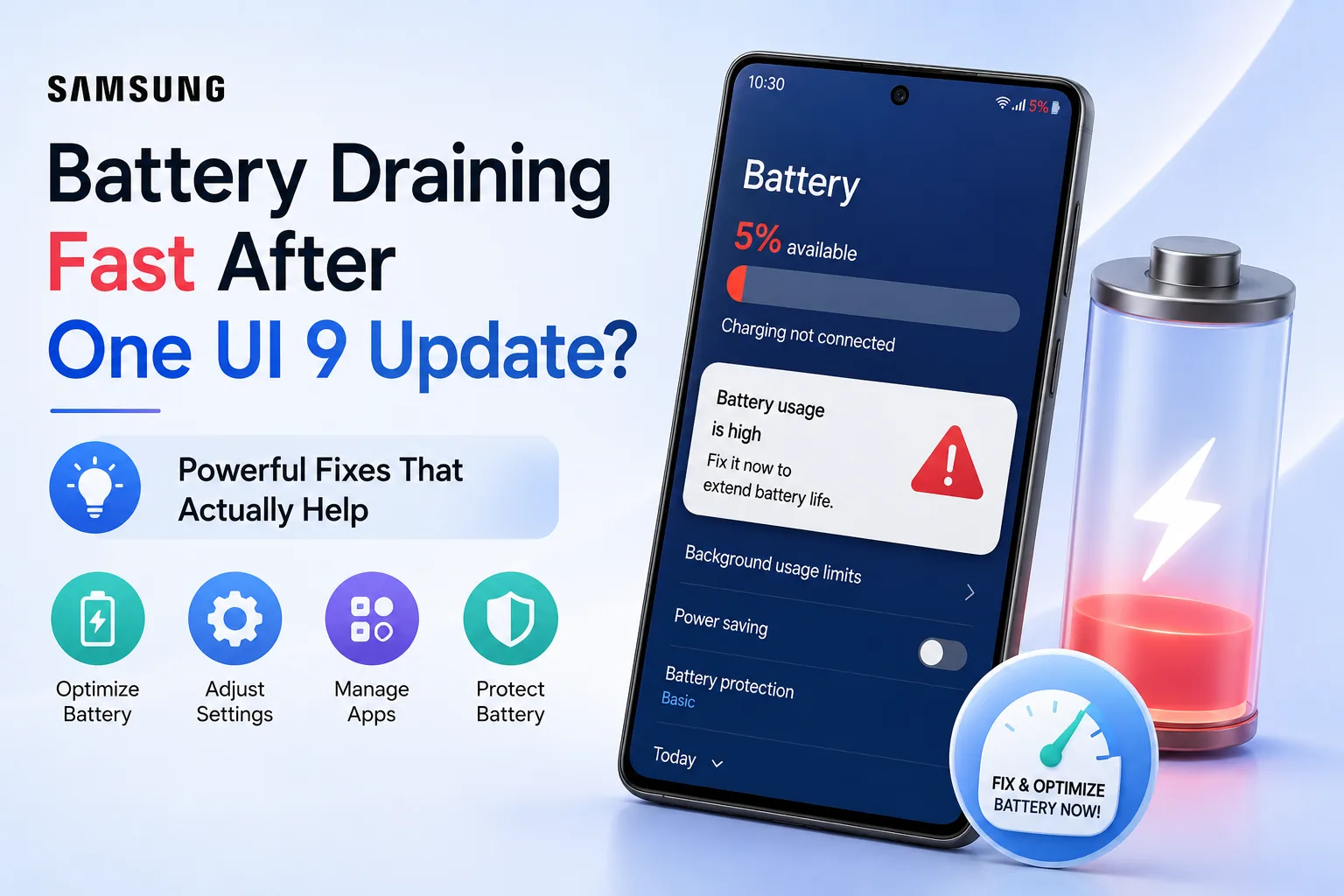
Powerful Fixes for Android Battery Drain After the Latest Update (2026 Guide)
Quick Highlights
Few things are more frustrating than installing a new Android update only to discover your battery suddenly draining faster than before.
We’ve seen this happen after almost every major Android release. Users update their phones, notice the battery percentage dropping unusually quickly, and immediately assume the update is broken. In reality, most post-update battery drain is completely normal and often temporary.
When Android receives a major update, the operating system begins rebuilding caches, re-indexing files, re-optimizing installed applications, and running background maintenance tasks. These processes consume additional power and can make battery life look significantly worse for the first couple of days.
The good news is that genuine battery problems after an update are relatively rare. In most situations, a few simple checks can quickly determine whether you’re dealing with normal post-update behavior or a problem that actually needs attention.
Why This Happens After Every Update
Every major Android update triggers a long list of background tasks that aren’t visible on screen.
The system rebuilds app caches, re-indexes photos and files, optimizes installed applications for the new Android version, performs security scans, and updates various machine-learning models used by the operating system.
All of this activity happens quietly in the background while you continue using the phone.
That’s why many users report battery drain immediately after updating even though nothing appears different on the surface.
Another common cause is app compatibility. Not every developer updates their apps immediately after a new Android release. Some applications continue using older code that may behave inefficiently until an update is released.
If you’ve recently installed Android 17, it’s also worth reviewing Android 17 Settings You Should Change Immediately (2026) because certain default settings can increase background activity after an update.
Step 1 — Give It 48 Hours First
This may sound surprisingly simple, but it’s often the correct solution.
Most post-update battery drain disappears within 24–72 hours as Android finishes its background optimization process.
During this period:
- Continue using the phone normally
- Avoid changing multiple settings at once
- Allow the device to charge fully at least once
- Keep it connected to Wi-Fi whenever possible
Many users spend hours troubleshooting a problem that would have resolved itself automatically after two days.
If battery life remains noticeably worse after 48–72 hours, move to the next step.
Step 2 — Find the App Causing It
If the drain persists, a specific app is often responsible.
Open:
Settings → Battery → Battery Usage
The exact wording varies depending on your phone manufacturer, but every Android device includes some form of battery usage statistics.
Look for:
- Apps consuming unusually high battery
- Apps running heavily in the background
- Apps you haven’t actively used
If you identify a problematic app:
- Check the Play Store for updates
- Install any pending updates
- Force stop the app
- Reopen it normally
Developers often release compatibility fixes shortly after major Android updates, and installing those updates frequently resolves excessive battery consumption.
Step 3 — Clear System Cache
Temporary system files created before the update can occasionally cause inefficiencies afterward.
On devices that still support cache partition clearing:
- Power off the phone
- Enter Recovery Mode
- Select Wipe Cache Partition
- Reboot normally
This process removes temporary system files but does not delete personal data, apps, photos, or messages.
Not all modern Android phones provide this option, but when available it can help resolve lingering performance and battery issues.
Step 4 — Recalibrate Battery Reporting
Sometimes the battery isn’t draining faster at all.
Instead, the battery percentage reporting becomes inaccurate after the update.
This can create the impression that the battery is dropping unusually quickly even though actual battery life remains relatively normal.
The simplest fix is performing one complete discharge and recharge cycle.
For the full process, see How to Calibrate Your Phone Battery in 2026: Fix Ghost Drain and Wrong Percentage (Android & iPhone), which explains how to restore accurate battery percentage readings after major updates.
Step 5 — Check for a Follow-Up Patch
Phone manufacturers are well aware that major Android updates occasionally introduce battery and performance bugs.
Because of this, many brands release follow-up patches within days or weeks of a major rollout.
Check manually:
Settings → System → System Update
Install any available updates.
These smaller patches often contain:
- Battery optimizations
- Performance fixes
- App compatibility improvements
- Thermal management adjustments
Many post-update battery complaints disappear after the first maintenance release.
When to Worry — Signs It’s Not Just the Update
The update may not be responsible if:
- Battery drain started more than a week after updating
- The phone feels unusually hot during normal use
- Battery percentage drops suddenly instead of gradually
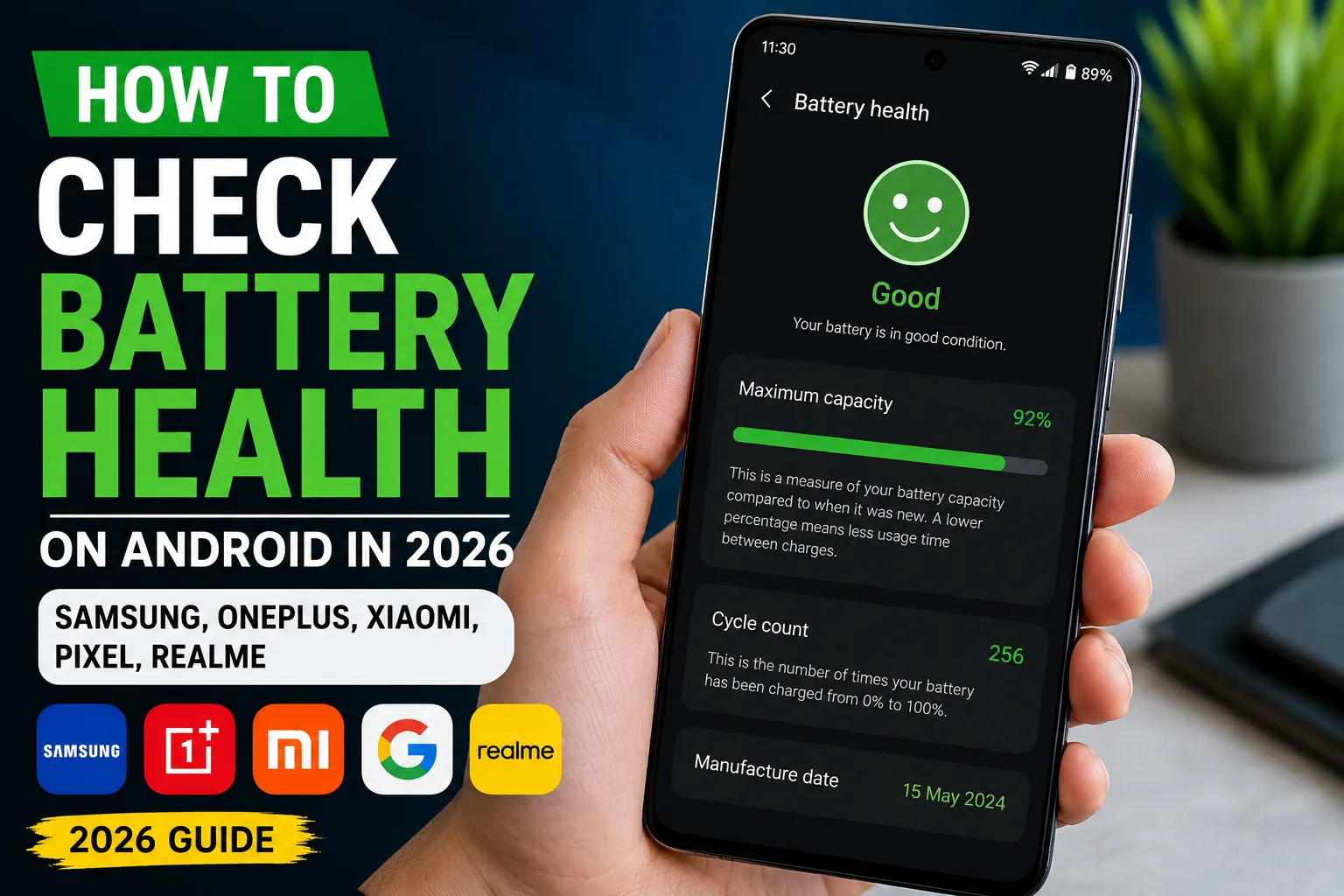
- Battery health is below 80%
- Screen-on time has declined dramatically compared to previous months
At that point, you may be dealing with battery degradation rather than a software issue.
If that’s the case, Silicon-Carbon Phone Battery Guide (2026): Best Charging Settings to Reduce Heat and Protect Battery Health explains how modern smartphone batteries age and what settings help extend long-term battery life.
It’s also worth remembering that larger batteries don’t automatically solve software-related drain. As explained in Why 8,000mAh Phones Are Suddenly Everywhere in 2026, battery capacity has increased dramatically, but optimization still plays a bigger role in real-world endurance.
How to Prevent Battery Problems After Future Updates
A few simple habits can reduce the chances of battery issues after future Android releases:
- Keep apps updated before installing major Android updates
- Charge above 50% before starting the update
- Leave the phone connected to Wi-Fi for several hours after updating
- Install manufacturer follow-up patches promptly
- Avoid installing large numbers of new apps immediately after updating
These small steps give Android time to complete its optimization processes more efficiently.
If none of the fixes above work, checking the Android Help Community can help determine whether other users are experiencing the same update-related battery issue.
⚡ TechularZtrix Scan
📌 Bottom Line: Battery drain immediately after an Android update is usually temporary and caused by background optimization processes. In most cases, battery life returns to normal within a few days without requiring major troubleshooting.
🎯 Best For: Android users experiencing sudden battery drain after installing a system update.
🏆 Biggest Win: Most post-update battery issues can be fixed with simple troubleshooting steps such as identifying problematic apps, clearing system cache, or waiting for Android’s optimization process to finish.
⚠️ Biggest Compromise: Some fixes require patience. Many users expect an instant solution when the most effective fix is often giving the system 24–72 hours to settle.
📈 Why It Matters: Battery complaints are among the most common issues reported after major Android updates, but understanding the difference between normal optimization activity and genuine battery problems can prevent unnecessary resets and wasted troubleshooting time.
🔍 Our Recommendation: Wait at least 48 hours after updating before making major changes. If battery drain continues, check battery usage statistics, update problematic apps, and install any follow-up patches released by your device manufacturer.