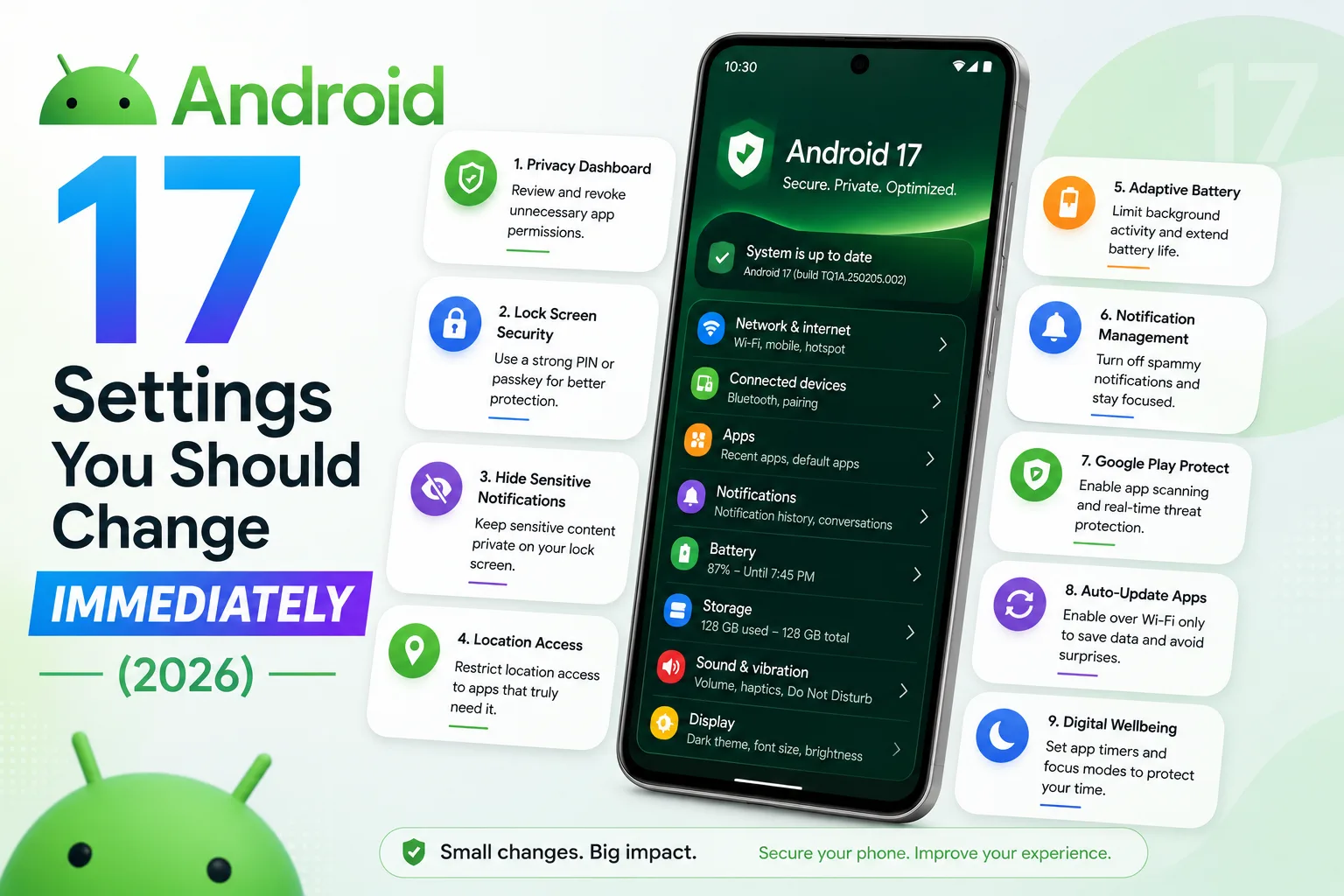
How to Increase Android Battery Life Without Apps (Pro Settings Guide, 2026)
Quick Highlights
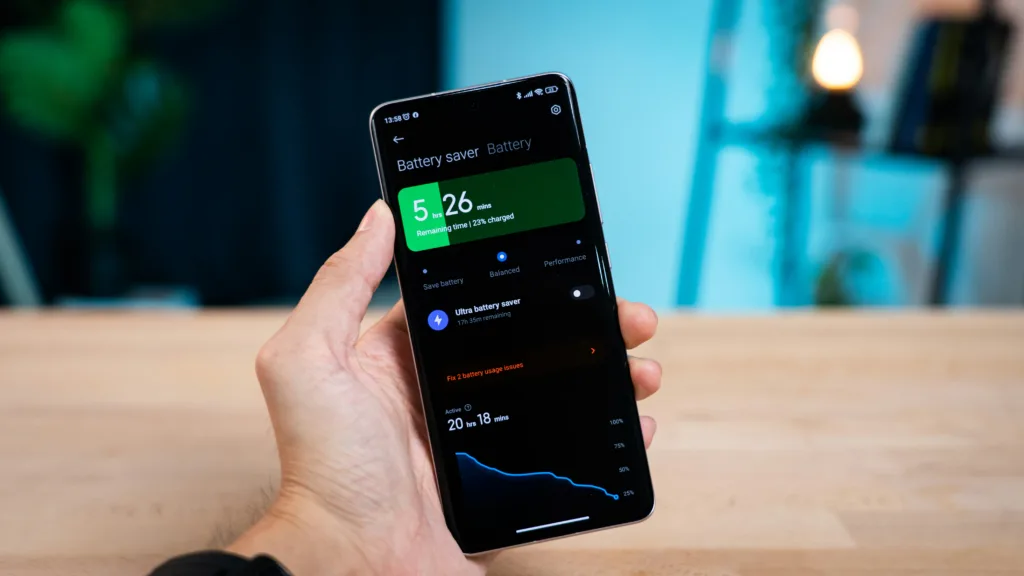
Battery-saver apps are still one of the most downloaded utilities on Android, but in real-world usage, they rarely deliver meaningful improvements. In most cases, Android already includes system-level power management tools that are more effective, more stable, and far more intelligent than any third-party solution.
What we’ve found while testing across multiple devices is simple: most battery issues are not caused by hardware — they come from default settings that were never optimised after setup or updates.
This guide combines explanation + exact steps so you understand why each change matters and how to apply it properly.
Display Settings — Where Most Battery Is Lost
The display is the single largest power consumer on any Android device. Even when you’re not actively using demanding apps, the screen itself continuously consumes energy.
In our testing, reducing refresh rate from 120Hz to 90Hz or Adaptive mode consistently improved battery endurance without affecting usability in a noticeable way. High refresh rates simply force the GPU to render more frames per second, which increases power usage.
Now apply these settings:
- Open Settings → Display
- Reduce Refresh Rate → 90Hz / Adaptive
- Turn OFF Always-On Display (this alone reduces idle drain)
- Enable Adaptive Brightness so the system adjusts lighting automatically
- Turn ON Dark Mode for AMOLED efficiency
- Reduce Screen Timeout → 30 seconds
In practice, this combination reduces unnecessary screen power consumption during idle and light usage periods.
Adaptive Battery — Android’s Hidden Intelligence System
Most users assume battery optimisation requires apps, but Android already does this internally through Adaptive Battery.
What it actually does is learn your usage pattern — which apps you use frequently and which ones you ignore — and then automatically restricts background activity for low-priority apps.
To optimise it manually:
- Go to Settings → Battery
- Enable Adaptive Battery
- Open Apps → Battery Usage
- Set rarely used apps to Restricted mode
We’ve observed that this reduces background wake-ups significantly without affecting daily usage apps like WhatsApp or Instagram (as long as you don’t restrict them).
If you are also experiencing system slowdown along with battery issues, it may be related to post-update optimization — see Why Is My Android Phone Lagging Suddenly? (2026 Fix Guide) for deeper system behavior explanation.
Location Services — The Silent Battery Killer
One of the most overlooked drains in Android is background location access.
Many apps request “Always Allow” permission even when they only need location occasionally. This keeps GPS and network-based tracking active even when the app is not open.
Fix it like this:
- Go to Settings → Privacy → Permission Manager → Location
- Open apps under Always Allowed
- Change to Only while using the app
- Set non-essential apps to Ask every time
In real usage, this alone often creates a noticeable improvement in daily battery stability.
Connectivity Settings — Small Changes, Real Gains
Wireless systems like Bluetooth, NFC, and Wi-Fi scanning constantly run background checks for nearby devices and networks.
Even when you’re not actively using them, they still consume power.
To optimise:
- Turn OFF Bluetooth and NFC when not needed
- Use Wi-Fi instead of mobile data when possible
- Disable Wi-Fi scanning (Settings → Location → Advanced)
This is especially effective in low-signal areas where mobile radios work harder and drain more battery.
For users already dealing with update-related drain, you can also check Powerful Fixes for Android Battery Drain After the Latest Update (2026 Guide) for system-level fixes.
Notification and Sync Behaviour — Hidden Background Load
Every notification triggers system wake cycles. Over time, this becomes a constant background load that reduces battery efficiency.
To control it:
- Reduce sync frequency in Google Account settings
- Disable notifications for non-essential apps
- Keep only critical apps like messaging and banking active
This improves long-term standby battery more than most users expect.
Battery Saver Mode — Use It Strategically
Android’s built-in Battery Saver Mode is far more effective than any external app because it operates at system level.
What it does:
- Reduces background activity
- Limits performance slightly
- Restricts location accuracy when needed
When to use it:
- Below 20% battery
- When you’re away from charging for long periods
When not to use it:
- As a permanent setting (it reduces responsiveness and delays some background tasks)
Visit For official Android battery optimization guidance.
⚡ TechularZtrix Scan
📌 Bottom Line: Android already includes powerful battery optimisation tools — most users just never configure them properly.
🎯 Best For: Anyone wanting longer screen-on time without installing extra apps or third-party battery tools.
🏆 Biggest Win: Display tuning, adaptive battery, and location control together deliver the highest real-world improvement.
⚠️ Biggest Compromise: Some background sync and notifications may be slightly delayed if restrictions are too aggressive.
📈 Why It Matters: Battery issues in Android are usually configuration problems, not hardware limitations — meaning they are fully fixable with the right settings.