Instagram Reels Not Loading on Android? Effective Fixes That Actually Help
Quick Highlights
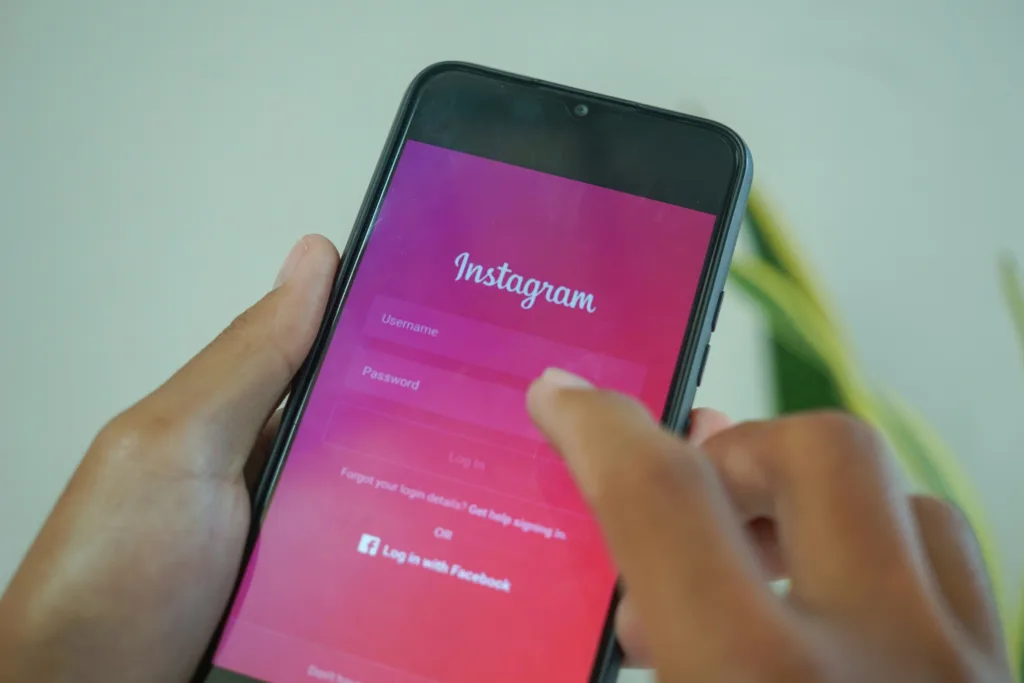
If Instagram Reels are not loading on Android, the problem isn’t necessarily your phone. Reels rely on video delivery, Instagram’s app, your network connection and Android’s handling of the application, so a failure at any one of those layers can leave the Reels feed stuck, show a black screen or prevent videos from starting.
The quickest way to troubleshoot the issue is to first determine whether Instagram itself is working normally. If posts, Stories and direct messages load but Reels remain stuck, you can narrow the problem considerably without resetting the entire phone.
Why Are Instagram Reels Not Loading on Android?
Reels can fail in several different ways.
You might see a spinning loading indicator, a black video area, videos that stop after a few seconds, or a Reels feed that doesn’t refresh.
The cause can include:
Weak network connectivity, corrupted app cache, an outdated Instagram build, Android background restrictions, VPN or DNS interference, insufficient storage, or a temporary Instagram-side problem.
The symptom matters.
If everything on Instagram is slow, investigate the connection and app first.
If only Reels fail while everything else works, focus on Instagram’s video loading, cache, app version and network path.
1. Check Whether Instagram Posts and Stories Load
Before changing anything, open Instagram and check whether regular photos, Stories and direct messages work.
If everything is failing, you may be dealing with a broader Instagram or network issue.
If:
Posts work + Stories work + DMs work + Reels don’t
then the problem is more likely to be specific to video delivery or the Reels feature.
This simple test can save you from changing unrelated Android settings.
2. Switch Between Wi-Fi and Mobile Data
Network problems are one of the first things to eliminate.
If you’re currently using Wi-Fi, turn it off temporarily and test Reels over mobile data.
If you’re using mobile data, try a stable Wi-Fi connection.
If Reels suddenly start working after switching networks, the original connection is a strong suspect.
Also check whether other video services are loading normally.
If YouTube and other streaming services are also struggling, the problem is less likely to be Instagram alone.
3. Turn Airplane Mode On and Off
A quick network reset can sometimes resolve a temporary connection problem.
Turn Airplane mode on, wait a few seconds, and then turn it off again.
Reconnect to Wi-Fi or mobile data and open Instagram.
This is a simple diagnostic step rather than a permanent fix, but it can help when the phone has temporarily lost a stable network connection.
4. Update Instagram
Open the Google Play Store, search for Instagram and check whether an update is available.
Video features can be particularly sensitive to application bugs and compatibility problems, so running the latest available build should be one of the first checks.
This is also important if Reels stopped working recently.
An app update may contain a fix without requiring any Android setting changes.
5. Force Stop Instagram
If Instagram is stuck with an old Reels session, completely stop the application and open it again.
Go to:
Settings → Apps → Instagram → Force stop
Then launch Instagram.
This does not remove your account or posts. It simply terminates the current app process.
If Reels begin loading normally afterward, the problem may have been a temporary app-state issue.
6. Clear Instagram’s Cache
A corrupted or problematic cache can cause media-heavy parts of an application to behave strangely.
Open:
Settings → Apps → Instagram → Storage
Then choose:
Clear cache
Afterward, reopen Instagram and test several Reels.
Clearing the cache is preferable to clearing all app data at this stage because it removes temporary files without performing the same level of reset.
If the problem disappears after clearing the cache, don’t change any other settings unless the problem returns.
7. Check Whether Your Phone Has Enough Free Storage
Video-heavy applications need sufficient storage for temporary files and other operations.
Check your Android phone’s available storage.
If you’re nearly out of space, remove unnecessary downloads, large videos, unused applications or duplicate files.
You don’t need to free dozens of gigabytes.
The purpose is simply to prevent a critically full device from contributing to application instability.
If Instagram is crashing as well as failing to load Reels, storage becomes even more worth checking.
8. Disable VPN Temporarily
A VPN can change how applications connect to online services.
If you use a VPN, disconnect it temporarily and test Reels again.
If Reels suddenly start working, the problem may involve the VPN’s routing, server location or network configuration.
That does not mean you need to stop using a VPN permanently.
It means you’ve identified another variable worth investigating.
9. Check Private DNS
Android’s Private DNS setting can affect how domains are resolved.
If you have configured a custom DNS provider, temporarily switch back to the default setting and test Instagram.
The exact menu can vary by Android manufacturer, but it is commonly found under:
Settings → Network & internet → Private DNS
On Samsung and other manufacturer interfaces, the route can be different.
This is an advanced check and shouldn’t be your first step. Use it when standard network troubleshooting hasn’t helped and you’re using a custom DNS configuration.
10. Check Instagram’s Mobile Data and Battery Settings
Android manufacturers can restrict how applications use background data and battery.
Review Instagram’s settings under:
Settings → Apps → Instagram
Look for options related to Mobile data, Battery or Background activity.
Make sure Instagram isn’t subject to an unusually restrictive configuration.
This matters more when Reels work only while Instagram is freshly opened or when the app behaves differently after being in the background.
Don’t disable every battery restriction on the phone just because Reels are slow.
The aim is to check whether Instagram itself has been restricted.
11. Check Instagram’s Data Usage Settings
Instagram has settings designed to reduce mobile data usage.
If you have enabled aggressive data-saving behaviour, video loading may be affected depending on the connection and content.
Review Instagram’s relevant data usage or media quality settings and test whether changing them affects Reels.
This is especially useful if:
Reels load on Wi-Fi but struggle on mobile data.
That pattern points more strongly toward network or data-management settings than the Android display or storage system.
12. Turn Off Battery Saver Temporarily
If your Android phone is operating in an aggressive battery-saving mode, background activity and network behaviour can be restricted.
Temporarily turn off Battery Saver/Power saving and test Reels.
If playback immediately improves, the power-saving configuration may be contributing to the problem.
Don’t leave unnecessary performance restrictions disabled forever.
Instead, use this as a diagnostic test.
13. Restart the Phone
If you’ve updated Instagram, changed network settings or cleared the cache, restart the phone before moving into deeper troubleshooting.
A restart resets temporary system processes and gives Instagram a clean application environment.
Then open Instagram and test several different Reels rather than only one.
If one video fails while others load, the problem may be related to a specific piece of content rather than the entire Reels system.
14. Test Different Reels
This is an easy diagnostic step that can reveal whether the issue is universal.
Open several Reels from different creators.
If:
One Reel fails but others play normally
the problem may be specific to the content or its delivery.
If:
Every Reel stays stuck
the issue is much more likely to involve the application, network or Instagram service.
This distinction is particularly useful before reinstalling the app.
15. Check Your Android Software Version
If Reels started failing after a major Android or One UI update, check whether another system update is available.
Go to your phone’s software-update settings and install an available update when appropriate.
Application compatibility can change after major platform updates.
This is also relevant for Samsung users because the company can introduce changes through One UI updates. Our article Samsung Opens One UI 9 Beta for Galaxy S26 Series Ahead of Wider Rollout provides context on Samsung’s wider One UI 9 development and rollout.
16. Clear Instagram’s Data Only as a Deeper Step
If clearing the cache has done nothing, you can consider clearing Instagram’s app data.
Go to:
Settings → Apps → Instagram → Storage → Clear data
But understand the difference.
Clearing data can reset the application’s local state and may require you to log in again.
Make sure you know your Instagram credentials before using this option.
Because it is more disruptive than clearing the cache, I would use it only after the simpler fixes have failed.
17. Reinstall Instagram
A clean reinstall is the next logical step when the app installation itself may be damaged.
Uninstall Instagram, restart the phone if appropriate, then reinstall the latest version from Google Play.
After signing in, test Reels before changing other settings.
If Reels work after the reinstall, something in the previous application installation or stored state was likely contributing to the problem.
18. Test Instagram in a Browser
Open Instagram through your mobile browser and try accessing the relevant content there.
This isn’t a replacement for the Android app, but it is a useful diagnostic.
If Instagram’s web experience works while the Android application cannot load Reels, the problem is more likely related to the application installation or Android environment.
If the same content fails across both, investigate the network or Instagram service instead.
19. Consider Whether Instagram Is Having a Wider Problem
Sometimes the problem isn’t your device.
If Reels suddenly stop loading for many users at the same time, local troubleshooting won’t fix a server-side problem.
Look for other signs:
Posts failing to refresh, Stories not loading, messages taking unusually long, or Instagram behaving strangely across multiple devices.
You can also ask someone you trust whether Instagram is working normally for them at the same time.
If the service itself is experiencing problems, the sensible response is to wait for the underlying issue to be resolved rather than continually reinstalling the application.
20. What If Reels Load but Buffer Constantly?
Constant buffering is different from a complete failure to load.
Start with the network.
Try another Wi-Fi connection or mobile data.
If possible, test from a location with a stronger cellular signal.
Also check whether other video applications are buffering.
If everything is buffering, Instagram probably isn’t the only problem.
If only Instagram struggles while other streaming services work normally, focus on Instagram’s app state, cache, data settings and possible service-side issues.
21. What If Instagram Crashes When Opening Reels?
If the entire application closes as soon as you open Reels, use the troubleshooting sequence from our earlier article Instagram Crashing on Android? Practical Fixes That Actually Help.
The most relevant steps are:
Update Instagram → force stop → clear cache → restart → check storage → reinstall.
A Reels-specific crash is still an app crash, so there is no need to jump straight to unrelated Android system resets.
22. What If Reels Work on Wi-Fi but Not Mobile Data?
This is one of the strongest clues you can get.
If Reels are consistently fine on Wi-Fi but fail on mobile data, examine:
Mobile signal strength → mobile data settings → Data Saver → VPN → Private DNS → network restrictions.
Your carrier’s network may also be contributing.
Test from another location if possible.
If Reels suddenly work somewhere with a stronger signal, the problem may be network quality rather than Instagram itself.
When Should You Contact Instagram?
If you’ve updated the app, tested multiple networks, cleared the cache, checked Android restrictions and reinstalled Instagram, but Reels still fail consistently, you’re approaching the point where further local troubleshooting has diminishing returns.
At that stage, report the problem through Instagram’s built-in reporting process.
Describe the issue precisely:
Instagram Reels fail to load on Android, while posts and Stories work normally.
Include your phone model, Android version, Instagram version and the steps that reproduce the problem.
That gives Instagram more useful information than a general report that the application isn’t working.
Read Next
If the problem is actually that Instagram itself keeps crashing, rather than Reels simply refusing to load, our Instagram Crashing on Android? Practical Fixes That Actually Help guide covers the broader application troubleshooting process.
If you’re experiencing broader Android app instability at the same time, How to Fix “System UI Isn’t Responding” or App Crashing Errors on Android (2026 Guide) covers problems that go beyond Instagram.
If your phone is also draining battery unusually quickly, Samsung Battery Draining Fast After One UI 9 Update? Powerful Fixes That Actually Help explains how to identify battery-hungry apps, background activity and network-related drain.
And if you regularly find too many Android apps running in the background, How to Stop Background Apps on Android Permanently (2026 Method) goes deeper into background activity and app-management options.
TechularZtrix Scan
📌 Bottom Line
When Instagram Reels aren’t loading on Android, start with the network, Instagram update and app cache before moving to deeper fixes. Switching networks is one of the fastest ways to determine whether the problem is local to your connection.
🎯 Target Audience
This guide is for Android users whose Instagram Reels are stuck loading, showing a black screen, buffering constantly or failing to start while other parts of Instagram may still work.
🏆 Biggest Win
The most useful diagnostic is comparing Wi-Fi and mobile data and checking whether other Instagram features work normally.
That quickly separates network-wide problems from Reels-specific issues.
⚠️ Biggest Compromise
Reels depend heavily on Instagram’s own video-delivery systems. If there is a temporary service-side problem, changing Android settings repeatedly will not solve it.
📈 Why It Matters
Instagram is increasingly a video-first platform, so a Reels problem can make the entire app feel broken even when posts, Stories and messaging continue working.
Understanding the difference between app problems, network problems and service-side problems can save considerable troubleshooting time.
🔍 What Happens Next
If Reels continue failing after updating Instagram, changing networks, clearing the cache and reinstalling the app, report the problem with detailed device and software information. At that point, a future Instagram update or service-side fix may be more relevant than another Android setting change.