How to Use AI to Summarize PDFs on Mobile: Free Tools and Best Methods
Quick Highlights
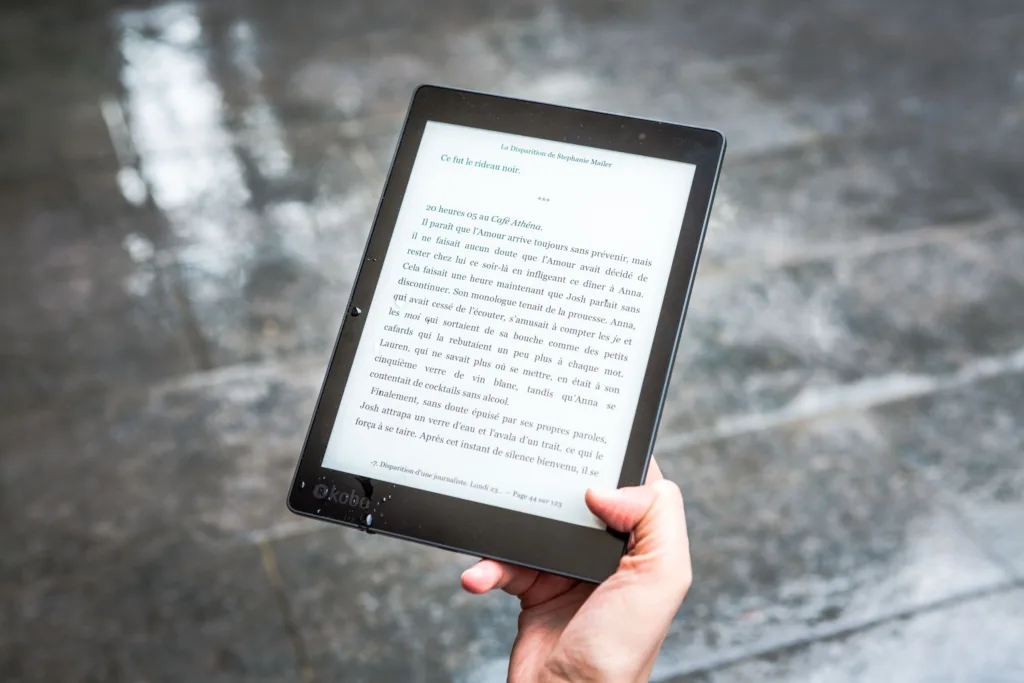
Reading a 50-page report, research paper or business document on a phone is rarely convenient. Even when the information matters, scrolling through every page just to find the main argument, important figures or final recommendations can take much longer than expected.
That is where AI PDF summarization becomes useful.
Instead of manually reading the entire document first, you can upload a PDF to a compatible AI service and ask it to explain the document in a shorter form. On mobile, that can turn a long report into a few paragraphs, key points or answers to specific questions.
The important part is choosing the right tool and giving it a useful instruction. A generic request such as “summarize this” can produce a summary that is technically correct but not especially useful. A more specific prompt can tell the AI exactly what information you need.
For this guide, we’re focusing on free or free-to-use options available on mobile, while being clear that usage limits and premium features can change.
What Can AI Actually Do With a PDF?
A good PDF AI tool can do more than produce a shorter version of the document.
You can ask it to identify the main argument, extract important dates, explain technical sections, list recommendations, compare information within the document or answer specific questions about the file.
That makes AI particularly useful for:
Research papers, study material, business reports, manuals, meeting documents, product documentation and long articles.
However, summarisation is not the same as verification.
AI can misunderstand a sentence, miss an important qualification or simplify a conclusion too aggressively. For anything involving legal, financial, medical or other high-stakes information, use the summary as a reading aid and verify important claims against the original document.
Before You Upload a PDF, Check Its Privacy
This is the step people often skip.
A PDF can contain much more sensitive information than a normal web page. It might include a contract, invoice, academic record, internal company document or personal correspondence.
Before uploading a file, consider whether you’re comfortable sending its contents to a cloud-based AI service.
For private documents, check the provider’s current privacy and data-handling terms before uploading.
Also avoid assuming that because a tool is free, it is suitable for every document.
For ordinary public reports and study material, the risk is usually easier to manage. For confidential business or personal documents, take a more cautious approach.
1. Google Gemini: Best for Quick Questions About a PDF
For Android users already using Gemini, this is probably the easiest place to start.
Google’s current Gemini Apps help documentation says you can upload documents from the Gemini mobile app or the Gemini web app and ask for summaries, answers and insights. On Android, you can tap the file-attachment option, select a document from your device and submit your prompt. Google currently says Gemini can accept up to 10 files per prompt, subject to availability, while non-video files can be up to 100MB each.
How to summarize a PDF with Gemini
Open the Gemini app on your Android phone.
Tap the option to add a file, choose your PDF and wait for the document to finish uploading.
Then give Gemini a specific instruction.
For example:
Summarize this PDF in five key points and include the main conclusion.
Or:
Explain this report in simple language and identify the three most important findings.
You can then continue asking questions about the same document.
That is where Gemini becomes more useful than a basic summary generator. Instead of generating one fixed summary, you can use the PDF as the starting point for a conversation.
A better Gemini prompt
A weak prompt:
Summarize this PDF.
A better prompt:
Give me a 200-word summary of this PDF. Focus on the main problem, key findings, important numbers and final conclusion. Ignore the references section.
The second instruction gives the AI a clearer target.
Best use case
Gemini is particularly useful when you want to ask questions about a PDF rather than simply shorten it.
Students can ask for explanations of difficult sections. Professionals can ask for key recommendations. Readers can ask where a particular topic is discussed.
And because Gemini is already part of Google’s broader AI ecosystem, it is a convenient option for Android users who already use it regularly.
For readers interested in troubleshooting Google’s AI tools themselves, our Gemini AI Not Responding on Chrome? Reliable Fixes for 2026 guide covers the browser side of the Gemini experience.
2. Adobe Acrobat: Best for Document-Focused Summaries
Adobe Acrobat takes a more traditional document-first approach.
Adobe’s current mobile documentation says Acrobat can generate AI-powered summaries of PDFs on Android and iOS, with concise overviews, section summaries and links that let users jump back to the relevant source content.
That source connection is important.
A summary is more useful when you can quickly check where the information came from.
How to summarize a PDF in Acrobat on mobile
Open the PDF in the Acrobat mobile app.
Select Generative summary from the top menu.
Acrobat then generates a summary of the document.
You can review the key points and use the numbered references to jump back to the source content inside the PDF. Adobe also provides options for changing summary length and format, depending on the available interface.
You can then copy or share the generated summary.
Ask follow-up questions
Acrobat also includes AI Assistant, which allows you to ask questions about the document rather than stopping at the initial summary.
For example:
What are the main recommendations in this report?
Or:
Which section discusses the company’s revenue forecast?
Adobe says AI Assistant responses can include numbered source links that take you back to the relevant part of the document.
That makes Acrobat particularly useful when the document is something you may need to verify rather than merely skim.
There’s also a free online option
Adobe currently provides a free online AI summary generator where users can upload supported documents and generate a summary. Adobe says uploaded files are handled on its servers and are deleted unless you sign in to save them.
That can be useful when you don’t want to install another application.
Best use case
Acrobat is the stronger choice when you care about reading, summarising and checking a PDF as a document, rather than simply asking a general AI chatbot questions.
3. Microsoft Copilot: Another Simple PDF Option
Microsoft Copilot is another option for users who already have the app or prefer Microsoft’s AI ecosystem.
Microsoft’s current support documentation says Copilot can accept PDF files and analyse them to provide insights and answers. The upload process is straightforward: select the file attachment option, choose your document and then ask Copilot what you want to know.
Microsoft also currently describes Copilot Free as a no-cost option for general AI tasks, with file uploads available subject to capacity and limits.
How to summarize a PDF with Copilot
Open Copilot on your phone.
Start a new conversation and use the Add images or files option.
Select your PDF and wait for the upload to finish.
Then ask for a summary.
A useful prompt is:
Summarize this PDF in five short sections. Highlight the most important facts, recommendations and conclusions.
You can then ask follow-up questions about the uploaded document.
Microsoft currently documents support for PDF uploads and says files can be analysed for insights and questions.
Best use case
Copilot makes sense if you’re already using Microsoft’s ecosystem and want a general-purpose AI assistant that can also work with uploaded documents.
Which Free PDF AI Tool Should You Use?
You don’t need all three.
| Tool | Best for | Main advantage |
|---|---|---|
| Google Gemini | Quick summaries and questions | Easy conversational PDF analysis |
| Adobe Acrobat | Serious PDF reading | Source-linked summaries and document context |
| Microsoft Copilot | General AI + files | Simple PDF upload and follow-up questions |
For a quick study session, Gemini is the easiest starting point.
For a long report where you want to verify where an answer came from, Acrobat is more compelling.
For users already working inside Microsoft’s ecosystem, Copilot is a convenient alternative.
How to Get a Much Better AI PDF Summary
The quality of the output depends heavily on what you ask for.
Instead of requesting a generic summary, tell the AI what matters.
Try:
Summarize this PDF in 10 bullet points. Focus on the conclusions and recommendations.
For study material:
Explain this PDF in simple language, then give me five questions I should be able to answer after reading it.
For a research paper:
Summarize the research question, methodology, major findings, limitations and conclusion.
For a business report:
Extract the key performance figures, risks, recommendations and final decision points.
For a long technical document:
Explain the document section by section in plain English. Keep technical terms but define them when necessary.
These prompts reduce the chance of receiving a vague summary that leaves out the information you actually needed.
Don’t Ask AI to Summarize Everything at Once
A very long document can contain different sections with very different levels of importance.
Instead of asking for one enormous summary, start with:
Give me the overall structure of this PDF.
Then ask:
Which three sections are most important?
After that, ask the AI to explain those sections individually.
This two-stage approach often produces a more useful result because you first understand what the document contains before deciding which parts deserve deeper attention.
How to Check Whether an AI Summary Is Trustworthy
Never judge a summary only by how confidently it is written.
Compare important claims against the PDF.
Look especially carefully at:
Numbers, dates, names, conclusions, recommendations and statements containing conditions or exceptions.
A summary can be broadly accurate while still omitting an important qualification.
This is one reason source-linked tools such as Acrobat can be useful: you can jump from an AI response to the relevant part of the original document. Adobe specifically documents this source-linking behaviour in its current Acrobat AI tools.
For important documents, treat AI as a fast reading assistant, not the final authority.
What If the PDF Is Scanned?
This is another important limitation.
Not every PDF contains normal selectable text. Some are essentially images of printed pages.
When the document is scanned, the AI tool may need to interpret the page visually or use text recognition before it can summarise the content accurately.
If the tool struggles with the file, look for an OCR or text-recognition option or try a version of the PDF containing actual selectable text.
Also be especially careful with tables, charts and unusual layouts. A summary can miss information that is visually presented rather than written in ordinary paragraphs.
Can AI Summarize a PDF Offline?
Generally, you should assume that the AI services discussed here require an online connection for their cloud-based analysis.
Uploading the PDF means the service needs to receive and process the document.
That is another reason privacy deserves consideration before uploading sensitive files.
For confidential documents, a local or enterprise-approved tool may be more appropriate than a consumer cloud service.
A Simple Mobile Workflow
For most readers, the easiest approach is:
Open the PDF → upload it to your chosen AI tool → ask for a focused summary → ask follow-up questions → verify important claims against the original document.
That’s all you need.
You don’t need five different AI applications installed on your phone.
Choose one service that fits the way you normally read documents and build a small set of prompts around it.
Read Next
If you’re troubleshooting another Chrome-based service, WhatsApp Web Not Syncing on Chrome? Complete Troubleshooting Guide for 2026 covers a similar process for separating browser, site-data, extension and network problems.
For an Android app that refuses to play media, YouTube App Not Playing Videos on Android? Reliable Fixes That Actually Help takes the same diagnostic approach but focuses on Android’s app and network layers.
If your troubleshooting started because the phone is also losing battery unusually fast, Why Your Phone Battery Drains Overnight (Android Fix, 2026) covers common causes of background battery drain.
TechularZtrix Scan
📌 Bottom Line
AI PDF summarization can save substantial reading time on mobile, but the best results come from asking focused questions rather than simply saying “summarize this.” Gemini is the easiest general-purpose option, while Acrobat is particularly useful when you want document-grounded answers and source references.
⏱ Difficulty Level
Easy.
All three options follow a simple upload-and-ask workflow, although individual menus and limits can change as the services are updated.
⌛ Time Required
2–10 minutes for a basic summary, depending on the PDF size and the service.
A detailed question-and-answer session can take longer but may save considerably more reading time on a long document.
✅ Best For
This guide is best for students, professionals and everyday Android users who need to understand long PDFs quickly without sitting through the entire document on a small screen.