
Phone Heating While Charging? Simple Checks Before It Becomes a Problem
Quick Highlights
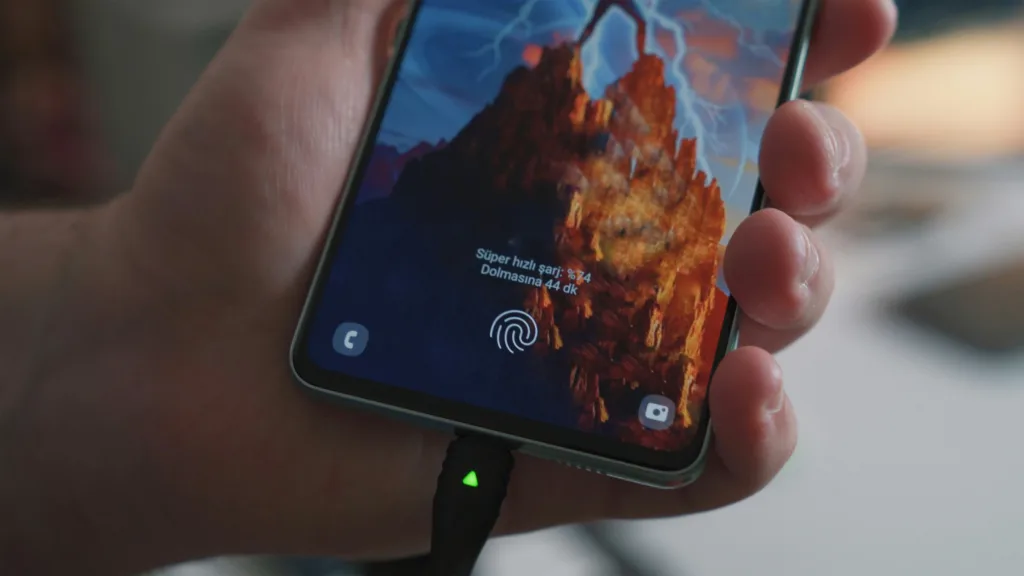
A warm phone during charging isn’t automatically a sign that something is wrong. Charging itself generates heat, and that can become more noticeable with fast charging, wireless charging or heavy phone usage at the same time.
The important distinction is between a phone that feels slightly warm and one that becomes uncomfortable to hold, repeatedly gets much hotter than usual, or starts changing its charging behavior.
Samsung’s current guidance says some heat during charging is normal, but recommends disconnecting the charger and allowing the device to cool if it becomes excessively hot. Android’s own battery guidance also warns against overheating because sustained heat can increase battery drain and affect battery health.
When Charging Heat Is Normal
There are several situations where your phone may naturally feel warmer than usual.
Fast charging can produce more noticeable heat because the phone is accepting power at a higher rate. Wireless charging can also feel warmer than ordinary wired charging, particularly when the charging pad and phone are not dissipating heat efficiently. Samsung specifically notes that temperature can rise during fast and wireless charging and that charging speed may automatically reduce when the device gets too warm.
Heat can also rise when you’re doing something demanding while the phone is charging.
Playing a graphics-heavy game, streaming video, using navigation, recording video or downloading large files all increase processor and network activity. Adding charging on top of that creates another source of heat.
So the first question isn’t simply “Is my phone warm?” It is “Is anything else making the phone work hard while it charges?”
Stop Using the Phone While It Charges
This is the first practical test because it removes one of the biggest variables.
Close demanding apps, turn the screen off and leave the phone alone for several minutes while charging.
If the phone stays much cooler under the same charger, the heat may be largely related to combined charging and usage, rather than a charger or battery fault.
Samsung specifically recommends avoiding intensive activities such as gaming, streaming and browsing while charging when the device is getting hot.
This is also why repeatedly testing the charger while playing a game can give you the wrong diagnosis.
Check the Charger and Cable
If your phone has recently started heating more than usual, inspect the charging accessories before changing Android settings.
Look for a cable with frayed insulation, bent connectors, loose connections or visible damage. Also check whether the adapter is damaged or unusually hot.
Samsung recommends using compatible or approved chargers and cables, and warns that damaged or incompatible accessories can contribute to abnormal charging behavior and heat.
You don’t necessarily need to buy a new charger immediately.
First, test the same phone with another known-good compatible charger and cable.
If the temperature difference is obvious, the charging accessories become a much stronger suspect.
Watch the Charging Port
Heat concentrated around the USB port deserves more attention than general warmth across the back of the phone.
A damaged cable, contaminated connector or charging-port problem can create unstable charging and localized heat.
Don’t try to scrape debris out with metal objects. Check the port visually and, when the phone is disconnected and cool, follow the manufacturer’s cleaning guidance rather than improvising a repair.
Remove Heat Traps Around the Phone
Your phone needs a way to release the heat it generates.
Charging underneath a pillow, inside bedding, in a bag or in another enclosed space can make heat build up faster. Direct sunlight and a hot room can have the same effect.
Samsung’s current overheating guidance specifically warns against charging or using the device in hot or enclosed environments and advises avoiding prolonged contact with the phone, charger or connected accessories while they are powered.
For a simple test, charge the phone on a hard, open surface at normal room temperature.
That gives you a much cleaner picture of how much heat the phone itself is producing.
Check the Phone Case
A case isn’t automatically a problem.
However, a thick protective case can reduce heat dissipation, particularly during wireless charging or when the phone is already warm.
Try one charging cycle without the case.
If the phone is noticeably cooler, especially while using a fast or wireless charger, the case may be contributing to the heat buildup.
This doesn’t necessarily mean you need to stop using the case permanently. The more useful takeaway is that airflow and heat dissipation matter more when charging at higher power.
Wireless Charging Needs a Separate Check
Wireless charging has a few additional variables that wired charging doesn’t.
Make sure the phone is positioned properly on the charging pad and that there are no metal objects, magnets or cards between the phone and the charger.
Samsung warns that foreign objects between the phone and wireless charger can contribute to heating. It also notes that a case can sometimes contribute to heat because it confines the device.
If wireless charging consistently makes the phone much hotter than wired charging, compare both methods under similar conditions.
That test is more useful than assuming wireless charging itself is defective.
Check Whether Charging Is Also Getting Slower
Heat and charging speed can be connected.
Modern phones can reduce charging power or temporarily stop charging when temperatures move outside a safe operating range. Samsung documents automatic charging-speed reduction and protective charging limits when the device becomes too hot.
That means slow charging plus unusual heat is more informative than warmth by itself.
For example, if your phone used to charge normally but now becomes very hot and takes much longer to reach the same battery level, investigate the charger, cable, charging environment and device condition rather than assuming the battery simply needs more time.
Check Battery and Background Activity
Sometimes the charger isn’t the main reason the phone is warm.
An app running heavily in the background can keep the processor active while the phone is charging.
Look through your phone’s battery usage screen and check whether one app has suddenly started consuming much more power than expected.
On Samsung Galaxy devices, Device care can also help identify background activity and optimise system resources. Samsung recommends checking background usage and using power-saving features when managing heat.
This matters particularly when the phone stays warm even after the screen is off.
For broader battery-related symptoms, Why Your Phone Battery Drains Overnight (Android Fix, 2026) is the more useful next step.
Restart the Phone Before Going Further
A restart is worth trying when the heating problem appeared suddenly.
It clears temporary software activity and can stop an app or background process that has become stuck.
After restarting, don’t immediately launch games, social apps or other demanding services. Connect the charger under normal conditions and see whether the same heat pattern returns.
If the phone remains noticeably cooler after the restart, software activity may have been contributing to the problem.
Keep the Software Updated
Software updates can include system optimisations, battery improvements and fixes for device-specific problems.
That doesn’t mean an update will automatically solve charging heat, but an overheating problem that begins after a software change should be monitored rather than dismissed.
Also keep frequently used apps updated, particularly if one application appears to keep the phone active while charging.
For Galaxy users, Samsung’s current guidance specifically includes keeping software and apps up to date as part of heat management.
When You Should Stop Charging
If the phone becomes uncomfortably hot, don’t keep experimenting with different settings while it remains connected.
Unplug the charger, close running apps and allow the phone to cool naturally before trying again. Samsung gives this as the immediate response when excessive heat occurs during charging.
Don’t put a hot phone into a freezer or use another extreme method to cool it quickly. The goal is simply to remove the heat source and let the device return to a normal temperature.
For official charging and overheating guidance, Samsung’s Galaxy overheating support guide is the most relevant reference for Galaxy devices.
How to Tell What Is Actually Causing the Heat
A few controlled comparisons can narrow this down quickly.
| What changes? | What it points toward |
|---|---|
| Cooler when not using the phone | Charging + processor load |
| Cooler with another compatible charger | Charger or cable |
| Cooler without the case | Heat dissipation |
| Cooler on a hard surface | Environment or airflow |
| Wired cooler than wireless | Wireless charging setup |
| Still very hot after restart | Hardware, accessory or deeper software issue |
| Heat concentrated near charging port | Cable or port deserves inspection |
The goal is not to find the one “heat reducing” setting. It’s to remove variables one at a time until the pattern becomes clear.
Don’t Ignore Repeated Overheating
A phone that becomes slightly warm occasionally is very different from one that gets unusually hot almost every time it charges.
Persistent heating despite normal room temperature, minimal phone use, a compatible charger and a restart is a reason to investigate further.
Check the battery condition using your manufacturer’s diagnostic tools where available. Samsung, for example, provides battery and device diagnostics through Samsung Members on supported Galaxy phones.
If the phone continues to overheat, charging repeatedly stops, or there is visible damage to the battery, charger or charging port, stop using the affected accessory and seek manufacturer or authorised service support.
Don’t Factory Reset the Phone for Charging Heat
A factory reset is not a sensible first response to charging-related heat.
If changing the charger, stopping heavy use, improving the charging environment and restarting the phone makes no difference, a broader device diagnosis is more useful than immediately erasing everything.
The same principle applies to battery replacement: don’t assume the battery is faulty simply because the phone feels warm while charging.
First establish whether the heat follows the charger, charging method, environment or phone itself.
The Fastest Diagnostic Path
Start with the simplest controlled test:
Stop using the phone → unplug it if excessively hot → let it cool → charge on an open surface → test another compatible charger and cable → compare wired and wireless charging if available → check battery and background activity → restart → update software.
That sequence gives you useful information without changing settings blindly.
TechularZtrix Scan
📌 Bottom Line
Some charging heat is normal, but excessive or repeated heat is worth investigating. Remove heavy usage first, then test the charger, cable, case and charging environment before blaming the battery.
⏱ Difficulty Level
Easy. Most checks require no technical tools and can be performed during a normal charging cycle.
⌛ Time Required
5–15 minutes for the initial diagnosis, excluding a longer observation period if the issue keeps returning.
✅ Best For
Android users dealing with phone heating while charging, especially when the device suddenly feels hotter than it used to or charging has also become slower.