Gemini AI Not Responding on Chrome? Reliable Fixes for 2026
Quick Highlights
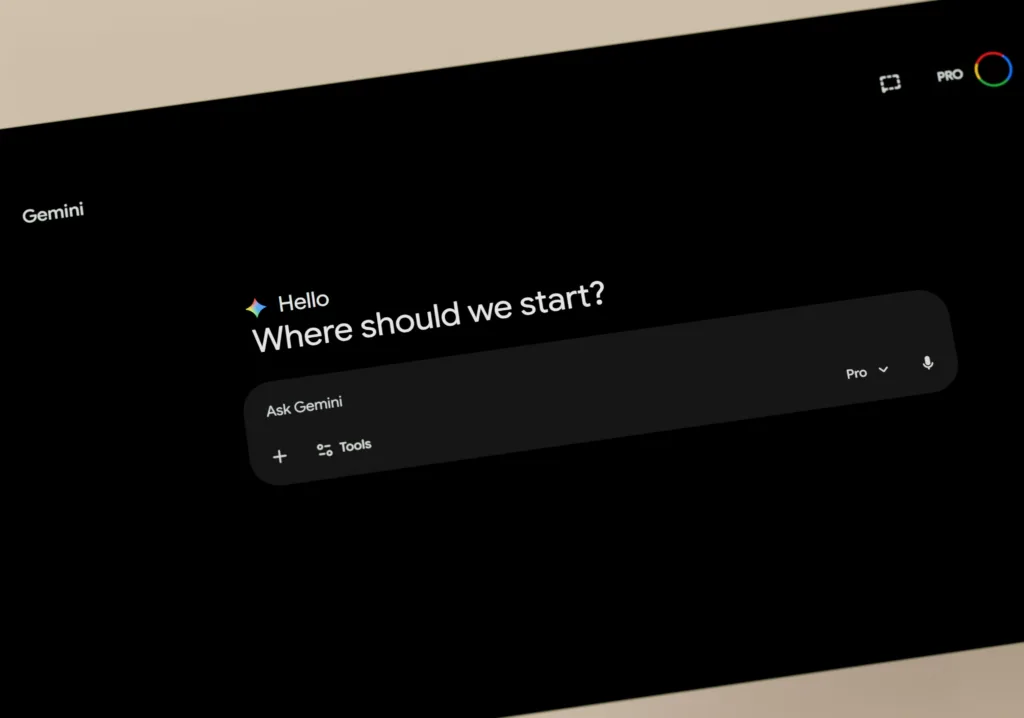
If Gemini AI is not responding on Chrome, don’t immediately reinstall the browser or start changing advanced settings. In many cases, the problem is easier to isolate by checking whether you’re using the standard Gemini web app or Google’s newer Gemini in Chrome experience.
Those two experiences don’t have identical requirements. Google says the standard Gemini web app works in supported browsers, while Gemini in Chrome has additional requirements around Chrome version, sign-in, supported devices, language and regional availability. Google is also still rolling Gemini in Chrome out gradually.
That distinction matters because sometimes Gemini isn’t broken at all. The feature may simply not be available to the account, device or region you’re using.
First, Check What Is Actually Failing
Open gemini.google.com in Chrome.
If the normal Gemini website loads and responds, but the dedicated Gemini in Chrome interface is missing or unavailable, don’t treat that as a standard Chrome failure.
Google says Gemini in Chrome currently requires a supported computer or Android device, the latest version of Chrome, a signed-in Chrome profile and supported language/region conditions. The feature is also not available in Incognito mode.
On Android specifically, Google’s current requirements are stricter for Gemini in Chrome: the feature requires Android 12 or newer, at least 4GB of RAM, Chrome’s latest version, Chrome sign-in and English, and Google currently lists the United States as the supported region for the Android version.
So before troubleshooting, identify whether the problem is:
Gemini website won’t respond
or
Gemini in Chrome isn’t available
Those require different solutions.
1. Update Chrome and Restart It
Start with the basic browser check.
Open Chrome’s About Chrome section and install any available update. Then close Chrome completely and reopen it.
Google specifically recommends using the latest Chrome version for Gemini in Chrome. Its troubleshooting guidance also recommends restarting Chrome when the Gemini interface isn’t appearing or working correctly.
After restarting, open a new Gemini session and send a very short prompt.
Don’t test with a long conversation, multiple shared tabs or a complicated request at this stage.
A simple prompt gives you a cleaner answer to one question:
Is Gemini responding at all?
If it works, the original problem may have been a temporary browser state.
If it still doesn’t, move to the next test.
2. Try Gemini in Another Browser
This is one of the most useful tests in the entire troubleshooting process.
Open the standard Gemini web app in another supported browser such as Edge, Firefox or Opera.
Google currently lists Chrome, Safari, Firefox, Opera and Edge as supported browsers for the Gemini web experience.
If Gemini works normally in another browser but not Chrome, you’ve already learned something important:
The Gemini service is probably working, and Chrome is the more likely source of the problem.
At that point, focus on Chrome rather than your Google Account or Android device.
If Gemini fails in multiple browsers, don’t keep reinstalling Chrome. Move on to the network and account checks.
3. Test the Standard Gemini Web App in a Clean Chrome Session
Chrome extensions and profile settings can interfere with complex web applications.
For the standard Gemini web app, open an Incognito window and visit Gemini.
If Gemini works there but not in your normal Chrome session, the problem is likely tied to your regular browser profile.
Start by disabling extensions that modify webpages, scripts, privacy controls or network traffic.
This is particularly relevant for:
Ad blockers, script blockers, privacy extensions and VPN-related extensions.
Google’s Chrome troubleshooting guidance also recommends checking extensions when webpages aren’t working correctly.
There is one important exception: do not use Incognito to test Gemini in Chrome itself. Google says Gemini in Chrome isn’t available in Incognito mode.
4. Clear Gemini’s Site Data
If Gemini previously worked but now remains stuck loading, repeatedly signs you out or refuses to respond, stale browser data may be involved.
Instead of immediately clearing your entire Chrome history, start with the site’s stored data.
Remove the relevant Gemini/Google site data, reopen Chrome and sign in again if necessary.
This is a better troubleshooting step than wiping everything because it targets the affected website without unnecessarily deleting unrelated browsing information.
If the problem disappears afterward, the issue was likely related to the browser session rather than the Gemini service itself.
5. Check Your Network Before Blaming Chrome
A browser can appear broken when the connection is actually the problem.
Test Gemini on another network.
For example, switch from your normal Wi-Fi connection to a mobile hotspot, or test from a different reliable network.
If Gemini begins responding immediately, investigate the original connection.
Then look at the obvious network variables:
VPN → proxy → custom DNS → filtering/firewall software
Google’s current Gemini in Chrome troubleshooting guidance specifically recommends turning off a VPN when availability or access problems persist, and it also recommends restarting the browser and updating Chrome.
You don’t need to permanently disable privacy or networking tools. The purpose is simply to find out whether one of them is interfering with the connection.
6. Check Your Google Account and Gemini Availability
This is where many troubleshooting guides become misleading.
Sometimes Gemini isn’t responding because the account or feature isn’t eligible, not because Chrome is broken.
Google says Gemini in Chrome is still being gradually released. Its availability depends on factors including supported regions, device requirements, Chrome version, sign-in status and language. Work or school accounts can also be subject to administrator controls.
If you’re using a work or school account, test with a personal Google Account when appropriate.
If Gemini works with the personal account but not the organisation-managed account, the problem may be an administrator policy rather than a browser fault.
This is especially important for users who see posts about Gemini in Chrome and assume the feature should already be available on every supported device.
7. If Chrome Works but Gemini Still Doesn’t, Stop Changing Random Settings
At this point, use the results from the earlier tests.
If:
Chrome is updated + another browser also fails + another network also fails
then the problem is probably not your Chrome installation.
Likewise, if the standard Gemini web app works elsewhere but your normal Chrome profile doesn’t, concentrate on Chrome’s extensions, site data and profile rather than resetting your entire computer.
For users who have experimented with Chrome’s advanced settings, Google also recommends resetting Chrome flags as an advanced troubleshooting step for Gemini in Chrome, followed by a browser restart.
That should be treated as an advanced fix, not something every reader needs to try.
What If Gemini in Chrome Isn’t Showing Up?
This deserves its own explanation because missing availability is not the same as a broken feature.
Google says Gemini in Chrome is still rolling out and may not be available to every user yet.
On supported computers, Google requires the latest Chrome version, a signed-in Chrome profile, a supported region and language, and an eligible device. On Android, Google currently lists additional requirements including Android 12 or later, at least 4GB of RAM and English-language settings.
So if you cannot find the Gemini in Chrome interface, first check eligibility.
Don’t assume reinstalling Chrome will activate a feature that simply hasn’t reached your account.
What If Gemini Loads but Doesn’t Answer?
If the Gemini page loads but a response remains stuck, start a new conversation and try a short prompt.
If that works, the problem may have been limited to the previous conversation or browser session.
If every prompt remains stuck, compare Chrome with another browser.
If another browser works, return to Chrome troubleshooting.
If every browser fails, test another network and another device before assuming your local browser is responsible.
What If Gemini Works on Another Device?
This is another strong clue.
If Gemini works normally on your phone but not your computer, the issue is probably related to the desktop browser, Chrome profile or computer environment.
If it fails on every device using the same network, the network becomes more suspicious.
If it fails across different devices and networks, you’re much closer to an account or Google-side issue.
That is the point where further browser tweaking has very little value.
When Should You Report the Problem?
If you’ve already updated Chrome, restarted it, checked extensions, cleared relevant site data, tested another browser and tried another network, you’ve covered the major local causes.
For Gemini in Chrome, Google provides a Send feedback option from the Gemini interface. Google recommends including a description of the problem and optionally attaching a screenshot.
Be specific when describing the problem.
For example:
Gemini in Chrome opens normally, but every prompt remains stuck on loading in Chrome 147 on Windows 11. The Gemini web app works in Edge on the same network.
That is much more useful than saying:
Gemini doesn’t work.
Read Next
If you’re troubleshooting another Chrome-based service, WhatsApp Web Not Syncing on Chrome? Complete Troubleshooting Guide for 2026 covers a similar process for separating browser, site-data, extension and network problems.
For an Android app that refuses to play media, YouTube App Not Playing Videos on Android? Reliable Fixes That Actually Help takes the same diagnostic approach but focuses on Android’s app and network layers.
If your troubleshooting started because the phone is also losing battery unusually fast, Why Your Phone Battery Drains Overnight (Android Fix, 2026) covers common causes of background battery drain.
TechularZtrix Scan
📌 Bottom Line
When Gemini AI isn’t responding on Chrome, don’t immediately reinstall anything. First determine whether the standard Gemini web app or Gemini in Chrome is failing, then use another browser and another network to isolate the problem.
🎯 Target Audience
This guide is for Chrome users who see endless loading, unresponsive Gemini prompts, missing Gemini in Chrome controls or account-related availability problems.
🏆 Biggest Win
The most useful test is opening Gemini in another supported browser. It quickly tells you whether Chrome is actually responsible.
⚠️ Biggest Compromise
Gemini in Chrome is not universally available yet. Google is still rolling it out, and eligibility depends on device, region, language, Chrome version and account conditions.
📈 Why It Matters
As Gemini becomes more deeply integrated into Chrome, users need to distinguish between a genuine browser problem and a feature that simply isn’t available to their account or device.
🔍 What Happens Next
If Gemini continues failing across supported browsers, devices and networks, stop changing Chrome settings. Check Google’s current Gemini availability guidance and submit feedback with the exact error and environment when appropriate.