Why Your Phone Battery Drains Overnight (Android Fix, 2026)
Quick Highlights
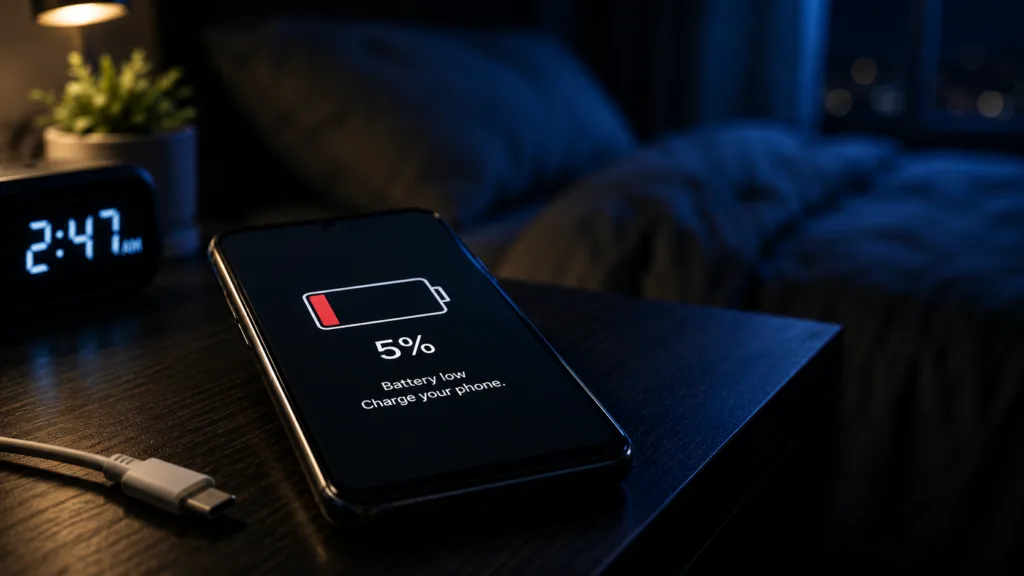
Waking up to discover that your phone has lost 15–20% battery overnight is frustrating, especially when you barely touched it. Most people immediately assume their battery is worn out or defective, but that is rarely the real reason.
Modern Android phones are designed to consume very little power while sitting idle. Under normal conditions, losing around 2–5% overnight is perfectly reasonable. When battery loss climbs into double digits, the cause is usually hidden background activity rather than hardware failure.
The good news is that Android already includes the tools needed to identify what is happening. In most cases, you can solve the problem without installing any third-party battery apps.
What Counts as Normal Overnight Battery Drain?
Before trying to fix the problem, it helps to understand what normal behavior looks like.
A healthy Android phone connected to a stable network and running properly optimized apps should lose only a small amount of battery during an eight-hour sleep period. Losing 2–5% is generally considered normal. Losing 8–10% begins to suggest that something unusual is happening in the background. Losing 15% or more almost always points to a specific issue that deserves investigation.
The exact numbers vary depending on your phone model, battery age, Android version, and network conditions, but significant overnight drain is not something you should simply accept as normal.
Background Sync Is Usually the Biggest Battery Killer
For most users, the biggest cause of overnight battery drain is background synchronization.
Many apps deliberately schedule large tasks during the night because they assume you are not actively using the device. This can include cloud backups, photo uploads, email synchronization, social media refreshes, and application updates.
WhatsApp backups are a common example. Google Photos can also consume significant battery if it is attempting to upload hundreds of photos or videos while you sleep. Email clients may continuously sync attachments, while social media platforms often refresh feeds and cached content in preparation for the next day.
The challenge is that none of this activity is immediately visible. Your screen remains off, but the processor, storage, and network hardware continue working.
If you regularly experience battery drain overnight, our guide on How to Stop Background Apps on Android Permanently (2026 Method) explains how Android’s Restricted mode can reduce unnecessary background activity without uninstalling apps entirely.
Weak Signal Can Drain More Battery Than Any App
One of the most overlooked causes of overnight battery drain has nothing to do with apps at all.
Your phone constantly communicates with Wi-Fi routers and mobile towers. When the signal becomes weak, the phone compensates by increasing radio activity and repeatedly attempting to maintain a stable connection.
This process consumes more energy than most users realize.
A bedroom located far from the router, a basement apartment, a concrete building, or a rural area with poor mobile coverage can all cause your phone to work harder throughout the night. Even if the screen never turns on, the network hardware remains active.
A simple test is to enable Airplane Mode before sleeping and compare the battery percentage the next morning. If overnight drain drops dramatically, poor signal quality is likely contributing to the problem.
A Single App Can Sometimes Cause the Entire Problem
Not every battery issue involves dozens of apps.
Sometimes one poorly optimized application is responsible for nearly all overnight battery consumption.
This often happens after a major update, a newly installed application, or a software bug that causes excessive background activity. The app may repeatedly access location services, attempt constant synchronization, or prevent Android from entering deep sleep mode.
The easiest way to identify this is by checking Android’s battery statistics immediately after waking up.
Open Settings → Battery → Battery Usage and review the overnight activity. If one application is consuming a disproportionately large amount of power compared to how often you actually use it, you have likely found the culprit.
Restricting that app’s background activity or temporarily uninstalling it can quickly confirm whether it is responsible.
Notifications Quietly Add Up Throughout the Night
Notifications may seem insignificant individually, but dozens of them across several hours can create meaningful battery drain.
Every notification requires Android to briefly wake portions of the system. Even if the display remains dark, the processor, memory, and network components may activate momentarily to process the alert.
Social media applications, shopping apps, news platforms, gaming services, and promotional alerts are often responsible for generating unnecessary overnight activity.
This is why users who receive frequent notifications during sleeping hours often experience higher idle battery drain than expected.
Rather than manually disabling every notification, many people find that scheduling Do Not Disturb mode is the easiest solution. It reduces unnecessary wake-ups while still allowing important calls and alarms to function normally.
Android’s Doze Mode Might Not Be Working Properly
Android includes a built-in power management system called Doze Mode.
When your phone remains stationary, unused, and screen-off for an extended period, Android automatically begins restricting background processes to preserve battery life.
In theory, overnight battery consumption should be one of the easiest situations for Doze Mode to optimize.
However, some applications request exemptions from these restrictions. Alarm applications, fitness trackers, and certain communication tools may have legitimate reasons to bypass Doze Mode. Other apps do not.
If too many applications have special permissions, Android’s power-saving mechanisms become less effective.
You can review these settings through Battery Optimization options and check which apps are marked as “Not Optimized.” Any application that does not genuinely require unrestricted background access should generally be returned to the optimized state.
The Five-Minute Test That Identifies the Real Cause
The fastest way to diagnose overnight battery drain is surprisingly simple.
Before going to bed, note your battery percentage. When you wake up, check the percentage again before opening any applications. Then immediately review Battery Usage statistics.
This approach allows Android to show exactly what happened during the overnight period.
Instead of guessing whether the issue is signal strength, notifications, synchronization, or a specific application, the battery report often provides the answer directly.
In many cases, users discover that one category dominates the battery chart, making the problem far easier to solve.
If your overnight drain is accompanied by poor daytime battery life, you should also review How to Increase Android Battery Life Without Apps (Pro Settings Guide, 2026). Many of the settings that improve daytime endurance also reduce overnight consumption.
Could Battery Health Be the Problem?
Battery health can contribute to overnight drain, but it is usually not the first place to look.
A degraded battery loses capacity, which makes percentage drops appear larger than they once did. However, even older batteries should not lose massive amounts of charge overnight unless another issue is present.
This is why investigating background activity, network conditions, and software behavior should always come before assuming the battery itself is failing.
Many users replace batteries unnecessarily when the real problem is simply a background process running out of control.
For more details about Android’s battery optimization and background activity management, Google explains the feature in its official Android battery documentation.
⚡ TechularZtrix Scan
📌 Bottom Line: Most overnight battery drain problems are caused by software activity rather than battery failure. Background synchronization, weak signal conditions, notification overload, and poorly behaved apps are responsible for the majority of cases.
⏱ Difficulty Level: Easy
⌛ Time Required: Around 10 minutes to diagnose and 5–15 minutes to apply fixes.
✅ Best For: Android users experiencing unexplained battery loss, idle drain, overnight overheating, or unexpectedly poor standby performance.
🏆 Biggest Win: Android already provides the tools needed to identify the problem. In most cases, no third-party battery application is required.
⚠️ Biggest Compromise: Aggressively restricting background activity can delay notifications from messaging, email, and other real-time communication apps if applied incorrectly.
📈 Why It Matters: Overnight battery drain is often the earliest warning sign that something on your phone is consuming more resources than it should. Solving the issue not only improves battery life but can also reduce heat generation, improve performance, and extend overall battery longevity.
🔍 What Happens Next: If your phone still loses more than 10% overnight after applying these fixes, the next step is investigating battery health, recent software updates, and potential firmware-related bugs specific to your device model.