How to Switch Between WhatsApp Accounts on iPhone and Android (2026): The Easy Multi-Account Guide
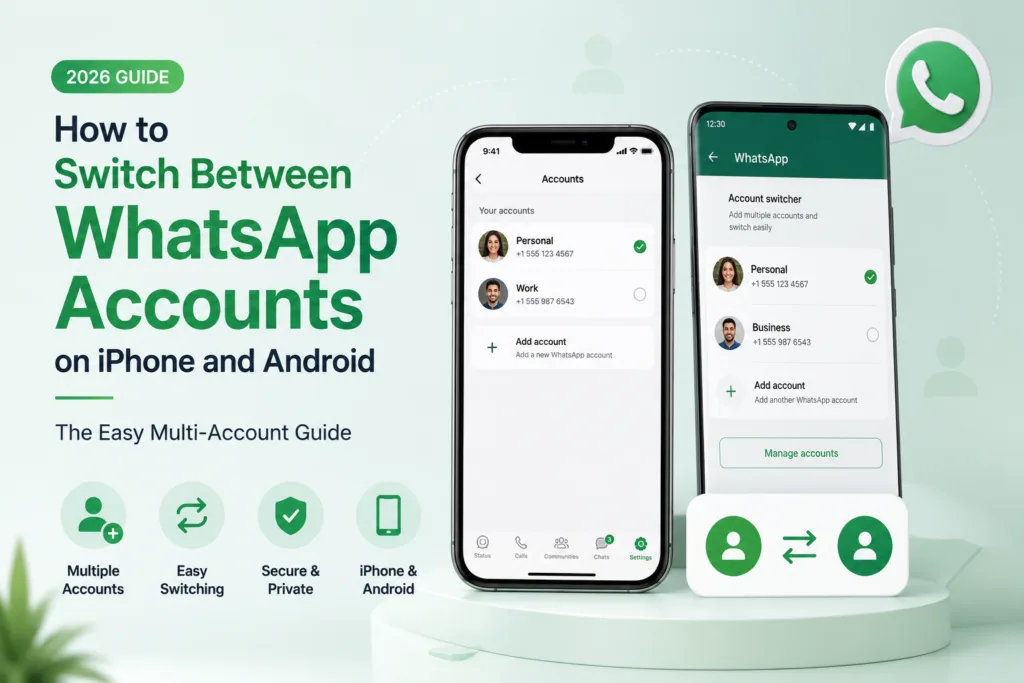
WhatsApp has become more than just a messaging app in 2026. For many users, it’s also a work tool, business communication platform, and personal chat hub. That’s exactly why WhatsApp’s multi-account support is one of its most useful upgrades in recent years.
If you use two phone numbers (personal and work), you no longer need two phones or constant logouts. WhatsApp now lets you add and manage two accounts on the same device and switch between them in seconds.
This guide explains how to switch WhatsApp accounts on iPhone and Android, how to add a second account, and what to do if the feature doesn’t appear on your phone.
Quick Highlights
What is WhatsApp Multi-Account Support?
WhatsApp multi-account support allows you to use two WhatsApp accounts inside the same app, usually linked to two different phone numbers.
This feature is especially useful for:
People managing personal and office numbers
Small business owners handling customer chats
Users with two SIM cards
Students using one number for college and one for family
Once both accounts are added, switching feels almost instant. You can move between accounts without uninstalling WhatsApp, without cloning apps, and without risking data loss.
How to Switch WhatsApp Accounts on iPhone
WhatsApp on iPhone now allows account switching directly from the Settings area, making it very simple once the second account is added.
Step-by-Step: Switch Accounts on iPhone
Open WhatsApp on your iPhone.
Tap the Settings tab at the bottom-right.
At the top, you’ll see your profile name and photo. Tap the small down arrow (chevron) next to your name.
WhatsApp will show your available accounts.
Tap the second account to switch.
WhatsApp will instantly move you to that account, showing its chats, groups, and calls.
You can repeat the same process anytime to return to the first account.
How to Add a Second WhatsApp Account on iPhone
If you haven’t added a second number yet, WhatsApp allows you to do it from the same menu.
Open WhatsApp and go to Settings.
Tap the plus icon (+) next to your profile name.
Select Add Account.
Accept the terms and conditions.
Enter the second phone number and verify it using OTP.
Complete the profile setup (name, photo, etc.).
Once added, the account will appear in your account switch menu.
How to Switch WhatsApp Accounts on Android
WhatsApp on Android introduced multi-account switching earlier, and the process is still very straightforward.
Step-by-Step: Switch Accounts on Android
Open WhatsApp on your Android phone.
Tap the three-dot menu in the top-right corner.
Select Switch account.
Choose the account you want to use.
WhatsApp will switch instantly without logging out of your other account.
This allows you to manage two numbers from one phone without needing a dual-app clone feature.
How to Add a Second WhatsApp Account on Android
If you haven’t added a second account yet, WhatsApp will allow you to add it through the same profile/account menu.
Open WhatsApp.
Tap the three-dot menu.
Go to Settings (or tap your profile section depending on your version).
Select Add account.
Enter your second phone number and complete OTP verification.
Finish profile setup.
Once completed, both accounts will appear for switching.
Important Note: WhatsApp Allows Only Two Accounts Per Device
WhatsApp currently supports a maximum of two accounts on one phone. That means you can manage two different numbers, but not three or more inside the same WhatsApp app.
If you need more than two accounts, you may need a separate device or WhatsApp Business as an additional option.
Will I Still Receive Messages on the Other Account?
Yes. Even if you are actively using one account, WhatsApp will still deliver messages to the second account in the background.
However, to view messages, reply, or check call history properly, you may need to switch to that account.
What to Do If WhatsApp Account Switching Is Not Showing
If you don’t see the switch account option, it usually happens due to one of these reasons.
1. Restart Your Phone
A simple restart often fixes account-switching glitches, especially after WhatsApp updates.
2. Update WhatsApp to the Latest Version
Multi-account support depends on the latest WhatsApp build. Go to Play Store or App Store and update WhatsApp.
3. Switch Between Wi-Fi and Mobile Data
Sometimes WhatsApp fails to verify or load account options due to connection issues. Switching network mode refreshes connectivity.
4. Make Sure Your Second Number Can Receive OTP
If your second SIM is inactive, out of network, or not receiving OTP, the account cannot be added.
The Lab Tip: Multi-Account is Safer Than Using Clone Apps
Earlier, many Android users depended on “Dual Apps” or third-party WhatsApp clones. Those methods are not always reliable and can increase the risk of privacy issues.
WhatsApp’s official multi-account feature is the safest way because it works inside the original app environment with full security support.
If you’re also serious about account security, enabling two-factor authentication is highly recommended. Read: How to Enable Instagram Two-Factor Authentication (2026): Easy and Secure 2FA Setup Guide
Can You Use WhatsApp Business as a Second Account?
Yes, you can still use WhatsApp Business separately if you want another workspace. But with multi-account support now built into WhatsApp, most users may not need to rely on separate apps unless they want business tools like catalogs and auto-replies.
For official confirmation and updated availability details, WhatsApp also explains multi-account support in its Help Center documentation.
Yes. WhatsApp officially supports two accounts on one device.
Yes. You can switch accounts instantly without logging out of the other one.
Yes, messages will still come on both accounts, but you may need to switch to view and reply properly.
This usually happens due to an outdated WhatsApp version, network issues, or OTP verification problems.
Yes. WhatsApp now supports account switching on iPhone as well.