How to Use Android Privacy Dashboard: A Complete Step-by-Step Guide
Quick Highlights
Your Android phone can give apps access to some of your most sensitive information, including your location, microphone and camera. The problem is that it is easy to grant a permission once and then forget which apps still have access months later.
That’s where the Android Privacy Dashboard becomes useful.
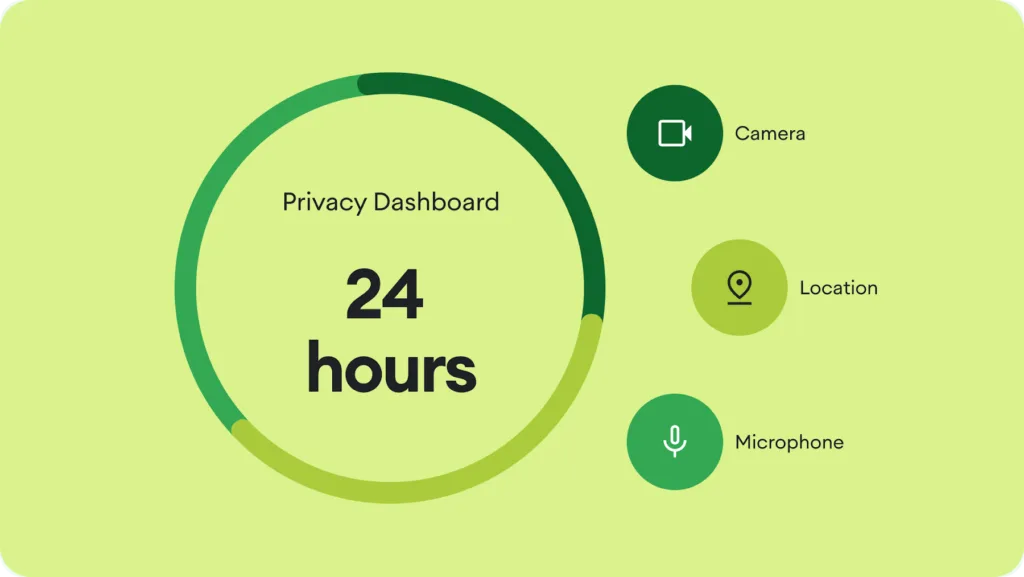
Introduced with Android 12, Privacy Dashboard provides a timeline-style view showing when apps accessed sensitive permissions. Google’s current Android privacy documentation says the dashboard can show access to camera, microphone and location, helping users understand which apps have been using those permissions.
This guide explains how to use Android Privacy Dashboard, how to interpret what you see, and what to do when an app appears to have access it no longer needs.
What Is Android Privacy Dashboard?
Android Privacy Dashboard is a privacy-control section built into Android that helps you see which apps have accessed sensitive data and when.
Rather than checking every installed application individually, you can use the dashboard as a starting point for reviewing recent activity.
Google says the Privacy Dashboard can show which apps accessed your camera, microphone and location during the previous 24 hours on supported Android devices.
That makes it particularly useful when you are trying to answer questions such as:
- Which apps recently used my location?
- Did an application access my microphone?
- Which apps have been using the camera?
- Does an app still need a permission I previously granted?
Privacy Dashboard is therefore less about blocking everything and more about giving you visibility and control.
How to Open Android Privacy Dashboard
The exact location can vary depending on your phone manufacturer and Android interface.
On many Android phones, open:
Settings → Privacy → Privacy Dashboard
On some devices, the privacy controls may be located under a slightly different menu structure.
If you cannot find it immediately, use the search field inside Settings and search for Privacy Dashboard or Privacy.
On Samsung Galaxy devices, the names and organisation of privacy settings can differ because Samsung uses its own One UI interface on top of Android.
The important point is that the underlying Android privacy controls may still be available even when the Settings layout looks different.
How to Check Camera Access
Camera access deserves particular attention because it can expose what is happening around you.
Open Privacy Dashboard and select Camera if it is listed.
You should see recent applications that accessed the camera and, depending on the device and Android version, when that access occurred.
If you see a familiar camera, video-calling or social-media application, its camera access may be completely expected.
The important question is whether the access makes sense for how you use the app.
For example, a video-calling application needs camera access when you’re making a video call. A basic calculator application has little obvious reason to require continuous camera access.
If an app’s camera access seems unnecessary, tap the application and review its permission settings.
Android allows you to change whether an app can use sensitive permissions, depending on the permission and device.
How to Check Microphone Access
The microphone is another permission worth reviewing regularly.
From Privacy Dashboard, select Microphone.
Look through the applications that have recently accessed it.
Messaging, video-calling, recording and voice-assistant applications may legitimately require microphone access.
But permission should match functionality.
If you find an application that has microphone access despite having no obvious feature requiring audio input, open its permission settings and reconsider whether it needs that access.
Android also provides a system-level microphone indicator. On supported versions, a green indicator appears when an application is accessing the microphone or camera. Android’s developer documentation confirms that camera and microphone indicators were introduced with Android 12 to give users greater visibility into sensor access.
This is useful because you don’t have to wait until you manually inspect Privacy Dashboard to notice active camera or microphone use.
How to Check Location Access
Location is one of the most commonly requested sensitive permissions.
Open Privacy Dashboard and select Location.
Review the apps that have accessed your location.
Then ask a simple question:
Does this app actually need my location?
A navigation application obviously needs location information. A weather application may need it to provide local forecasts. A shopping application might use it for nearby stores.
But not every application needs continuous location access.
Android provides different permission choices depending on the application and Android version, including options such as allowing access while using the app, allowing access only once, or denying access. Google also distinguishes between approximate and precise location.
If an application only needs your general area, approximate location may be sufficient.
How to Change an App’s Permissions
Privacy Dashboard is mainly for reviewing access. To make a change, you can open the relevant application’s permission settings.
A common route is:
Settings → Apps → Select the app → Permissions
You will then see the permissions available to that application.
Depending on the permission, you may be able to choose options such as:
Allow, Allow only while using the app, Ask every time, or Don’t allow.
The exact choices depend on the permission, Android version and application.
Google’s Android privacy guidance recommends giving apps only the access they actually need.
That is a better approach than automatically denying everything.
If an application stops working correctly after you revoke a permission, you can reassess whether that permission is genuinely required for the feature you’re trying to use.
What Is Permission Manager?
Android also provides Permission Manager, which is useful when you want to review permissions from the opposite direction.
Instead of asking:
Which permissions does this app have?
you can ask:
Which apps have access to my camera, microphone or location?
Google describes Permission Manager as a central place for managing sensitive app permissions.
The exact route varies by phone, but you can usually find it through:
Settings → Privacy → Permission Manager
or by searching Permission Manager in Settings.
This can be more useful than Privacy Dashboard when you are doing a complete privacy review of your phone.
Privacy Dashboard vs Permission Manager
These two tools serve related but different purposes.
Privacy Dashboard is primarily about recent access activity.
It helps you understand which applications have recently used sensitive permissions.
Permission Manager is primarily about current permission control.
It helps you see which applications currently have access to specific permission categories and change that access.
Using both gives you a more complete picture.
For example, Privacy Dashboard might show that an application recently accessed your location. Permission Manager can then help you determine whether that application still has location permission and whether you want to change it.
What the Camera and Microphone Green Indicator Means
Android’s privacy indicators provide another layer of visibility.
When an app accesses the camera or microphone on supported Android versions, a privacy indicator appears near the top of the screen. Android’s platform documentation says users can interact with the indicator to identify applications that have accessed those sensors.
This is particularly useful if you suddenly see the indicator while you aren’t intentionally using a camera or microphone feature.
Instead of immediately assuming that an application is malicious, check which application is responsible and determine whether its behaviour makes sense.
A legitimate application can activate a sensor for an expected reason.
The indicator is a signal to investigate, not proof that an app is spying on you.
What Permissions Should You Review First?
You don’t need to spend an hour inspecting every permission on your phone.
Start with the most sensitive categories:
Camera
Review applications that can capture images or video.
Microphone
Check applications capable of recording audio or making calls.
Location
Pay particular attention to applications with broader or background location access.
Contacts
Consider whether an application genuinely needs access to your address book.
Photos and videos
Review which applications can access your media and whether that access is still necessary.
Android has continued adding more privacy-preserving mechanisms and permission controls over successive releases, including more granular ways to control access to sensitive information.
Should You Deny Every Permission?
No.
That approach can make your phone less useful without necessarily making it meaningfully more private.
The better strategy is least-privilege access.
If an application needs the camera to scan a document, camera access makes sense.
If a navigation app needs location while you are using it, that makes sense.
If a photo-editing application needs access to selected images, you should consider whether it needs broader media access.
Privacy is not about making every permission disappear.
It’s about making sure the permissions you grant have a clear purpose.
What If an App Has Access You Don’t Recognise?
Don’t immediately uninstall the application.
First, investigate.
Check what the application does and why it might need the permission.
Then check:
Settings → Apps → [App] → Permissions
If the permission isn’t required for a feature you use, revoke it.
You can also check the application’s listing on Google Play. Google provides a Data Safety section that explains information developers say their apps collect and share. Google notes that the Data Safety section can help users understand how apps use their data before deciding whether to install them.
Remember that Data Safety and Privacy Dashboard answer different questions.
Data Safety describes an app’s declared data practices.
Privacy Dashboard shows relevant permission access on your device.
Android Can Automatically Reset Some Permissions
Android also has a useful automatic privacy feature for unused applications.
Google says Android can automatically reset permissions for apps that haven’t been used for a while.
This is useful because old applications can otherwise retain permissions long after you stop using them.
However, don’t rely entirely on automatic controls.
If you have applications installed that you no longer use, uninstalling them is cleaner than simply leaving them dormant.
How Often Should You Check Privacy Dashboard?
There is no need to check it every day.
A quick review every few weeks or whenever you install several new applications is reasonable.
You should also check it when:
- You notice unexpected camera or microphone indicators.
- An application suddenly requests a sensitive permission.
- You install an application from an unfamiliar developer.
- You notice unusual background behaviour.
- You haven’t reviewed your phone’s permissions for a long time.
A privacy dashboard works best as a regular audit tool, not something you constantly monitor.
Privacy Dashboard on Samsung Galaxy Phones
Samsung Galaxy users may notice that the privacy controls don’t look exactly like screenshots from Google’s Pixel phones.
That’s expected.
Samsung’s One UI changes the organisation and presentation of Android settings, so menu names and locations can differ by device and software version.
The underlying Android privacy model still provides permission controls and privacy indicators, but Samsung may place those controls in different areas of Settings.
This is particularly relevant as Samsung continues developing One UI. Our earlier coverage, Samsung Opens One UI 9 Beta for Galaxy S26 Series Ahead of Wider Rollout, provides additional context on Samsung’s One UI development and testing.
The important takeaway is not to rely on a screenshot from another Android phone when troubleshooting your own Galaxy.
Use the Settings search function if a menu isn’t where you expect it to be.
Privacy Dashboard Is Not a Complete Privacy Report
There is an important limitation to understand.
Privacy Dashboard is not a complete record of everything an application does with your data.
It focuses on specific permission-related access and provides visibility into areas such as camera, microphone and location. Google’s documentation describes it as part of a broader set of Android privacy controls rather than a universal application-activity monitor.
An application can also process information you voluntarily provide to it, use account information, or handle data through other mechanisms that aren’t represented as a camera, microphone or location access event.
That’s why Privacy Dashboard should be one part of your privacy routine.
App permissions, Google Play’s Data Safety information, account security and sensible application choices all matter too.
A Simple Android Privacy Check
If you want to perform a quick privacy audit, follow this order:
Open Privacy Dashboard → review camera access → review microphone access → review location access → investigate unfamiliar apps → open Permission Manager → revoke unnecessary permissions.
Then check your installed applications.
Remove anything you no longer use.
This takes only a few minutes and gives you a much clearer picture of which applications have access to your phone’s most sensitive capabilities.
Read Next
If you’re dealing with broader Android problems, these guides can help you go a step further:
System UI or apps keep crashing? If Privacy Dashboard isn’t the issue and your phone is freezing, showing “System UI Isn’t Responding,” or repeatedly closing apps, our guide How to Fix “System UI Isn’t Responding” or App Crashing Errors on Android (2026 Guide) walks through the troubleshooting process from the basics to deeper fixes.
Battery disappearing while you sleep? Privacy settings aren’t always responsible for overnight drain. If your phone loses a noticeable amount of battery when you’re not using it, Why Your Phone Battery Drains Overnight (Android Fix, 2026) explains what to check and which background activities are worth investigating.
Too many apps running in the background? If you’ve found unnecessary apps while reviewing your privacy settings, the next step is deciding what should actually be allowed to keep running. How to Stop Background Apps on Android Permanently (2026 Method) covers that problem in more detail.
TechularZtrix Scan
📌 Bottom Line
Android Privacy Dashboard is one of the easiest ways to understand recent camera, microphone and location access on your phone. It won’t tell you everything an app does with your data, but it gives you an important visibility layer that is easy to overlook.
⏱ Difficulty Level
Easy.
The process mainly involves navigating Android’s privacy and permission settings. Menu locations can vary between manufacturers.
⌛ Time Required
5–15 minutes for a basic privacy review.
A more detailed permission audit can take longer if you have many installed applications.
✅ Best For
This guide is best for Android users who want to review app permissions, investigate unexpected camera or microphone access, or clean up unnecessary location permissions without installing another privacy application.