How to Make Android Faster Without Root (2026 Speed Guide)
Quick Highlights
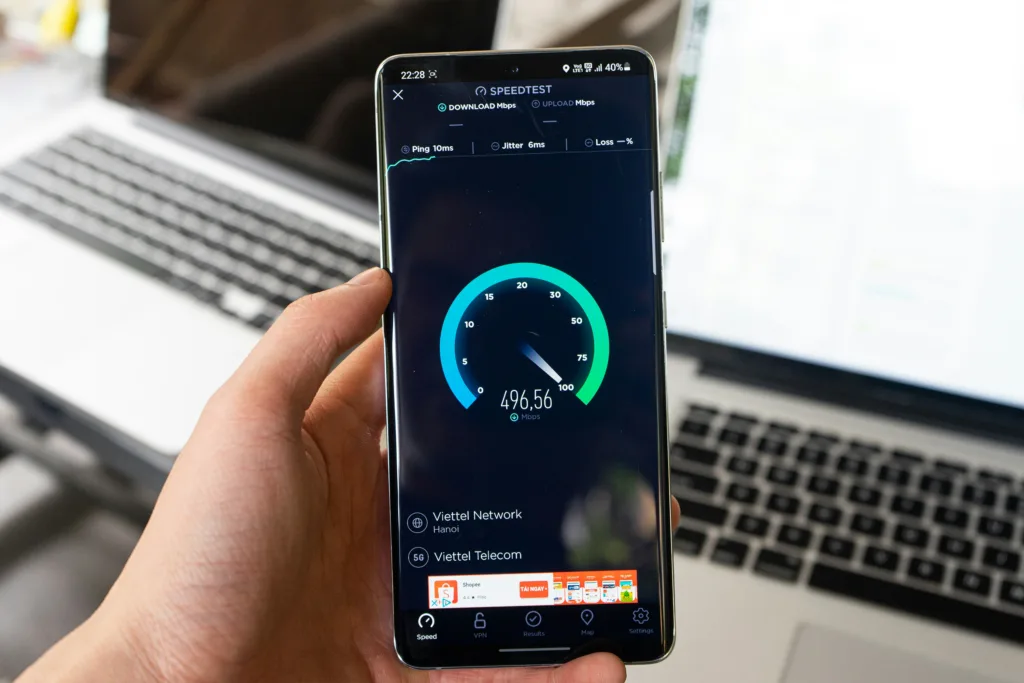
One of the biggest myths in the Android community is that you need to root your phone to make it faster.
That might have been true a decade ago, but modern Android devices already include powerful optimization tools built directly into the operating system. Rooting today often creates more problems than it solves, introducing security risks, banking app issues, warranty concerns, and software instability.
The reality is that most Android phones become slow because of software behavior, storage problems, background processes, and visual effects that accumulate over time.
If your phone feels sluggish, stutters when switching apps, or simply does not feel as fast as it used to, there are several safe changes you can make right now that often produce noticeable improvements within minutes.
Why Android Phones Slow Down Over Time
Many users assume aging hardware is always responsible for performance issues.
In reality, Android slowdowns are usually caused by a combination of:
- Installed apps growing larger over time
- Background processes consuming memory
- Storage filling up
- Excessive visual effects
- Manufacturer software running continuously
- Poor battery optimization
This is also why many users searching for performance improvements eventually discover that battery issues and speed issues are closely connected. If your device also loses power unusually quickly, you should review Why Your Phone Battery Drains Overnight (Android Fix, 2026) because many of the same background activities affecting battery life can also impact performance.
Enable Developer Options
Developer Options sounds intimidating, but it is actually an official Android feature built directly into the operating system.
Google includes it on every Android phone.
To enable it:
Open Settings → About Phone, then tap Build Number seven times rapidly. Android will display a message confirming that Developer Options has been unlocked.
You can then find it under:
Settings → System → Developer Options
This menu contains some of the most effective performance settings available on Android.
Importantly, simply enabling Developer Options does not void your warranty and does not modify the operating system in any dangerous way.
Reduce Animation Speeds for Instant Results
If you only perform one tweak from this guide, make it this one.
Android uses animations whenever you:
- Open apps
- Close apps
- Switch between screens
- Open menus
- Launch multitasking
These animations are visually appealing, but they also make your phone feel slower because they take time to complete.
Inside Developer Options, locate:
- Window Animation Scale
- Transition Animation Scale
- Animator Duration Scale
By default, these are set to 1x.
Reducing them to 0.5x immediately makes Android feel more responsive.
The phone is not technically processing tasks faster, but everything appears faster because animations finish sooner.
Many Android enthusiasts consider this the single best performance tweak available.
Manage Background Processes Carefully
RAM management plays a huge role in Android performance.
Every app running in the background consumes memory, even if you are not actively using it.
Inside Developer Options, Android allows you to limit background processes.
Phones with:
- 4GB RAM
- 6GB RAM
- Older processors
often benefit noticeably from stricter background management.
However, this setting should be used conservatively.
Aggressively restricting processes may cause messaging apps, email apps, and other services to reload more frequently.
For users dealing with excessive background activity, our guide on How to Stop Background Apps on Android Permanently (2026 Method) explains safer long-term methods that often provide better results.
Storage Space Affects Performance More Than Most People Realize
Storage is not just about how many photos or videos you can keep.
When Android storage becomes too full, the operating system has less room to manage temporary files, caches, updates, and background operations.
This can create:
- App loading delays
- UI lag
- Slower multitasking
- Random stutters
A useful rule is to keep at least 15–20% of total storage free.
For example:
- 128GB phone → keep at least 20GB free
- 256GB phone → keep at least 40GB free
One of the easiest cleanup tools is Files by Google, which safely removes temporary files and unnecessary cache data.
Unlike many third-party “cleaner” apps, it is developed by Google and does not rely on aggressive memory management tricks.
Simplify Your Home Screen
Many users unintentionally create extra work for Android every time they unlock their phone.
Widgets, live wallpapers, animated themes, and multiple launcher pages continuously consume system resources.
A home screen filled with:
- Weather widgets
- News widgets
- Stock trackers
- Live wallpapers
forces Android to perform constant background updates.
Switching to:
- Static wallpapers
- Fewer widgets
- Fewer home screen pages
can noticeably improve responsiveness, especially on older devices.
The performance gains are not dramatic individually, but together they reduce system workload throughout the day.
Disable Apps You Never Use
Many Android phones ship with software that most users never touch.
These applications often continue running services in the background despite being ignored.
Examples include:
- Duplicate browsers
- Manufacturer app stores
- Promotional apps
- Bundled games
- Carrier utilities
Fortunately, Android allows many of these applications to be disabled.
Open:
Settings → Apps
Select an unwanted app and tap Disable if available.
Disabling prevents the app from running and removes it from normal usage without permanently deleting anything.
You can always restore it later.
Samsung, Xiaomi, Vivo, OPPO, OnePlus, and many other manufacturers preload apps that can safely be disabled if unused.
Keep Apps and Android Updated
Performance improvements are one of the least discussed benefits of software updates.
Many updates contain:
- Memory optimizations
- Bug fixes
- Better battery management
- Improved background process handling
Outdated software can introduce performance issues that have already been fixed months earlier.
Make sure:
- Play Store applications are updated
- System updates are installed
- Security patches are current
Many users notice performance improvements simply by updating neglected apps.
Restart Your Phone More Often
Modern smartphones can stay powered on for weeks.
That does not always mean they should.
Temporary software issues, memory leaks, and stuck background processes can accumulate over time.
Restarting your phone:
- Clears temporary memory
- Resets background services
- Refreshes system processes
A simple reboot once every few days is often enough to eliminate minor performance problems before they become noticeable.
When Performance Problems Are Actually Battery Problems
Sometimes what feels like lag is actually battery-related throttling.
As batteries age, some devices reduce processor performance to maintain stability.
If your phone feels slower while simultaneously experiencing:
- Poor battery life
- Excessive heat
- Rapid charging discharge
the issue may not be Android itself.
In that situation, you should also review How to Increase Android Battery Life Without Apps (Pro Settings Guide, 2026) because battery health and performance are often closely linked.
For additional details about battery optimization and background process management, Google provides official Android optimization guidance.
⚡ TechularZtrix Scan
📌 Bottom Line: Most Android phones can feel significantly faster without rooting. Animation tuning, storage cleanup, background process management, and home screen simplification deliver the biggest real-world improvements.
⏱ Difficulty Level: Easy
⌛ Time Required: 15–30 minutes for all optimizations.
✅ Best For: Users with older Android devices, mid-range phones, storage-heavy devices, or anyone frustrated by increasing lag and slowdowns.
🏆 Biggest Win: Reducing animation scales to 0.5x provides the most immediate and noticeable improvement with virtually no downside.
⚠️ Biggest Compromise: Aggressive background restrictions can occasionally reduce multitasking convenience if pushed too far.
📈 Why It Matters: Many Android slowdowns come from software inefficiencies rather than aging hardware. Addressing those bottlenecks can dramatically improve the user experience without spending money on a new device.
🔍 What Happens Next: If your phone remains slow even after applying these optimizations, the next step is investigating battery health, storage health, and whether the device is reaching the practical limits of its hardware platform.