How to Fix Android Phone Screen Turning Black or Unresponsive During Calls (2026 Guide)
Quick Highlights
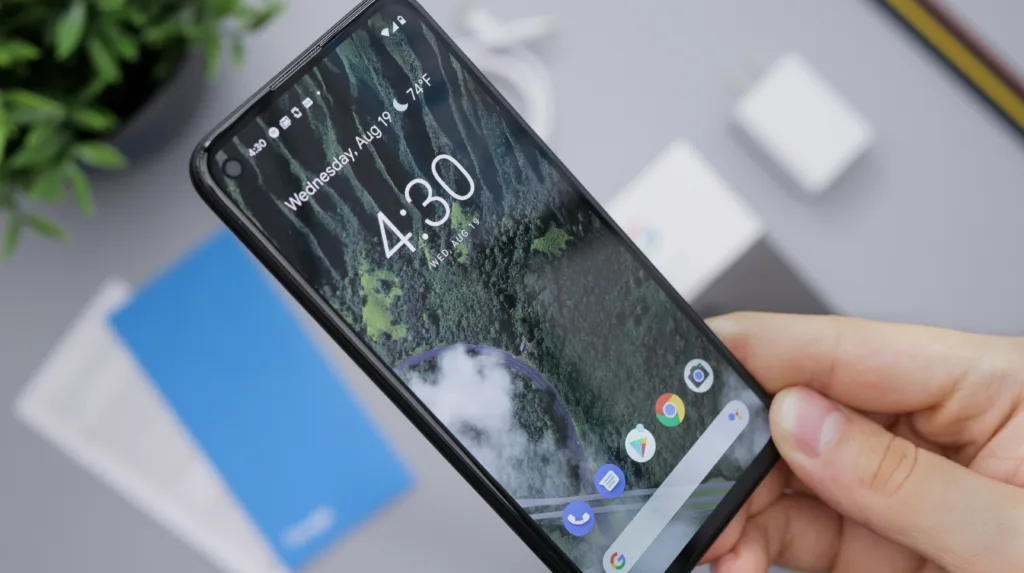
If your Android phone’s screen turns black during a phone call and refuses to wake up after moving the phone away from your ear, you’re not alone. This issue affects users across Samsung, Xiaomi, OnePlus, vivo, OPPO, realme, Motorola, Google Pixel, and many other Android brands.
Although it may initially appear to be a display problem, the culprit is usually much simpler. In most cases, the proximity sensor is either blocked, miscalibrated, or affected by software running in the background.
Fortunately, the majority of users can solve the problem in just a few minutes without performing a factory reset or replacing the phone.
Why Does the Screen Turn Black During Calls?
Every Android smartphone includes a small proximity sensor positioned near the earpiece.
Whenever you place the phone against your face during a call, the sensor detects that your ear is covering the display and immediately switches the screen off. This prevents accidental touches while also reducing battery consumption during longer conversations.
Once the phone moves away from your face, the display should automatically turn back on.
If it doesn’t, something is preventing the sensor from working correctly.
Clean the Proximity Sensor First
This should always be the first thing you try.
Dust, fingerprints, facial oil, lint, or even dried sweat can partially block the sensor and stop it from accurately detecting when your face moves away.
Using a clean microfiber cloth, gently wipe:
- The earpiece speaker
- The front camera area
- The small sensor window beside the speaker
Avoid spraying cleaning liquids directly onto the phone.
After cleaning, make another call and see whether the display responds normally.
Check Your Screen Protector and Phone Case
Many users unknowingly create this problem themselves.
Low-quality tempered glass protectors sometimes cover the proximity sensor, while thick protective cases may partially obstruct it depending on their design.
Remove both temporarily and test another call.
If everything starts working normally, replacing the screen protector or changing the case usually fixes the issue permanently.
Test the Proximity Sensor
Several Android manufacturers include built-in hardware diagnostics.
Depending on your phone model, you may be able to:
- Open the built-in hardware test menu
- Run the manufacturer’s diagnostic application
- Install a trusted proximity sensor testing app from Google Play
Move your hand over the sensor during testing.
If the sensor value never changes, recalibration—or hardware repair—may be required.
Restart the Phone
Temporary software glitches occasionally prevent Android from reading sensor data correctly.
Restarting clears temporary memory, refreshes system services, and removes stuck background processes.
If the issue appeared only recently, a simple reboot may resolve it immediately.
Boot Into Safe Mode
Third-party applications can sometimes interfere with phone calls.
Apps that commonly create conflicts include:
- Call recording apps
- Third-party dialers
- Floating widget apps
- Screen overlay utilities
Boot into Safe Mode and place another phone call.
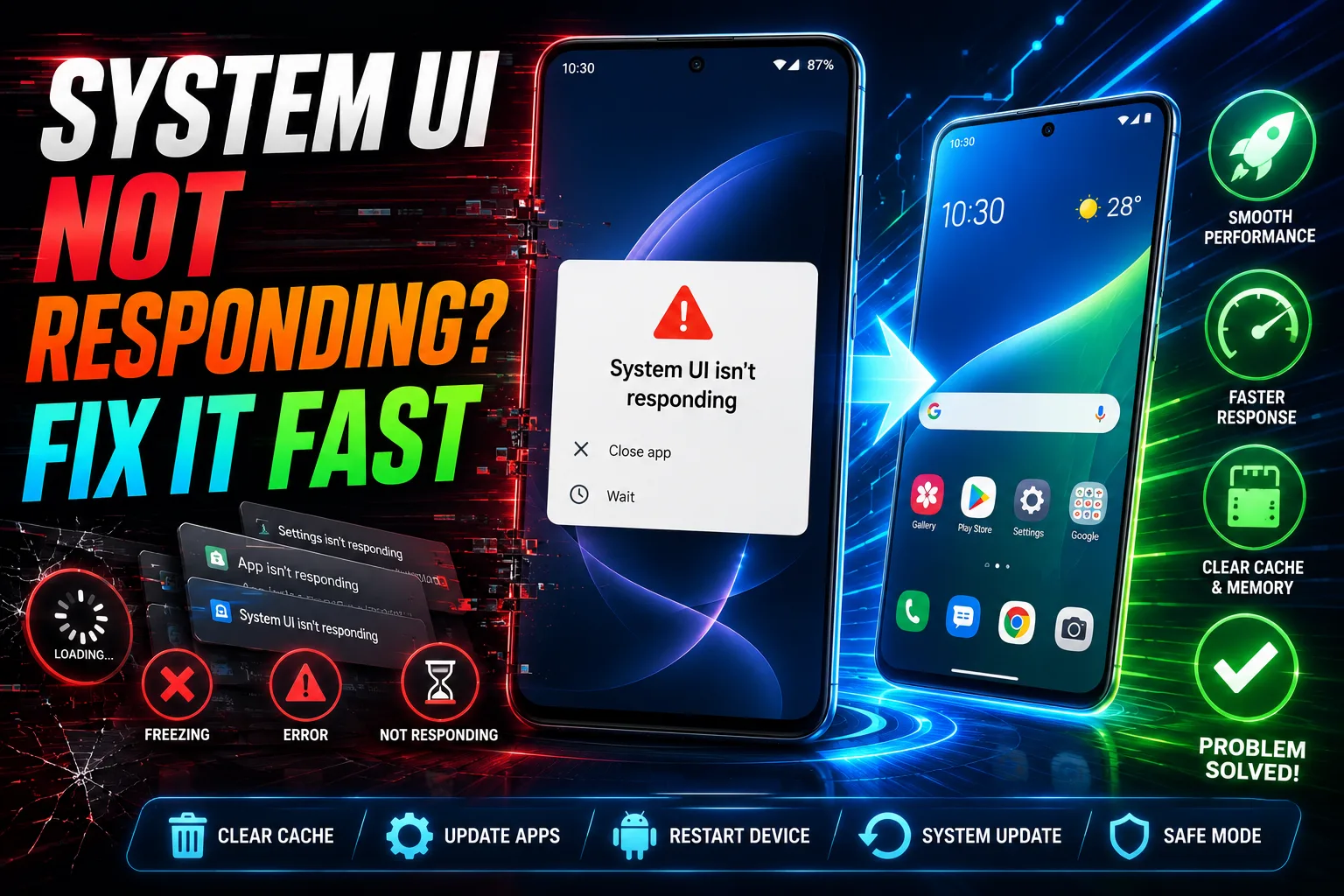
If the screen behaves normally, one of your installed applications is responsible. Remove recently installed apps one by one until the issue disappears. If the problem turns out to be software-related rather than a faulty sensor, our guide How to Fix “System UI Isn’t Responding” or App Crashing Errors on Android explains additional ways to identify unstable apps affecting Android system behavior.
Update Android and the Phone App
Phone manufacturers regularly release updates that improve:
- Dialer stability
- System UI
- Sensor handling
- Call management services
Check for updates in:
- Google Play Store
- Settings → Software Update
- Manufacturer update center
Installing the latest software often fixes known proximity sensor bugs. If your phone has also become noticeably slower recently, it’s worth reading How to Make Android Faster Without Root (2026 Speed Guide) since excessive background activity can affect both overall performance and phone call stability.
Clear the Phone App Cache
Corrupted temporary files inside the Phone app can occasionally interfere with call functions.
To clear the cache:
- Open Settings.
- Tap Apps.
- Select Phone.
- Open Storage.
- Tap Clear Cache.
This removes temporary files without deleting contacts or call history.
Use Speaker Mode or Headphones
A useful diagnostic test is switching to speakerphone.
If the display behaves normally during speaker calls but stays black only while holding the phone against your ear, the proximity sensor is almost certainly responsible.
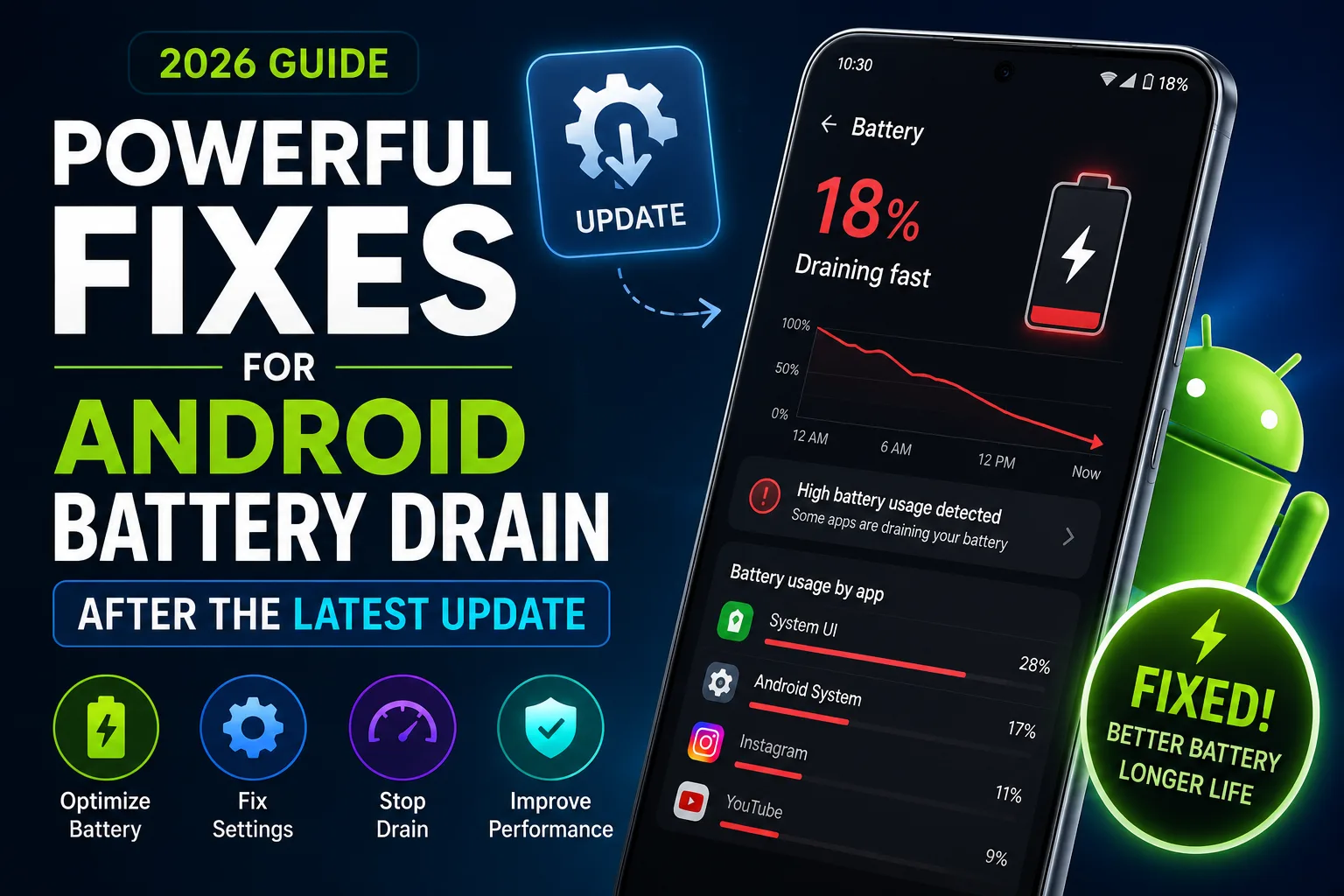
Likewise, making calls through wired earphones or Bluetooth headphones can help confirm whether the issue is specifically related to face detection. If you’ve also noticed unusual battery drain overnight or after long conversations, our guide Why Your Phone Battery Drains Overnight (Android Fix, 2026) explains how background services and battery optimization can contribute to multiple Android issues simultaneously.
When Hardware Repair Is Needed
If none of the software fixes work, the proximity sensor itself may have failed.
Possible causes include:
- Physical drops
- Water damage
- Loose internal connectors
- Improper screen replacement
- Sensor hardware failure
Fortunately, replacing a proximity sensor is far less expensive than replacing the entire display.
An authorized service center can usually diagnose and replace the component quickly.
For official Android troubleshooting guidance, visit the Android Help Center.
⚡ TechularZtrix Scan
📌 Bottom Line: Android screens staying black during calls are usually caused by proximity sensor issues—not display failures. Most users can solve the problem with simple cleaning, software updates, or Safe Mode diagnostics.
⏱ Difficulty Level: Easy
⌛ Time Required: Around 10–20 minutes.
✅ Best For: Android users experiencing black screens, frozen displays, or unresponsive touch controls during phone calls.
🏆 Biggest Win: Most cases can be fixed at home without losing data or paying for repairs.
⚠️ Biggest Compromise: If the proximity sensor has physically failed, only hardware replacement will permanently resolve the issue.
📈 Why It Matters: A properly functioning proximity sensor improves both usability and battery efficiency during calls. Understanding how it works helps users avoid unnecessary factory resets or expensive display replacements.
🔍 Our Recommendation: Always start with cleaning the sensor, removing your screen protector, and testing Safe Mode before considering hardware repair.