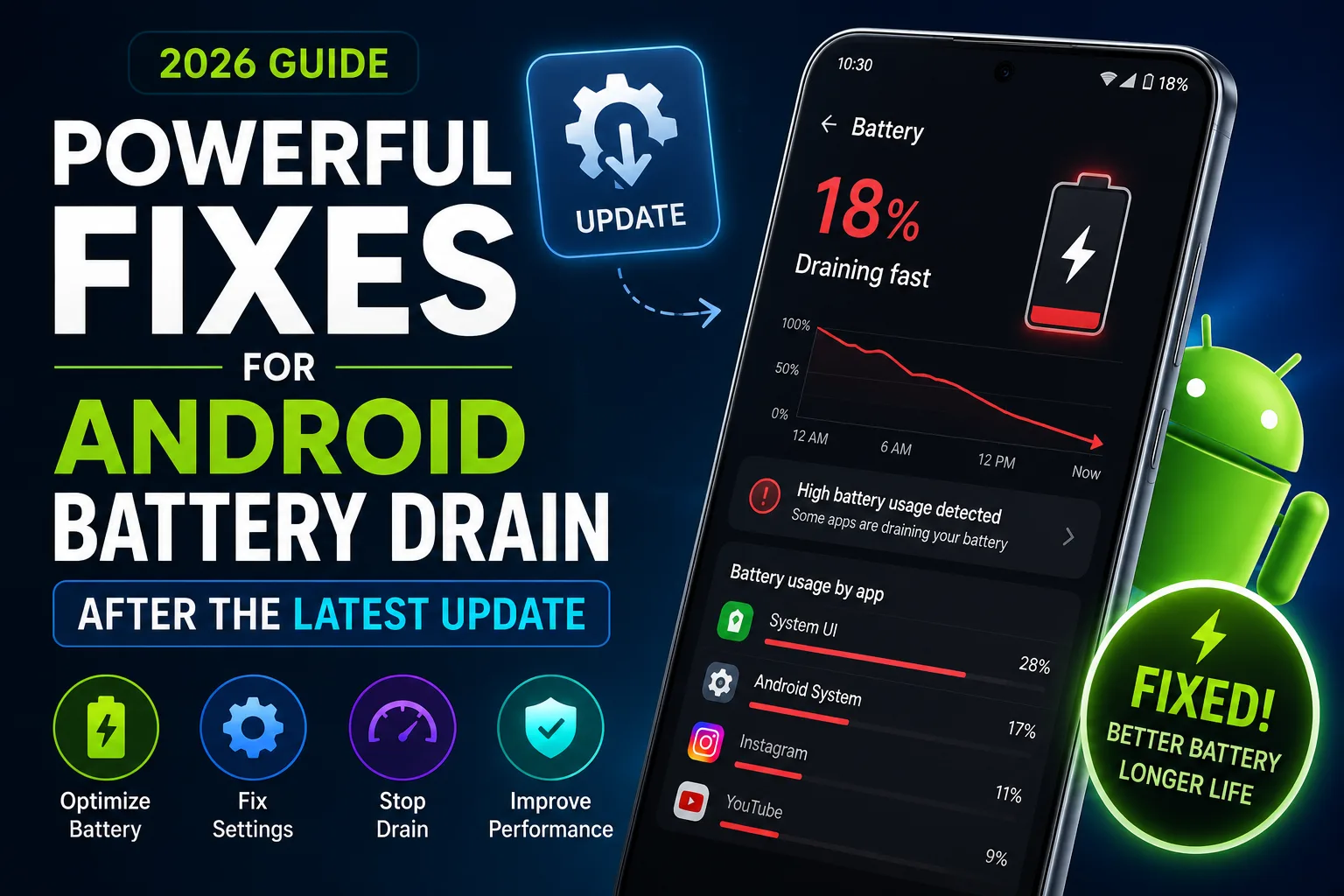
Samsung Battery Draining Fast After One UI 9 Update? Powerful Fixes That Actually Help
Quick Highlights
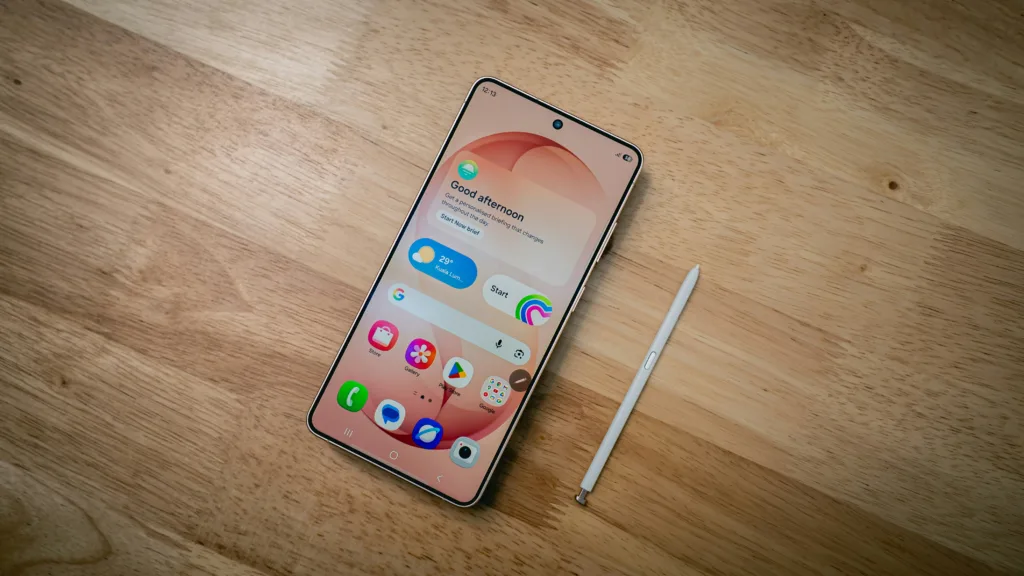
A Galaxy phone can sometimes appear to lose battery faster after a major software update. If your Samsung battery is draining fast after a One UI 9 update, the update itself is not necessarily the only explanation.
A Galaxy phone may temporarily use more power while apps and system services adjust after an update. At other times, a badly behaved app, weak network signal, high display usage or background activity can be responsible. Samsung’s own guidance identifies background apps, network conditions, settings, usage patterns and battery condition as common factors behind faster battery drain.
That makes diagnosis more important than simply turning on every battery-saving option.
This guide focuses on the practical fixes worth trying first, while also explaining when battery drain is likely to be software-related and when it may point toward an aging battery.
Why Battery Drain Can Increase After a One UI 9 Update
A major software update changes more than the visual interface. System services, application compatibility, background processes and optimisation behaviour can all change at the same time.
That means the first few days after an update may not represent your phone’s normal long-term battery performance.
Samsung notes that battery consumption can temporarily increase during periods when apps and services are being optimised. The company also identifies weak network signals, background activity, high brightness, intensive applications and active connectivity features as factors that can increase consumption.
This is why it is better to monitor the phone before concluding that One UI 9 has permanently reduced battery life.
If the drain remains unusually high after normal usage has settled, start troubleshooting.
1. Check Which Apps Are Draining the Battery
The first question should be simple:
Which application or system process is actually using the battery?
Open your Galaxy’s battery settings and look at the battery usage information.
Depending on the Galaxy model and software version, you may see:
Settings → Battery → View details
or a similar battery-usage screen.
Look for applications consuming an unusually large percentage of power compared with how much you actually use them.
For example, if a social-media app has been open for only a few minutes but appears near the top of battery usage, investigate it before changing system-wide settings.
Samsung recommends checking battery usage by app when investigating unusually fast drain.
This is one of the most important steps because it prevents you from treating every battery problem as a generic One UI problem.
2. Update Your Galaxy Apps
After a major One UI update, make sure your installed applications are also up to date.
Open the Google Play Store and check for available updates. Also check the Galaxy Store for Samsung applications and other apps installed through it.
An application that was designed around an earlier software environment can sometimes behave inefficiently after a major Android or One UI change.
If one particular app suddenly appears near the top of your battery usage list after the update, updating it should be one of the first things you try.
If the developer has already released an update addressing compatibility or performance issues, the battery drain may disappear without changing any Galaxy settings.
3. Restart Your Galaxy Phone
A restart is basic, but it is worth doing before more complicated troubleshooting.
A phone that has been running continuously through a major software update can have background processes that don’t behave normally. Restarting gives those processes a fresh start.
It can also help when battery drain is accompanied by unusual warmth, sluggishness or applications remaining active when they should not be.
Samsung recommends restarting Galaxy devices as part of general battery and performance troubleshooting.
If the battery returns to normal after a restart but the problem repeatedly comes back, continue with the battery-usage investigation rather than treating the restart as a permanent fix.
4. Put Rarely Used Apps to Sleep
One of the most useful Samsung battery settings is Background usage limits.
Go to:
Settings → Battery → Background usage limits
From there, Samsung provides options such as Sleeping apps and Deep sleeping apps, although the exact names and location can vary by Galaxy model and software version.
Sleeping apps have restricted background activity, while deep-sleeping apps are prevented from running in the background until you open them.
This is particularly useful for applications you rarely use but don’t want to uninstall.
However, don’t put important communication apps into deep sleep without considering the consequences. Background restrictions can delay notifications or prevent an application from performing tasks until you open it.
The best candidates are apps you use occasionally and don’t need running continuously.
5. Check Whether a Weak Network Signal Is Draining the Battery
This is one of the most overlooked causes of battery drain.
If your Galaxy spends large parts of the day in an area with weak or unstable cellular reception, it can consume more power while maintaining or searching for a network connection.
Samsung specifically lists weak network conditions as a cause of increased battery consumption.
This can become particularly noticeable with 5G.
If your phone frequently moves between 5G and 4G or spends time with a weak 5G signal, battery consumption may increase compared with a stable connection.
You don’t necessarily need to disable 5G permanently.
Instead, observe whether the battery drain is significantly worse in particular locations. If your phone lasts much longer when connected to a strong Wi-Fi network or stable cellular signal, network conditions may be a bigger factor than One UI 9 itself.
6. Reduce Display-Related Battery Consumption
The display is one of the most obvious sources of power consumption, particularly when the phone is used heavily.
Check:
Settings → Display
Then review your screen brightness, screen timeout and Always On Display settings.
High brightness is especially demanding when you’re outdoors or using the phone continuously.
You don’t need to keep brightness extremely low. The better approach is to use Adaptive brightness where appropriate and avoid unnecessarily high manual brightness.
If you don’t need Always On Display throughout the day, reducing or disabling it can also help.
Samsung identifies screen brightness and display usage among the factors that influence Galaxy battery life.
For heavy users, display time can have a much larger effect on battery life than small background settings.
7. Review Location, Bluetooth and Sync Activity
Wireless features don’t automatically cause abnormal battery drain, but continuous activity can increase consumption.
Review whether applications are frequently using:
Location, Bluetooth, mobile data or background synchronisation.
You don’t need to disable everything.
Instead, remove unnecessary access.
For example, an application that doesn’t need continuous location access shouldn’t be allowed to use location constantly. Likewise, Bluetooth can be switched off when you genuinely aren’t using a Bluetooth accessory.
Samsung recommends switching off unused connectivity functions and managing synchronisation when they aren’t required.
The goal is selective management rather than turning your Galaxy into a restricted device that constantly sacrifices useful features for battery life.
8. Use Device Care to Optimise the Phone
Samsung’s Device care tools provide a quick way to review the phone’s general condition.
Open:
Settings → Device care
Then select Optimise now if the option is available.
Device Care can check areas such as battery, memory and storage and can help identify background activity affecting performance. Samsung specifically recommends Device Care optimisation as part of its battery troubleshooting guidance.
Don’t expect this button to magically transform battery life.
Its value is that it provides a quick system-level check and can help identify conditions that deserve further investigation.
9. Turn On Power Saving When You Actually Need It
If you’re away from a charger and need to extend the remaining battery, Power saving mode is useful.
Go to:
Settings → Battery → Power saving
Samsung’s Power saving mode can restrict background activity and reduce certain power-hungry functions. Depending on the device and configuration, it can also affect display behaviour, performance and background data.
But don’t leave every restrictive option enabled simply because you’re troubleshooting.
Power saving is primarily a battery-extension tool. If you use aggressive restrictions permanently, some notifications and background functions may not behave as expected.
For everyday use, it is usually better to identify the actual battery-hungry app or feature first.
10. Check Whether the Battery Is Being Affected by Heavy Usage
Sometimes the software is working normally and the usage pattern has simply changed.
Gaming, video recording, navigation, high-resolution streaming and long periods of mobile data use can consume considerably more power than messaging or web browsing.
This becomes important when comparing battery life before and after an update.
If you’ve started using a new application, spending more time on the camera, using navigation more frequently or spending more hours on 5G, the resulting battery difference should not automatically be attributed to One UI 9.
Samsung notes that usage patterns, network conditions and active features all affect battery performance.
The battery percentage alone doesn’t tell the complete story.
11. Test for a Problematic Third-Party App
If battery drain began after installing or updating a particular application, that application deserves attention.
Start by updating it.
If the problem continues, temporarily uninstall it and observe battery behaviour.
You can also use Safe Mode as a diagnostic test. Safe Mode limits third-party applications, making it useful for determining whether a downloaded app is contributing to unusual behaviour.
If battery consumption becomes substantially more normal in Safe Mode, investigate applications installed or updated shortly before the problem appeared.
This is particularly useful when the battery graph doesn’t immediately identify an obvious culprit.
12. Don’t Clear Everything or Factory Reset the Phone Immediately
A factory reset is sometimes useful for serious software problems, but it shouldn’t be your first response to battery drain.
Before considering a reset, you should know what is actually consuming the battery.
If a single application is responsible, resetting the entire phone is unnecessary.
If several system functions appear abnormal, you can first try software updates, restarting, Device Care optimisation, background usage limits and Safe Mode.
A factory reset should become a consideration only when the problem is persistent and other reasonable troubleshooting has failed.
And if you eventually reset the device, back up important information first.
13. Check Battery Health With Samsung Members
If the battery continues draining unusually fast despite normal software troubleshooting, use Samsung Members to run the available phone diagnostics.
Samsung recommends its Phone Diagnostics tool for checking battery status and other device functions.
This is especially important when fast drain is accompanied by other symptoms such as:
Unexpected shutdowns, charging problems, unusual heat or a battery that drops rapidly even during light usage.
A diagnostic result doesn’t necessarily mean the battery needs replacement, but it can help determine whether the issue deserves professional inspection.
When Is Battery Drain After One UI 9 Normal?
A small increase in consumption immediately after a major software update doesn’t necessarily indicate a problem.
Give the phone some time to settle, particularly if applications are still being updated and background services are completing optimisation work.
The more concerning situation is persistent drain that remains unusually high during normal usage.
For example, if the phone loses substantially more battery during the same routine than it did before the update, repeatedly becomes warm while idle, or shows an unexplained app dominating the battery graph, further investigation makes sense.
The key is consistency.
One unusually bad day isn’t enough evidence to conclude that One UI 9 has caused a battery problem.
When Should You Consider a Battery Replacement?
Software troubleshooting won’t fix a physically aging battery.
If your Galaxy phone is older and has started showing rapid battery loss, unexpected shutdowns or charging problems, the battery itself may have degraded.
Samsung recommends professional inspection when battery performance continues to deteriorate significantly. Its support guidance also recommends using Samsung Members diagnostics before considering battery service.
If the battery is physically swollen, damaged or unusually hot, stop treating the issue as a normal software troubleshooting problem and seek authorised service.
One UI 9 Battery Drain vs. One UI 9 Features
It is also worth separating genuine battery problems from features that simply change how the phone behaves.
Samsung is adding more software capabilities to One UI, including productivity features designed to control distracting applications. Our earlier coverage, Samsung One UI 9 Could Add Powerful Network-Based Focus Mode to Block Social Media and Streaming Apps, looks at how Samsung’s proposed network-based Focus Mode could restrict selected services.
Similarly, our report on Samsung Opens One UI 9 Beta for Galaxy S26 Series Ahead of Wider Rollout provides useful background on Samsung’s broader One UI 9 development and rollout.
Those features can influence how you use the phone, but they shouldn’t be confused with evidence that One UI 9 itself is responsible for abnormal battery consumption.
A Better Way to Troubleshoot One UI 9 Battery Drain
Instead of changing ten settings at once, use a controlled process.
First, check the battery graph and identify unusual applications.
Second, update your apps and Galaxy software.
Third, restart the phone and monitor it.
Fourth, restrict background activity for genuinely unused applications.
Fifth, investigate network signal, display brightness and location activity.
Finally, use Safe Mode and Samsung Members diagnostics if the problem continues.
This approach makes it much easier to identify the actual cause.
If you change every setting simultaneously, you may improve battery life without ever knowing which setting fixed the problem.
⚡ TechularZtrix Scan
📌 Bottom Line
Samsung battery drain after a One UI 9 update is not automatically a software bug or failing battery. Start with the battery-usage screen, app updates and background activity before making major changes.
🎯 Target Audience
This guide is for Samsung Galaxy users who noticed unusually fast battery drain after moving to One UI 9, particularly when the phone previously had normal endurance.
It is also useful for anyone experiencing unexplained battery consumption, even if the problem isn’t directly related to the update.
🏆 Biggest Win
The most useful troubleshooting step is finding the app or feature responsible for the drain instead of applying generic battery-saving tricks.
Once you know what’s consuming power, the solution is usually much more targeted.
⚠️ Biggest Compromise
Battery-saving settings always involve trade-offs.
Putting too many apps into deep sleep, restricting background data or using aggressive Power saving settings can reduce notifications, background synchronisation and some features.
The goal should be controlled optimisation, not maximum restriction.
📈 Why It Matters
Battery life is one of the first things users notice after a major software update. But diagnosing the cause properly is important because the same symptom can come from an application, network conditions, display usage, background activity or battery degradation.
A structured troubleshooting process prevents unnecessary factory resets and premature battery replacements.
🔍 What Happens Next
If battery consumption remains unusually high after app updates, background optimisation, network checks and Safe Mode testing, the next step is Samsung Members diagnostics.
If diagnostics or the symptoms suggest battery degradation, professional inspection is more appropriate than continuing to change software settings.