How to Enable Two-Factor Authentication on Instagram (2026): The Safest Way to Protect Your Account
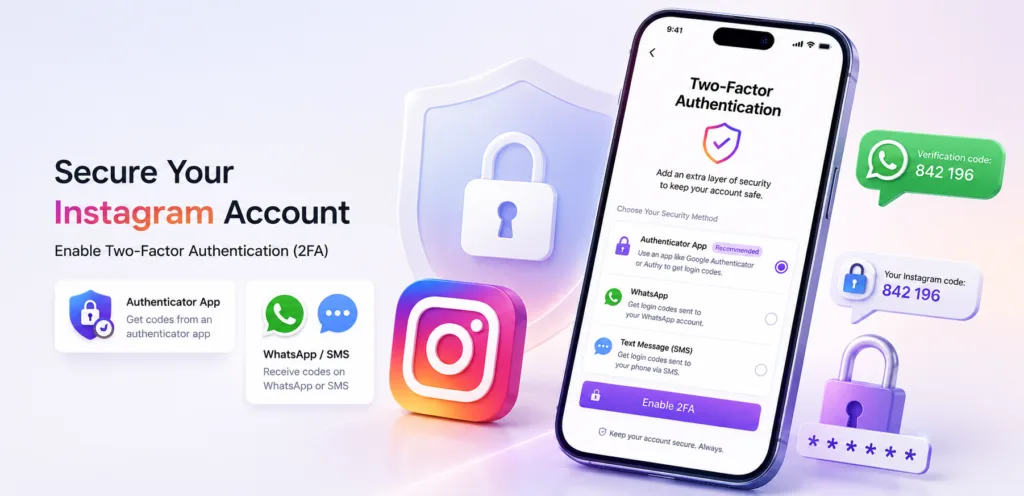
Instagram remains one of the most used social platforms in India and worldwide, especially for Reels and creator-driven content. But with growing cases of phishing, password leaks, and account takeovers, relying only on a password is no longer enough.
That’s where Two-Factor Authentication (2FA) comes in.
When 2FA is enabled, Instagram adds a second verification step during login. Even if someone knows your password, they won’t be able to access your account without the additional security code.
If you want stronger Instagram security in 2026, enabling 2FA is one of the smartest steps you can take.
What is Instagram Two-Factor Authentication?
Two-Factor Authentication is a login protection system where Instagram asks for two things:
Your password, and a second verification method such as a one-time code.
This code is usually sent through SMS/WhatsApp or generated using an authenticator app. Without this code, the login attempt fails, even if the password is correct.
This is why 2FA is extremely effective against account hacking attempts.
Before You Start: Where Instagram Keeps 2FA Settings Now
Instagram has moved most security features to Meta’s Accounts Center, which means you won’t find Two-Factor Authentication in the old settings menu like earlier versions.
To enable it, you’ll need to go through Accounts Center, which manages security settings for Instagram and other Meta apps.
Method 1: Enable Instagram 2FA Using an Authenticator App (Recommended)
If you want the strongest protection, use an authenticator app. It generates secure login codes that refresh every few seconds, and it works even if your SIM card is not active.
Step-by-Step: Turn On Authenticator App 2FA
Open Instagram on your phone and make sure you are logged into the account you want to secure.
Now go to your profile by tapping the profile icon in the bottom-right corner.
Tap the menu icon (three lines) in the top-right corner and open Settings and activity.
Scroll down and enter Accounts Center.
Inside Accounts Center, tap Password and security.
Now select Two-factor authentication.
Instagram will ask you to choose the account you want to apply 2FA to. Tap your Instagram username.
You will now see multiple verification options. Select Authentication app.
Instagram will display a setup key or QR code. If you already have an authenticator app installed, copy the key and paste it there. Alternatively, scan the QR code.
Once added, your authenticator app will start generating a 6-digit login code.
Enter that code on Instagram to confirm.
After verification, Instagram will confirm that Two-Factor Authentication is active.
At this point, your account is protected with app-based 2FA.
Method 2: Enable Instagram 2FA Using WhatsApp or SMS (Simplest Option)
If you don’t want to use an authenticator app, Instagram also allows 2FA through WhatsApp or SMS. This method is easier for most users and takes only a minute to set up.
Step-by-Step: Turn On WhatsApp/SMS 2FA
Open Instagram and go to your profile page.
Tap the three-line menu and open Settings and activity.
Select Accounts Center.
Go to Password and security.
Tap Two-factor authentication.
Select your Instagram account.
Now choose either WhatsApp or Text message (SMS).
Enter the mobile number you want to use.
Instagram will send a 6-digit verification code.
Enter the code and confirm.
Once done, Instagram will automatically ask for a code every time you log in on a new phone, browser, or unknown location.
Sometimes OTP messages arrive late due to network issues, and users keep the screen awake while retrying login multiple times, which increases battery drain. If your phone battery feels inconsistent lately, check: How to Calibrate Your Phone Battery in 2026: Fix Ghost Drain and Wrong Percentage (Android & iPhone)
Which Instagram 2FA Option Should You Choose?
If you care about maximum security, the authenticator app method is the best because it reduces dependence on mobile networks and SIM-based verification.
WhatsApp and SMS are still good options for everyday users, but they can be less secure compared to authenticator apps in rare cases of SIM-related attacks.
For most users, the ideal setup is authenticator app 2FA first, and WhatsApp as a backup option if Instagram allows it.
This method is more secure than SMS because it reduces the risk of SIM-based attacks and also helps avoid unnecessary device heating during long login sessions or app switching. How to Stop Thermal Throttling on Android & iPhone (2026): The Pro Guide to Sustained Performance
Don’t Skip This: Save Instagram Backup Codes
After enabling Two-Factor Authentication, Instagram may offer backup codes. These are emergency codes that can help you log in if:
your phone is lost,
your SIM stops working,
you can’t receive SMS,
or your authenticator app is not accessible.
Backup codes are extremely important if Instagram is your main creator or business platform. Save them in a safe place such as a password manager or a secure offline note.
What Changes After You Turn On 2FA?
Once Two-Factor Authentication is enabled, Instagram will require a verification step when:
you log in from a new phone,
you log in from a browser,
you log in from an unknown location,
or Instagram detects suspicious activity.
This means even if your password is leaked, your account stays protected.
For official reference, Instagram also explains the setup process in its Help Center guide on enabling two-factor authentication.
The Lab Tip: Enable 2FA Before You Get Locked Out
Many users enable security features only after their accounts get compromised. But by then, recovery becomes harder, especially if the hacker changes your email, password, or linked phone number.
Turning on 2FA early is the simplest way to avoid account recovery headaches.
Security is important, but so is protecting your phone’s long-term battery health because always-on apps like Instagram, WhatsApp, and background sync can generate extra heat. If you want to optimize charging habits, read: Fast Charging vs Slow Charging: When to Use Each and What Actually Damages Your Battery
Yes. In 2026, password-only accounts are vulnerable to phishing and leaks. 2FA is strongly recommended.
Authenticator apps are safer because they do not depend on your SIM card or mobile network.
Yes. Instagram supports Google Authenticator and most popular authenticator apps.
You can log in using backup codes or Instagram’s recovery process if you still have access to your email/linked account.
Yes. You can disable it anytime from Accounts Center under Password and Security settings.