Easy Guide: How to Create AI Images in WhatsApp in 2026
Quick Highlights
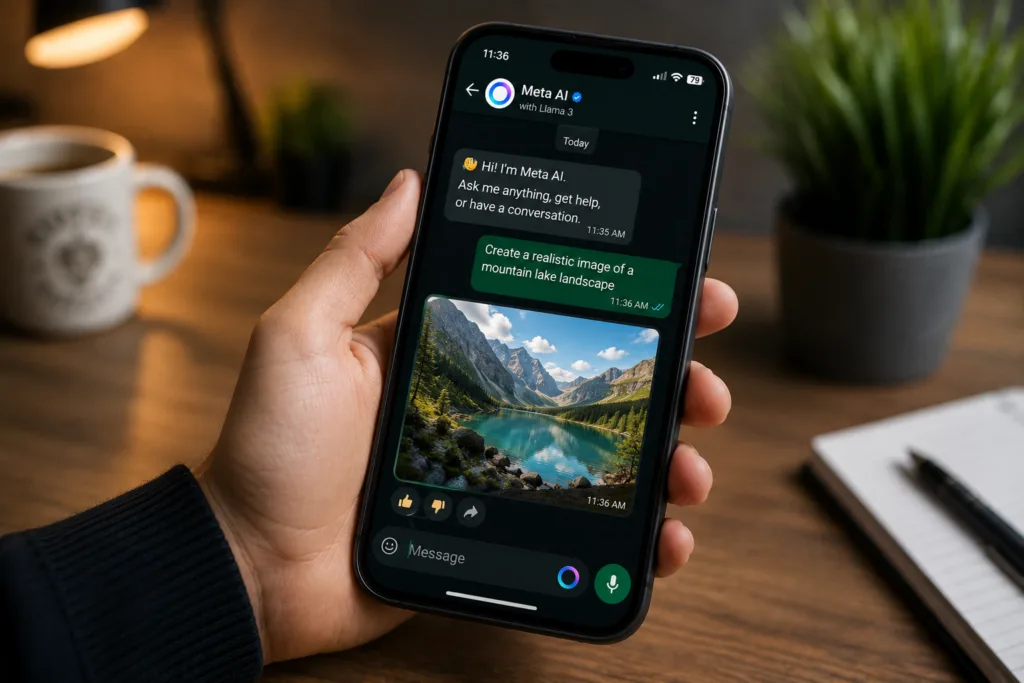
AI image generation is no longer limited to dedicated creative apps. Thanks to Meta AI, WhatsApp users can now create images directly inside the messaging app using simple text descriptions.
Whether you want social media graphics, wallpapers, concept art, creative illustrations, or fun images to share with friends, Meta AI can generate them in seconds without requiring any additional software.
If you’re wondering how to create AI images in WhatsApp, this guide explains the entire process step by step.
What Is AI Image Generation in WhatsApp?
Meta AI includes a built-in image generation feature that converts text descriptions into images.
Instead of manually creating graphics, users simply describe what they want to see, and Meta AI generates an image based on the prompt.
The feature is integrated directly into WhatsApp, making it one of the easiest ways to experiment with AI-generated artwork.
Important Things to Know Before You Start
Before creating AI images, keep these points in mind:
- WhatsApp must be updated to the latest version
- Meta AI availability varies by country and account
- An internet connection is required
- Image quality depends heavily on the prompt
- Some image-generation features may roll out gradually
How to Create AI Images in WhatsApp
Step 1 — Open Meta AI
Launch WhatsApp.
Open a conversation with Meta AI using the Meta AI shortcut, search feature, or dedicated AI icon if available on your device.
Step 2 — Enter an Image Prompt
Describe the image you want to create.
The more detailed your prompt is, the better the result is likely to be.
For example:
- A futuristic city with flying cars at sunset
- A golden retriever sitting in a sunflower field, photorealistic style
- A minimalist technology logo for a startup
- A cinematic mountain landscape during winter
Step 3 — Send the Prompt
Send your request just like a normal message.
Meta AI will begin generating the image.
Depending on server load and availability, generation usually takes only a few seconds.
Step 4 — Review the Result
Once complete, the generated image will appear directly inside the chat.
If the image isn’t exactly what you wanted, you can refine the prompt and try again.
Step 5 — Save or Share the Image
Tap the generated image to view it in full screen.
You can then:
- Save it to your device
- Share it in WhatsApp chats
- Forward it to groups
- Download it for personal use
How to Create AI Images in WhatsApp Group Chats
Meta AI can also generate images within supported group chats.
Open a group conversation and type:
@Meta AI
Follow it with your image request.
For example:
@Meta AI create a dragon flying above the Himalayas at sunset
After sending the message, Meta AI will generate and display the image inside the group conversation.
All group members can view the result.
Tips for Better AI Images
Be Specific
Detailed prompts typically generate better images.
Instead of:
“A car”
Try:
“A red sports car parked beside a mountain road at sunrise, cinematic photography”
Mention an Art Style
Including a style often improves results.
Examples:
- Photorealistic
- Watercolour painting
- Anime style
- Cartoon illustration
- Digital art
- 3D render
- Minimalist design
Describe the Environment
Adding details about lighting, weather, colours, or background elements helps the AI create more accurate images.
Refine the Result
If the first image isn’t ideal, simply tell Meta AI what should change.
Examples:
- Make the sky darker
- Add more mountains
- Change the colour to blue
- Use a realistic photography style
What You Cannot Generate
Meta AI follows content and safety policies.
Certain requests may be restricted, including:
- Graphic violence
- Adult content
- Harmful or dangerous content
- Certain misleading depictions of real individuals
- Content that violates Meta’s policies
If a request violates those policies, Meta AI may refuse to generate an image.
Common Problems and Fixes
Image Generation Option Isn’t Available
Make sure:
- WhatsApp is updated
- Meta AI is available in your region
- The feature has rolled out to your account
Image Quality Looks Poor
Try using a more detailed prompt.
Specific instructions generally improve results significantly.
Generation Takes Too Long
Heavy demand can occasionally slow image generation.
Wait a few moments and try again.
Related WhatsApp Guides
If you’re improving your WhatsApp setup, you may also want to read:
For official information about Meta AI availability and supported features, users can visit the official WhatsApp Help Center.
⚡ TechularZtrix Scan
📌 Bottom Line: Meta AI turns WhatsApp into a simple AI image generator, allowing users to create visuals directly from text prompts without installing additional apps.
⏱ Difficulty Level: Easy
⌛ Time Required: Less than 1 minute
✅ Best For: Content creators, students, social media users, marketers, and anyone interested in AI-generated artwork.
🔍 Why It Matters: AI image generation is becoming a mainstream productivity and creativity tool, and WhatsApp now puts that capability directly inside one of the world’s most-used messaging apps.
💡 Best Option Right Now: Use detailed prompts that describe style, lighting, colours, and subjects clearly. Better instructions almost always lead to better AI-generated images.