How to Turn Off Instagram Instants (2026) and Retract Photos You Accidentally Shared
Quick Highlights – How to Turn Off Instagram Instants
Instagram has quietly introduced a new feature called Instants, designed for sharing quick, disappearing photos directly inside your inbox. The idea is simple: capture a moment, send it instantly, and let it vanish without leaving behind the usual trail of likes, comments, or viewer lists.
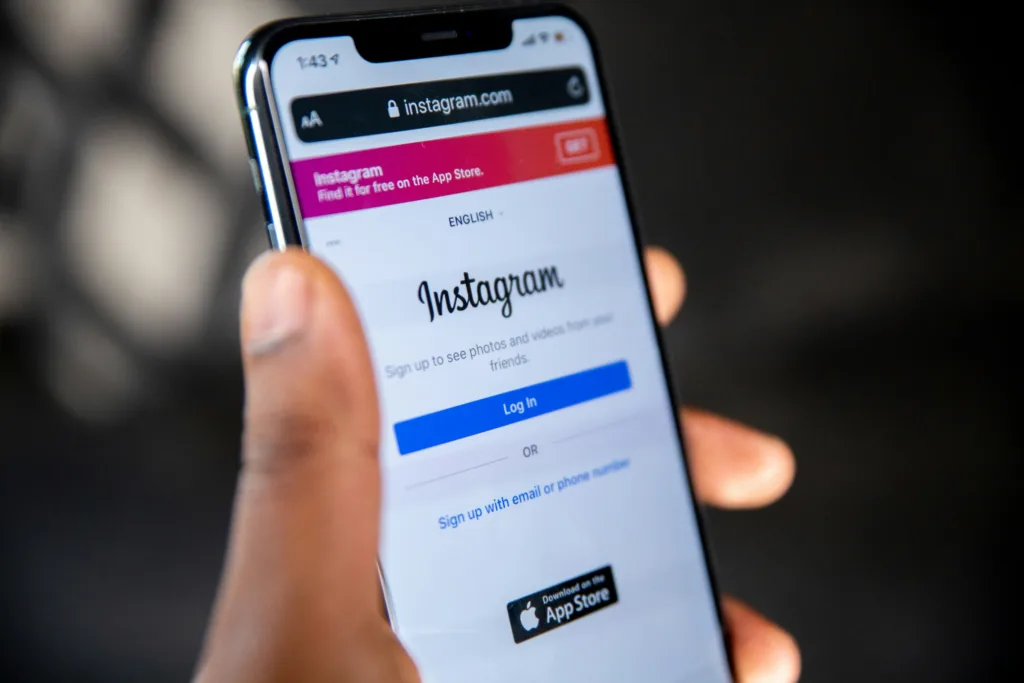
But there’s one problem — many users are accidentally sending photos without realizing how Instants works.
Unlike Instagram Stories or posts where you can preview and edit before sharing, Instants is built around speed. And that “instant-send” design has already caused confusion, especially because the app doesn’t clearly warn users that tapping the shutter button can immediately share the photo with others.
If you want to protect your privacy, avoid accidental sharing, or simply disable Instants completely, here’s the clean step-by-step guide.
For Instagram’s official safety and privacy settings documentation, you can refer to Meta’s Instagram Help Center.
What Is Instagram Instants and Why Users Are Confused
Instagram Instants is a new messaging-style feature that allows users to share quick disappearing photos directly from their inbox. The format is meant to feel more spontaneous, similar to the way people share unfiltered moments on private messaging apps.
When you open Instants for the first time, Instagram shows a brief intro explaining that:
Instants disappear
There’s no public viewer list
Reactions and replies stay private
However, what Instagram doesn’t explain clearly is the most important detail: your photo can be sent immediately the moment you press the shutter button, depending on the selected audience setting.
That’s exactly why many users are unintentionally sharing photos they never meant to send.
If you’re serious about protecting your account security and avoiding unwanted access, it’s also worth enabling stronger login protection. Our guide explains it clearly: How to Enable Instagram Two-Factor Authentication (2026): Easy and Secure 2FA Setup Guide
Why Instants Can Accidentally Share Photos
Inside the Instants camera screen, Instagram shows a toggle where you can choose between:
Friends
Close Friends
The problem is that Friends is selected by default, and many users assume the shutter button simply captures the photo for preview like Stories.
Instead, Instants is designed to send the photo immediately once you tap the shutter button, which can result in accidental sharing.
This design makes Instants feel more like a “tap-and-send” feature rather than a normal Instagram post tool — and that’s why it can be risky if you’re not paying attention.
How to Turn Off Instagram Instants (Disable It Completely)
If you don’t want to see Instants in your inbox at all, Instagram gives you an option to hide it.
Follow these steps:
- Open Instagram
- Go to your Profile
- Tap the three-line menu (top-right)
- Open Settings and activity
- Scroll down and tap Content Preferences
- Enable the option “Hide Instants in Inbox”
Once you turn this on, Instants will no longer appear in your inbox. You also won’t see Instants that others send you.
This is the best option if you don’t want the feature at all.
How to Temporarily Pause Instants Without Disabling It
If you don’t want to disable Instants permanently, Instagram also allows a quick temporary stop.
To do this:
- Open your inbox
- Press and hold the Instants photo stack
- Swipe right
This should temporarily stop incoming Instants without requiring you to go into settings.
It’s useful if you don’t want to miss normal DMs but also want to reduce distractions.
How to Undo an Instant (Retract a Photo You Accidentally Sent)
If you accidentally shared an Instant, Instagram gives you a small window to retract it.
Right after sending, an Undo option appears beneath the shutter button.
If you tap Undo quickly, the photo will be retracted before recipients view it.
However, many users miss this because it appears briefly and the situation can feel stressful.
If you’re worried you may have sent something sensitive, act quickly and look for Undo immediately after tapping the shutter.
Privacy-focused features are becoming a bigger theme across apps now, especially with AI integrations growing rapidly. WhatsApp recently introduced a similar privacy-first approach with AI conversations. WhatsApp Introduces Incognito Chat With Meta AI for Private Conversations
How to Delete an Instant From Archive (Unsend Before Someone Opens It)
Instagram also allows users to retract Instants through the archive, as long as the recipient hasn’t opened it yet.
Here’s how:
- Open Instants camera
- Tap the four-box icon at the top-right (archive icon)
- Find the Instant you sent
- Delete it
If the recipient hasn’t opened it, deleting the Instant should unsend it from their inbox.
This is the best backup method if you missed the Undo button.
Important Note: Instants Is Not the Same as Vanish Mode
Some users confuse Instants with Instagram’s Vanish Mode. But Instants is different because it’s a photo-first feature designed for instant sharing — not a chat mode.
This means you should treat Instants like a fast sharing tool, not like a private draft camera.
TechularZtrix Take: Instants Is Fun, But Instagram Needs Clearer Warnings
Instagram Instants could be a useful feature for people who like sharing spontaneous moments without turning everything into a permanent post.
But the default “Friends” setting and instant-send behavior is a real privacy risk — especially for users who are used to Instagram’s usual preview-first sharing style.
Until Instagram makes the sending process clearer, the safest approach is to either disable Instants entirely or switch to Close Friends every time before tapping the shutter button.
Instagram Instants is a disappearing photo feature inside inbox that lets you share temporary images with friends.
Yes. You can disable it by enabling “Hide Instants in Inbox” in Content Preferences.
Instants is designed for instant sharing. If the audience toggle is set to Friends, tapping the shutter sends the photo immediately.
Yes. You can use the Undo option right after sending, or delete it from archive if it hasn’t been opened.
Instagram doesn’t clearly show a notification in most cases, but if the recipient already opened it, unsending may not work.