How to Fix Bluetooth Not Working on Android, iPhone, and Windows
Quick Highlights
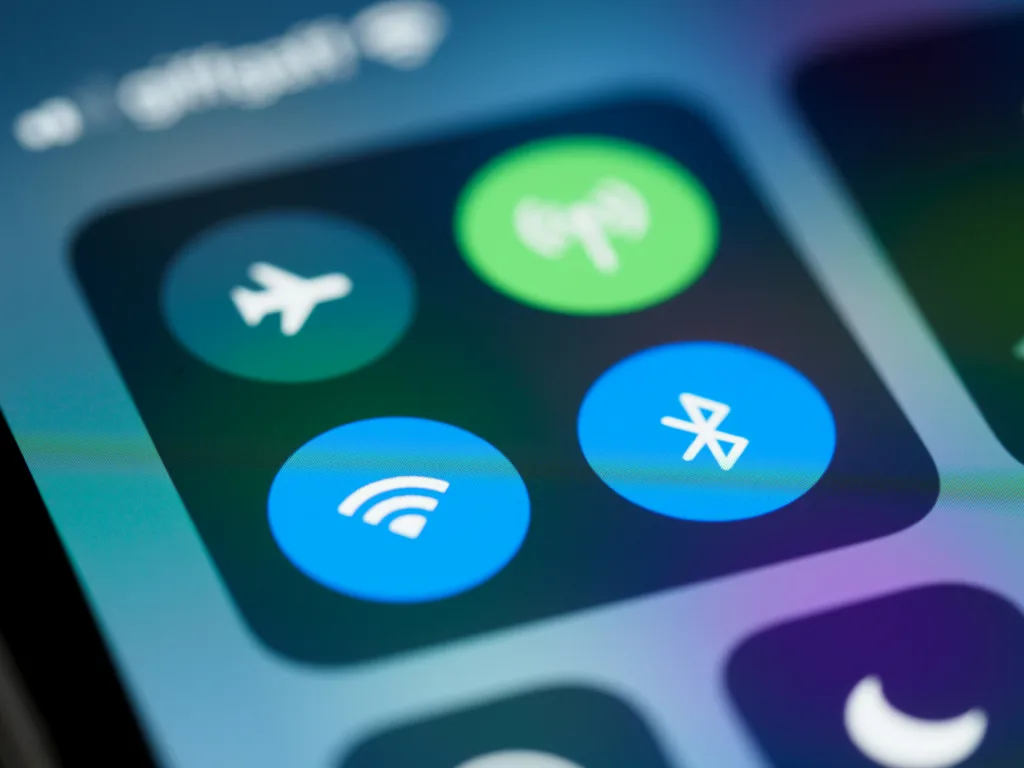
Bluetooth has become an essential feature for connecting wireless earbuds, headphones, keyboards, mice, smartwatches, speakers, and countless other accessories. When it suddenly stops working, everyday tasks like listening to music, attending online meetings, or transferring files can become frustrating.
Bluetooth problems appear in different ways. Sometimes your device cannot find nearby accessories, while in other cases pairing fails or the connection drops repeatedly after a few minutes. These issues can affect Android phones, iPhones, Windows laptops, tablets, and even desktop computers.
Fortunately, most Bluetooth problems are caused by temporary software glitches, outdated drivers, or incorrect settings rather than faulty hardware. This guide walks through the most effective troubleshooting steps to restore a stable Bluetooth connection.
Why Does Bluetooth Stop Working?
Bluetooth relies on both hardware and software working together. A problem with either can interrupt pairing or prevent devices from staying connected.
Some of the most common causes include:
- Temporary software glitches.
- Outdated operating system updates.
- Corrupted Bluetooth settings.
- Low battery on the Bluetooth accessory.
- Devices already connected elsewhere.
- Driver issues on Windows.
- Wireless interference from nearby electronics.
Understanding the source of the problem makes troubleshooting much easier.
Fix 1: Restart Both Devices
The quickest solution is often the simplest.
Restart both the device you’re using and the Bluetooth accessory you’re trying to connect.
For example:
- Restart your phone.
- Restart your Windows PC.
- Turn your Bluetooth headphones or speaker off and back on.
Restarting clears temporary Bluetooth processes that may have stopped responding.
After both devices reboot, try pairing them again before changing any settings.
Fix 2: Turn Bluetooth Off and Back On
Sometimes Bluetooth services become temporarily stuck even though they appear enabled.
Disable Bluetooth for around 15 seconds before turning it back on.
Once Bluetooth restarts:
- Search for available devices again.
- Place your accessory into pairing mode.
- Attempt to reconnect.
This refreshes the wireless connection without affecting your saved Bluetooth devices.
Fix 3: Make Sure the Device Is in Pairing Mode
Many Bluetooth accessories won’t appear unless they’re actively in pairing mode.
This is especially common with:
- Wireless earbuds.
- Bluetooth speakers.
- Game controllers.
- Smartwatches.
- Wireless keyboards.
Check your accessory’s user manual if you’re unsure how to enter pairing mode.
Most devices indicate pairing mode with a flashing LED.
Without pairing mode enabled, your phone or computer may never detect the accessory even though Bluetooth itself is working correctly.
Fix 4: Forget the Bluetooth Device and Pair Again
Saved Bluetooth connections occasionally become corrupted.
Removing the existing pairing and reconnecting from scratch often resolves connection failures.
Delete the accessory from your Bluetooth settings, restart both devices if necessary, and then pair them again.
This forces both devices to create a fresh encrypted Bluetooth connection.
Fix 5: Check Battery Levels
Low battery levels affect Bluetooth performance more often than many people realize.
If your headphones, earbuds, keyboard, mouse, or smartwatch has very little battery remaining, you may experience:
- Random disconnections.
- Failed pairing attempts.
- Poor audio quality.
- Delayed response.
Charge the accessory fully before continuing with additional troubleshooting.
Similarly, ensure your phone or laptop isn’t operating in an aggressive battery-saving mode that restricts Bluetooth functionality.
Reduce Wireless Interference
Bluetooth shares the 2.4 GHz wireless spectrum with many other household devices.
Nearby Wi-Fi routers, wireless cameras, microwave ovens, and even other Bluetooth accessories can sometimes interfere with signal quality.
If you’re experiencing frequent disconnections:
- Move closer to the accessory.
- Turn off unused Bluetooth devices nearby.
- Reduce physical obstacles such as walls or metal furniture.
- Test the connection in another room.
Check Whether the Problem Is Limited to One Accessory
Before assuming your phone or computer is faulty, test another Bluetooth device.
For example:
- Connect a different pair of earbuds.
- Pair another Bluetooth speaker.
- Try another wireless mouse or keyboard.
If every accessory fails to connect, the issue is likely with your phone, tablet, or computer.
If only one accessory has problems, it may require a firmware update, battery replacement, or hardware repair.
If you frequently use wireless accessories while working, optimizing overall system performance can also improve responsiveness. Our How to Free Up RAM and Stop Lag in Visual Studio Code (VS Code) for Coding guide includes practical tips for reducing system load during long development sessions.
Fix 6: Update Bluetooth Drivers (Windows)
If Bluetooth problems occur only on your Windows PC, outdated or corrupted drivers may be responsible.
Windows uses Bluetooth drivers to communicate with wireless devices such as headphones, keyboards, mice, and speakers. If these drivers become outdated or damaged, pairing failures and random disconnections can occur.
Check for driver updates through Windows Update or Device Manager, then restart your computer after installing any available updates.
Keeping Bluetooth drivers updated also improves compatibility with newer accessories.
Fix 7: Install the Latest Software Updates
Operating system updates frequently include Bluetooth stability improvements and bug fixes.
Check for available updates on:
- Android
- iPhone
- Windows
If your Bluetooth problems started after a recent software update, installing the latest patch may resolve compatibility issues introduced by the earlier release.
Updating both your device and Bluetooth accessories (if firmware updates are available) provides the best chance of restoring a stable connection.
Fix 8: Reset Network Settings
If Bluetooth continues to malfunction despite trying the previous fixes, resetting your network settings can remove corrupted wireless configurations.
A network reset typically restores:
- Bluetooth settings
- Wi-Fi settings
- Saved network configurations
Keep in mind that you’ll need to reconnect to Wi-Fi networks and pair Bluetooth accessories again after completing the reset.
Because this process affects multiple wireless settings, it should be used only after simpler troubleshooting steps have failed.
Fix 9: Check Bluetooth Permissions
Some apps require Bluetooth permission to communicate with nearby devices.
If permission has been denied, an accessory may fail to connect even though Bluetooth itself appears to be working normally.
Review your privacy and permission settings, especially if:
- A smartwatch won’t sync.
- A fitness tracker won’t connect.
- A companion app can’t detect your accessory.
Granting the necessary permission often resolves these connection issues immediately.
Fix 10: Determine Whether the Problem Is Hardware-Related
After exhausting software troubleshooting, consider whether the issue could involve hardware.
Possible signs include:
- Bluetooth cannot be enabled at all.
- No Bluetooth devices are ever detected.
- Bluetooth disappears from system settings.
- The device has suffered recent physical damage or liquid exposure.
- Multiple accessories fail across every troubleshooting step.
If these symptoms persist, professional diagnosis or repair may be necessary.
Common Bluetooth Problems and Their Causes
Different Bluetooth issues often point to different underlying causes.
| Problem | Most Likely Cause |
|---|---|
| Device won’t appear | Pairing mode not enabled |
| Pairing fails | Existing connection or corrupted pairing |
| Frequent disconnects | Low battery or wireless interference |
| Poor audio quality | Signal interference or outdated firmware |
| Bluetooth missing completely | Driver or hardware issue |
Recognizing these patterns helps narrow down the correct solution much faster.
Common Mistakes to Avoid
Bluetooth troubleshooting becomes more difficult when multiple settings are changed at the same time.
Avoid these common mistakes:
- Pairing the accessory while it’s already connected to another device.
- Ignoring firmware updates for Bluetooth accessories.
- Assuming Bluetooth is faulty before checking battery levels.
- Installing third-party “Bluetooth repair” apps that promise automatic fixes.
- Resetting your phone or PC before completing basic troubleshooting.
Working through each solution one at a time makes it much easier to identify the actual cause.
If Bluetooth problems occur alongside browser slowdowns or high system memory usage, improving overall system performance may also help. Our How to Fix Chrome Slow, Freezing, or Using Too Much RAM in 2026 guide explains how to reduce unnecessary resource usage for a smoother computing experience.
For additional troubleshooting information, visit the official Bluetooth Support page or your device manufacturer’s support website.
⚡ TechularZtrix Scan
📌 Bottom Line
Most Bluetooth issues are caused by software glitches, outdated drivers, pairing errors, or wireless interference rather than hardware failures. Following these troubleshooting steps resolves the majority of connection problems without requiring professional repair.
📈 Why It Matters
Bluetooth powers many of today’s essential wireless accessories. Knowing how to troubleshoot connection issues helps you avoid unnecessary replacements and restores productivity more quickly.
🌍 India Reality Check
With wireless earbuds, Bluetooth speakers, and smartwatches becoming increasingly popular in India, reliable Bluetooth performance is more important than ever. Regular software updates and proper device maintenance can prevent many common connectivity issues.
🔍 What Happens Next
Bluetooth technology continues to improve with each new standard, offering better range, faster pairing, lower power consumption, and more stable connections. Future software updates are expected to further enhance compatibility across devices.