How to Fix Chrome Slow, Freezing, or Using Too Much RAM in 2026
Quick Highlights
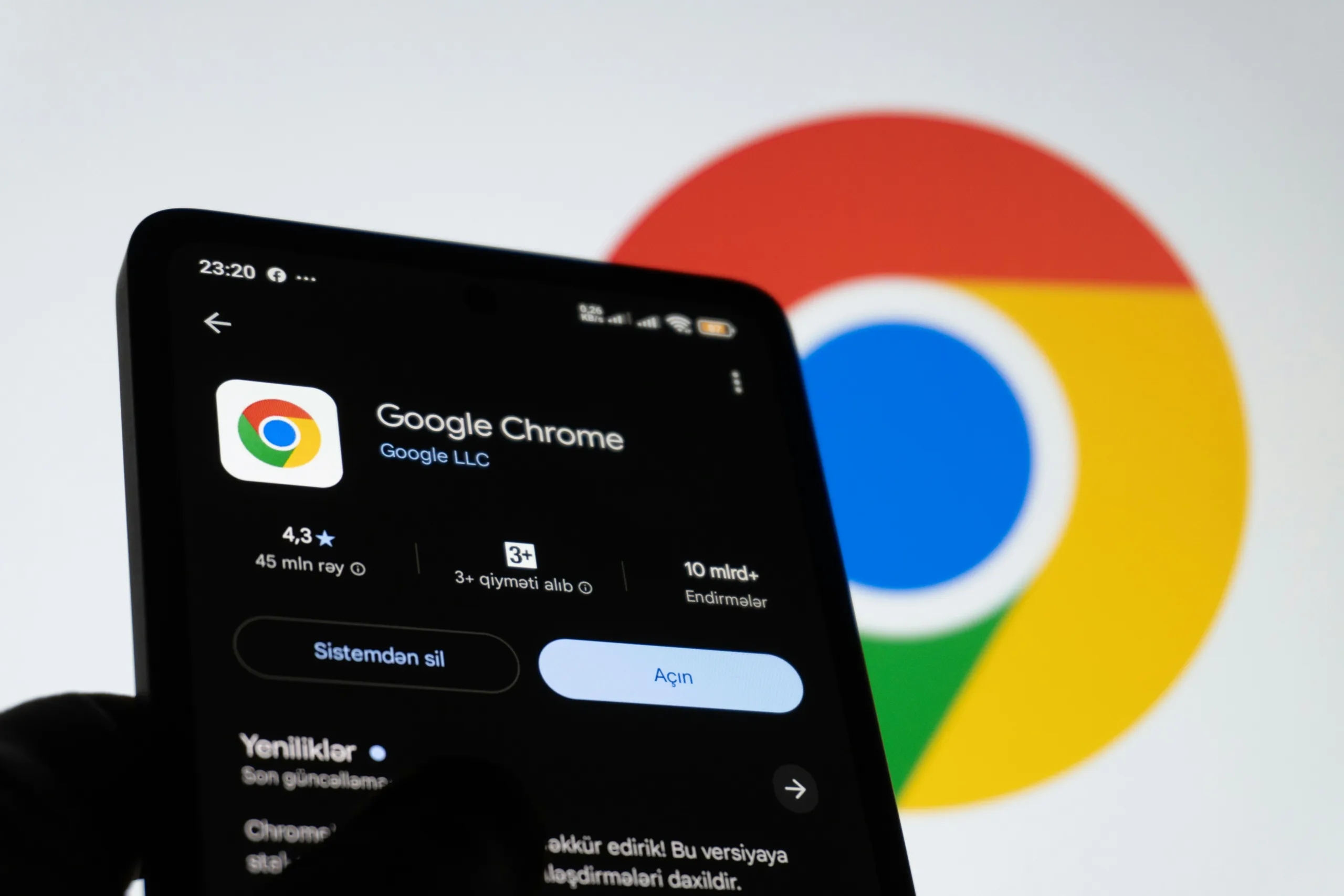
Google Chrome remains the world’s most widely used web browser, but its performance can decline over time. You may notice webpages taking longer to load, tabs becoming unresponsive, or Chrome consuming several gigabytes of RAM even during normal browsing.
While Chrome’s multi-process architecture improves security and stability, it also means every tab, extension, and background service consumes system resources. Over time, unnecessary extensions, outdated browser versions, excessive cached data, and too many open tabs can all contribute to sluggish performance.
Fortunately, most Chrome performance issues can be resolved without switching browsers or upgrading your hardware. This guide explains practical fixes that help reduce RAM usage, eliminate freezing, and restore a faster browsing experience.
Why Does Chrome Become Slow?
Chrome isolates tabs and extensions into separate processes to improve reliability. Although this prevents one faulty webpage from crashing the entire browser, it also increases memory consumption.
Some of the most common reasons include:
- Too many open tabs.
- Resource-heavy browser extensions.
- Large cache files.
- Background apps running alongside Chrome.
- Outdated browser versions.
- Malware or unwanted software.
- Limited available system RAM.
Before changing browser settings, it’s worth identifying which of these factors is affecting your system.
Fix 1: Update Google Chrome
Running the latest version of Chrome is one of the easiest ways to improve performance.
Google regularly releases updates that include:
- Performance improvements.
- Memory optimizations.
- Security fixes.
- Bug fixes for crashes and freezing.
To update Chrome, open the browser menu, navigate to Help → About Google Chrome, and allow the browser to install any available updates before restarting it.
If Chrome continues to feel sluggish after updating, move on to the next troubleshooting step.
Fix 2: Close Unused Tabs
Every tab you open consumes memory—even when it’s sitting idle in the background.
It’s common to leave dozens of tabs open throughout the day, especially while researching or comparing products. However, inactive tabs still occupy RAM and can slow down your entire system.
Instead of keeping everything open:
- Close tabs you no longer need.
- Bookmark pages you’ll revisit later.
- Group related tabs for easier management.
- Use Reading List for articles you plan to read later.
Reducing the number of active tabs is often the quickest way to improve Chrome’s responsiveness.
Fix 3: Turn On Chrome Memory Saver
Chrome includes a built-in Memory Saver feature that automatically frees memory used by inactive tabs.
Rather than closing those tabs completely, Chrome temporarily releases their resources and reloads them only when you switch back.
If you frequently work with multiple research pages or documentation, this feature can significantly reduce memory usage while keeping your workflow intact.
Fix 4: Remove Unnecessary Extensions
Extensions are one of Chrome’s biggest strengths, but they can also become its biggest performance bottleneck.
Many users install extensions for shopping, productivity, screenshots, grammar checking, coupons, VPNs, and ad blocking—only to forget about them later.
Every active extension consumes memory and may continue running in the background.
Review your installed extensions and ask yourself:
- Do I still use this?
- Is another extension doing the same job?
- Does it need to run on every website?
Removing unused extensions often results in noticeably faster startup times and lower RAM usage.
Fix 5: Clear Cached Files
Chrome stores cached images, scripts, and website resources to speed up future visits.
However, a cache that has grown too large—or contains corrupted files—can sometimes slow browsing or cause websites to behave unexpectedly.
Clearing cached files gives Chrome a fresh start without affecting your saved passwords or bookmarks.
When clearing browsing data, focus on cached images and files rather than deleting everything unless you’re troubleshooting a more serious issue.
Regular cache maintenance helps keep Chrome responsive over time.
Use Chrome’s Task Manager to Find Resource-Hungry Tabs
Many users aren’t aware that Chrome has its own built-in Task Manager.
It displays how much memory and CPU each tab, extension, and browser process is consuming in real time.
If one website consistently uses hundreds of megabytes of RAM or an extension remains active even when idle, you’ll quickly identify the culprit.
Instead of guessing what’s slowing Chrome down, use Task Manager to make informed decisions about which tabs or extensions should be closed.
Developers who frequently switch between Chrome and Visual Studio Code should also check out our How to Free Up RAM and Stop Lag in Visual Studio Code (VS Code) for Coding guide. Optimizing both applications together can significantly improve overall system responsiveness during long coding sessions.
Fix 6: Check Chrome’s Task Manager for High Resource Usage
If Chrome feels sluggish even with only a few tabs open, one tab or extension may be consuming far more resources than expected.
Chrome includes a built-in Task Manager that shows the CPU, memory, and network usage of every tab, extension, and browser process.
Open Chrome’s Task Manager and look for:
- Tabs consuming unusually high memory.
- Extensions using excessive CPU resources.
- Background processes that remain active even after closing websites.
If you identify a tab or extension using significantly more resources than the others, close it and check whether Chrome becomes more responsive.
This approach is much more effective than randomly disabling extensions or restarting the browser.
Fix 7: Disable Hardware Acceleration (If It’s Causing Problems)
Hardware acceleration allows Chrome to offload certain graphics-related tasks to your computer’s GPU instead of relying entirely on the CPU.
While this usually improves performance, it can sometimes have the opposite effect on systems with outdated graphics drivers or hardware compatibility issues.
If you experience:
- Screen flickering
- Browser freezes
- Black screens while watching videos
- Lag when scrolling
try disabling hardware acceleration temporarily to see whether performance improves.
If the issue disappears, updating your graphics driver may allow you to re-enable the feature later without experiencing the same problems.
Fix 8: Scan Your Computer for Malware
Unexpected slowdowns aren’t always caused by Chrome itself.
Browser hijackers, malicious extensions, and unwanted software can consume system resources, inject advertisements, or interfere with normal browsing.
Warning signs include:
- Random pop-ups.
- Homepage changes.
- Unknown search engines.
- New extensions you didn’t install.
- High CPU usage even when Chrome is idle.
Running a trusted security scan can help identify software that’s affecting browser performance.
It’s also a good idea to review your installed extensions and remove anything unfamiliar.
Fix 9: Create a New Chrome Profile
Your Chrome profile stores bookmarks, browsing history, saved settings, cookies, and extension data.
Over time, profile corruption can lead to:
- Frequent crashes.
- Slow startup.
- Sync issues.
- Extension conflicts.
Creating a new Chrome profile allows you to determine whether the problem is caused by the browser itself or by your existing profile.
If Chrome performs normally with a new profile, you can gradually move important bookmarks and settings while leaving behind corrupted configuration files.
Fix 10: Reset Chrome Settings
If Chrome continues to freeze after trying the previous fixes, resetting browser settings may resolve hidden configuration problems.
A reset restores Chrome’s default settings while preserving important personal data such as:
- Bookmarks
- Saved passwords
- Browsing history
However, you’ll need to reconfigure certain preferences, and disabled extensions may need to be enabled again if you still use them.
A browser reset is often more effective than reinstalling Chrome because many configuration issues are stored within your profile rather than the application itself.
When Should You Reinstall Chrome?
Reinstalling Chrome should be your final troubleshooting step.
Consider reinstalling only if:
- Chrome crashes immediately after opening.
- Updates consistently fail to install.
- Browser files have become corrupted.
- Performance issues persist after resetting Chrome.
- Malware removal hasn’t resolved the problem.
Before uninstalling Chrome, make sure your bookmarks and passwords are synchronized with your Google account if you plan to restore them later.
Common Mistakes to Avoid
Many users unintentionally make Chrome slower while trying to improve performance.
Avoid these common mistakes:
- Keeping dozens of tabs open indefinitely.
- Installing multiple extensions that perform similar tasks.
- Ignoring browser updates.
- Clearing all browsing data too frequently without identifying the real issue.
- Assuming high RAM usage is always a problem. Chrome intentionally uses available memory to improve browsing speed and typically releases it when other applications need it.
Understanding how Chrome manages memory helps distinguish normal behavior from genuine performance problems.
When working with large online documents or research papers in Chrome, our How to Use AI to Summarize Large PDF Documents Instantly (Free & No Signup) guide can help you process information more efficiently without keeping dozens of reference tabs open.
For additional troubleshooting guidance and browser support, visit the official Google Chrome Help Center.
⚡ TechularZtrix Scan
📌 Bottom Line
Most Chrome performance problems are caused by excessive tabs, resource-heavy extensions, outdated browser versions, or corrupted settings. Following these troubleshooting steps can significantly improve browsing speed without requiring a new computer.
📈 Why It Matters
A faster browser improves productivity, reduces frustration, and creates a smoother experience whether you’re working, studying, shopping, or streaming. Regular maintenance also helps Chrome remain secure and stable over time.
🌍 India Reality Check
Many users in India rely on budget and mid-range laptops with 8 GB of RAM. Using Chrome’s built-in performance features, limiting unnecessary extensions, and keeping the browser updated can noticeably improve performance without upgrading hardware.
🔍 What Happens Next
Google continues to enhance Chrome with smarter memory management, better energy efficiency, and improved performance features. Future updates are expected to further optimize resource usage, especially on devices with limited RAM.