How to Check Battery Health on Android in 2026 (Samsung, OnePlus, Xiaomi, Pixel, Realme)
Quick Highlights
Android users often hear about battery health, but unlike iPhones, there has never been a single universal location to find it across every device.
The good news is that battery health information is available on almost every modern Android phone. The challenge is that Samsung, Xiaomi, OnePlus, Google, realme, OPPO, and vivo all display it differently.
This guide covers every major Android brand so you can check your battery health in just a few minutes and understand what the numbers actually mean.
Why Battery Health Matters
Battery health measures how much capacity your battery can still hold compared to when it was brand new.
For example, a battery showing 85% health can only store about 85% of its original capacity. That usually translates into shorter screen-on time, more frequent charging, and faster battery drain throughout the day.
Battery health naturally declines with age, but excessive heat can accelerate the process significantly. If your phone often becomes hot during gaming, charging, or outdoor use, it’s worth learning How to Stop Thermal Throttling on Android & iPhone (2026): The Pro Guide to Sustained Performance, since heat management plays a major role in long-term battery longevity.
Samsung
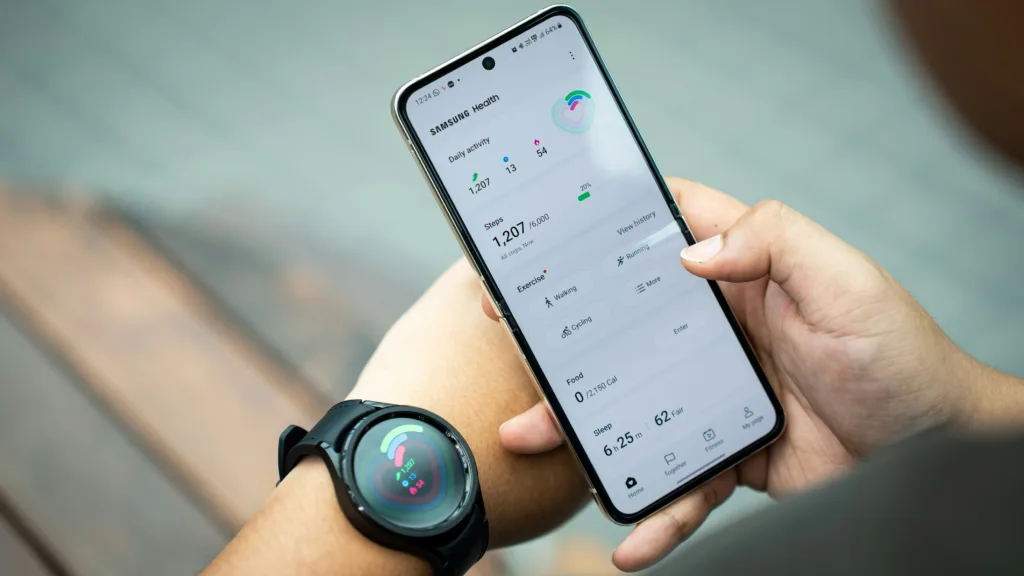
Samsung does not show battery health inside the main Settings application.
Instead, you’ll need the Samsung Members app.
Step 1
Open the Samsung Members app. If it isn’t installed, download it from the Google Play Store.
Step 2
Tap Support or Get Help.
Step 3
Open Phone Diagnostics.
Step 4
Select Battery.
Step 5
Samsung will run a quick diagnostic and display the battery’s condition.
Depending on your device and software version, you may see:
- Good
- Normal
- Service Needed
Samsung may also display temperature, voltage, and charging information.
Some Galaxy devices still do not show an exact battery health percentage. In those cases, Samsung Members remains the most reliable diagnostic tool.
OnePlus
OnePlus introduced easier battery health monitoring with newer OxygenOS versions.
Step 1
Open Settings.
Step 2
Tap Battery.
Step 3
Look for Battery Health or Battery Information.
Step 4
View your battery health percentage and cycle count.
If your device does not include this option, use the universal dialer method later in this guide.
Xiaomi, Redmi and POCO
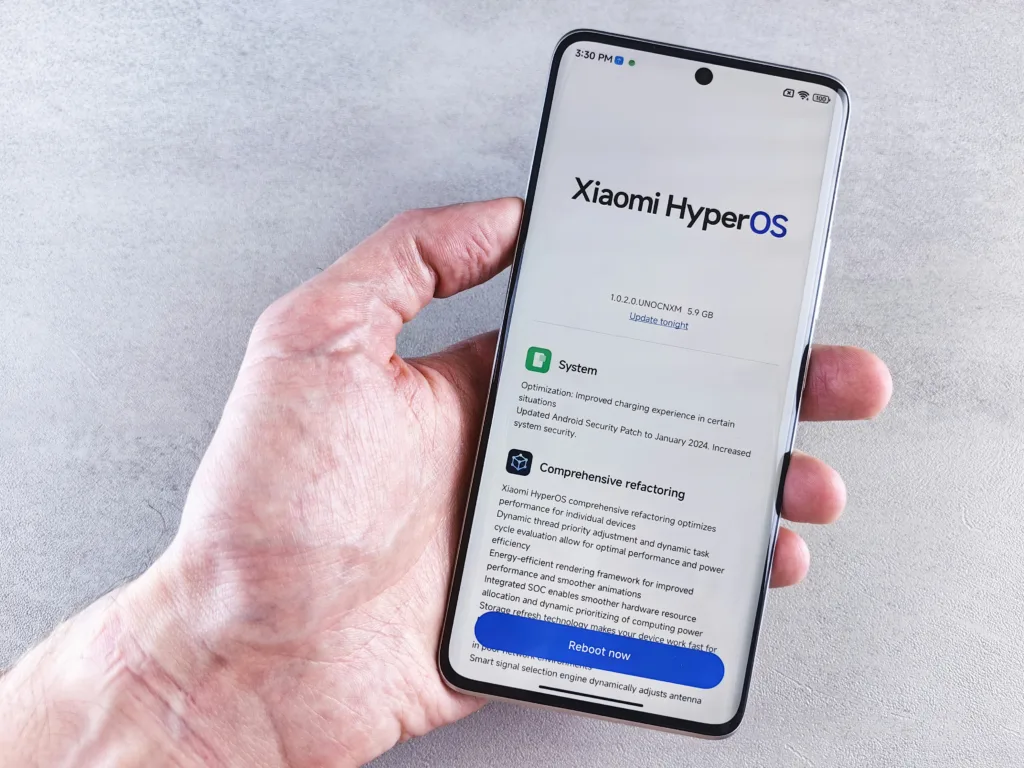
Xiaomi offers one of the most detailed battery health systems among Android brands.
Step 1
Open Settings.
Step 2
Tap Battery.
Step 3
Open Battery Health if available.
Depending on your HyperOS version, Xiaomi may display:
- Battery health percentage
- Current capacity
- Original design capacity
- Charge cycle information
Some devices also support the hardware diagnostic code:
*#*#6485#*#*
This opens additional battery information for advanced users.
As battery technology evolves, many newer Xiaomi devices are beginning to adopt higher-density battery designs. If you’re curious about how modern battery chemistry differs from traditional lithium-ion cells, our Silicon-Carbon Phone Battery Guide (2026): Best Charging Settings to Reduce Heat and Protect Battery Health explains the technology in detail.
Google Pixel
Google introduced native battery health reporting through Android 15.
Step 1
Open Settings.
Step 2
Tap Battery.
Step 3
Select Battery Health.
Step 4
View the battery health percentage.
This feature is available on supported Pixel devices running Android 15 or newer.
Older Pixel devices may require the dialer code method below.
realme, OPPO and vivo
These brands handle battery health similarly.
realme
Settings → Battery → Battery Health
OPPO
Settings → Battery → Battery Health
vivo
Settings → Battery → Battery Health
Some models may instead display battery diagnostics inside their device management applications.
If the option is unavailable, use the universal Android dialer method.
Universal Android Dialer Method
For many Android phones, the hidden Android testing menu still works.
Step 1
Open the Phone app.
Step 2
Enter:
*#*#4636#*#*
Step 3
The Testing Menu should appear automatically.
Step 4
Open Battery Information.
Step 5
Review battery status, temperature, voltage, and related health information.
This method works on many devices from Xiaomi, Motorola, OnePlus, realme, and Google.
It generally does not work on Samsung phones.
What Battery Health Percentages Actually Mean
| Battery Health | Condition | Recommendation |
|---|---|---|
| 90–100% | Excellent | No action needed |
| 80–89% | Good | Normal wear and tear |
| 70–79% | Noticeable degradation | Monitor battery life closely |
| Below 70% | Significant wear | Consider battery replacement |
Most users begin noticing reduced endurance once battery health drops below 80%.
Common Battery Health Questions
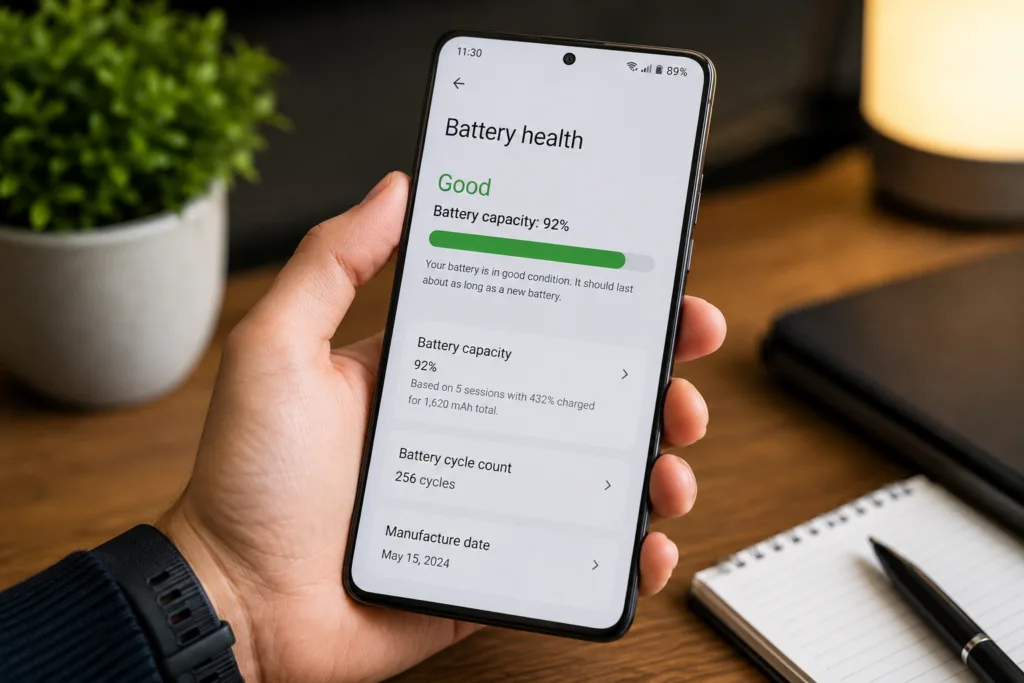
My battery health says “Good,” but battery life feels worse. Why?
Battery health only measures total capacity.
An 85% battery may still be classified as healthy, but it can only store 85% of the charge it held when new. That reduction becomes noticeable during daily use.
In some situations, inaccurate battery readings can occur after software updates or unusual charging patterns. Before assuming your battery needs replacement, try following our How to Calibrate Your Phone Battery in 2026: Fix Ghost Drain and Wrong Percentage (Android & iPhone) guide.
Does fast charging damage battery health?
Modern smartphones include sophisticated charging protections that significantly reduce battery wear.
However, charging habits still influence long-term battery longevity. For a deeper explanation, read Fast Charging vs Slow Charging: When to Use Each and What Actually Damages Your Battery.
Does closing background apps improve battery health?
No.
Battery health is a hardware measurement based on battery capacity. Closing apps may affect battery drain, but it does not improve battery health.
How often should I check battery health?
Checking every three to six months is sufficient for most users.
If battery life suddenly drops, charging becomes inconsistent, or the phone shuts down unexpectedly, check it sooner.
Android 16 is gradually standardising battery health reporting across certified devices, although implementation still varies between manufacturers. For additional information about battery settings and device support, users can visit the official Android Help Center.
⚡ TechularZtrix Scan
📌 Bottom Line: Checking battery health is one of the easiest ways to understand whether poor battery life is caused by aging hardware or simply demanding usage habits.
⏱ Difficulty Level: Easy
⌛ Time Required: 2–5 minutes
✅ Best For: Android users experiencing shorter battery life, charging concerns, or performance issues.
🔍 Why It Matters: Battery health provides a clear picture of how much capacity your battery has lost over time and whether replacement may be necessary.
💡 Best Advice: Don’t focus only on the percentage. Battery temperature, charging habits, and long-term heat exposure often have a greater impact on battery longevity than most users realize.
No. Battery degradation is permanent. Good charging habits can slow future wear, but they cannot restore lost capacity.
Most manufacturers recommend considering replacement once battery health falls below 80%.
Android 16 requires battery health reporting support on newer certified devices, but availability still depends on manufacturer implementation.
Not always. Estimates can vary slightly depending on software versions and battery calibration.
Heavy gaming generates more heat, which can accelerate long-term battery degradation compared to lighter usage.