How to Recover Deleted WhatsApp Messages on Android and iPhone (2026 Guide)
Quick Highlights
Losing an important WhatsApp conversation can be frustrating, especially when it contains personal messages, work details, photos, or documents you still need. The good news is that deleted messages are not always gone forever.
WhatsApp regularly creates backups on Android and iPhone, which means there is often a way to restore chats that were accidentally deleted. In some situations, Android users can even recover message previews without restoring an entire backup.
This guide explains the most effective ways to recover deleted WhatsApp messages in 2026, whether you’re using an Android phone or an iPhone.
Check Whether a WhatsApp Backup Exists First
Before attempting any recovery method, verify that a backup is available.
On Android:
WhatsApp → Settings → Chats → Chat Backup
On iPhone:
WhatsApp → Settings → Chats → Chat Backup
Look at the date of the most recent backup. If it was created before the messages were deleted, you have a good chance of recovering them.
If no backup exists, your recovery options become much more limited.
Recover Deleted WhatsApp Messages Using Google Drive (Android)
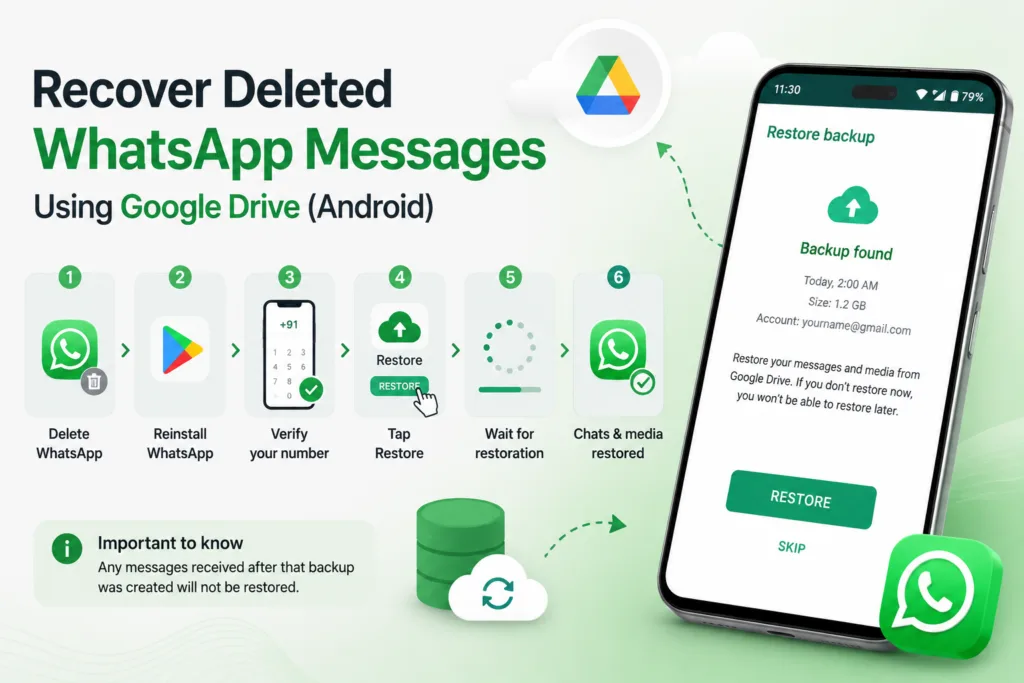
For most Android users, Google Drive backup restoration is the easiest and most reliable solution.
WhatsApp stores chat backups in Google Drive automatically if the feature is enabled. Restoring the backup essentially returns your chats to the state they were in when the backup was created.
How to restore a Google Drive backup
- Delete WhatsApp from your phone.
- Reinstall WhatsApp from the Google Play Store.
- Open the app and verify your phone number.
- When prompted, tap Restore.
- Wait for the restoration process to finish.
Once completed, WhatsApp will restore your messages, media, and chat history from the backup.
Important to know
Any messages received after that backup was created will not be restored. Think of the backup as a snapshot of your chats at a specific point in time.
Trending Reads
- How to Switch Between WhatsApp Accounts on iPhone and Android (2026): The Easy Multi-Account Guide
- How to Enable Two-Factor Authentication on Instagram (2026): The Safest Way to Protect Your Account
- How to Turn Off Instagram Instants (2026) and Retract Photos You Accidentally Shared
- Silicon-Carbon Phone Battery Guide (2026): Best Charging Settings to Reduce Heat and Protect Battery Health
Use WhatsApp’s Local Backup Files (Android)
Many Android users don’t realize WhatsApp also stores backup files directly on the device.
These local backups are usually created daily and can be useful if your Google Drive backup is outdated.
Where to find local backups
Open your file manager and navigate to:
Internal Storage → Android → Media → com.whatsapp → WhatsApp → Databases
Inside this folder you’ll find backup files with names similar to:
- msgstore.db.crypt15
- msgstore-2026-05-15.db.crypt15
The dated files are older backups, while the file without a date is the newest one.
How local backup recovery works
You can rename an older backup file, reinstall WhatsApp, and restore from that backup during setup.
This method is particularly useful when the message was deleted recently and the Google Drive backup has already been overwritten.
Recover Deleted WhatsApp Messages on iPhone
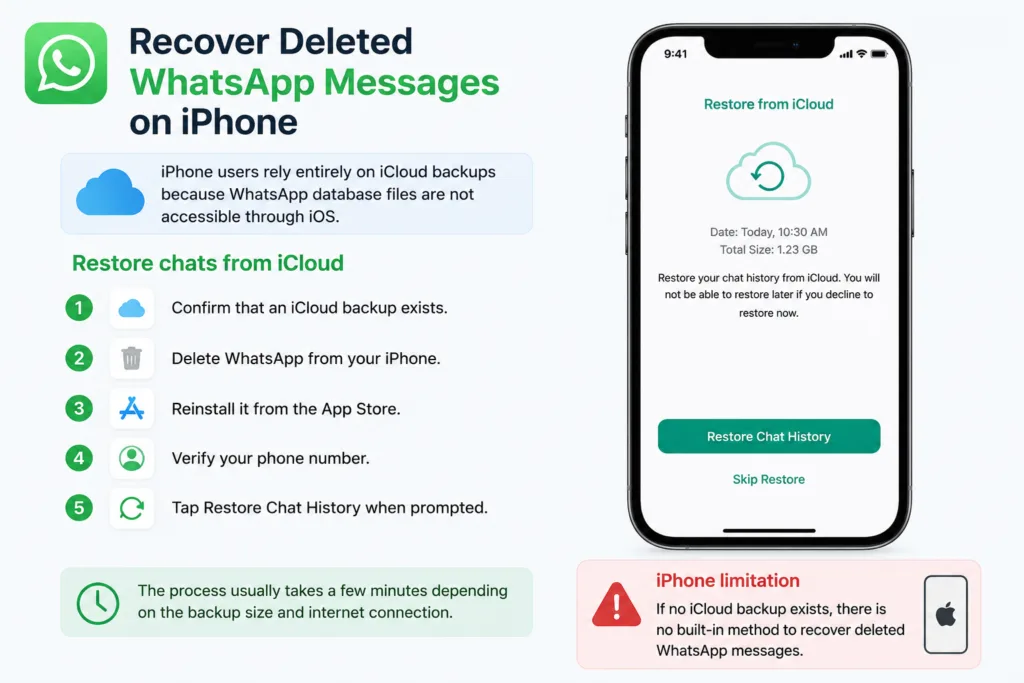
iPhone users rely entirely on iCloud backups because WhatsApp database files are not accessible through iOS.
Restore chats from iCloud
- Confirm that an iCloud backup exists.
- Delete WhatsApp from your iPhone.
- Reinstall it from the App Store.
- Verify your phone number.
- Tap Restore Chat History when prompted.
The process usually takes a few minutes depending on the backup size and internet connection.
iPhone limitation
If no iCloud backup exists, there is no built-in method to recover deleted WhatsApp chats.
Check Notification History for Deleted Messages (Android)
If someone sends a message and then quickly deletes it, Android’s Notification History feature may have already recorded part of the text.
This won’t restore the message inside WhatsApp, but it can reveal what was originally sent.
How to check
Go to:
Settings → Notifications → Notification History
Look for WhatsApp notifications and review recent entries.
This trick works best for text messages and usually only shows a preview rather than the complete message.
What Cannot Be Recovered?
Not every deleted message can be restored.
In most cases, recovery is impossible if:
- No WhatsApp backup exists.
- The message was deleted before the last backup was created.
- Media files were removed before being backed up.
- An iPhone has no iCloud backup available.
- The sender deleted a message before your phone received the notification.
How to Avoid Losing WhatsApp Messages Again
The easiest way to prevent future data loss is to enable automatic backups.
For Android users:
WhatsApp → Settings → Chats → Chat Backup → Back up to Google Drive → Daily
For iPhone users:
Settings → Apple ID → iCloud → WhatsApp → Enable
Daily backups ensure you never lose more than a day’s worth of conversations.
If WhatsApp backup restoration isn’t working correctly, checking the official WhatsApp backup guide can help troubleshoot account, storage, and backup-related issues.
In most cases, no. Android users may be able to see deleted message previews through Notification History, but full chat recovery generally requires a backup.
Yes. Restoring a backup replaces your current WhatsApp data with the contents of the backup.
WhatsApp can create backups daily, weekly, or monthly depending on your settings. Daily backups offer the best protection against accidental deletion.
If the media was included in a backup, it will be restored along with your chats. Otherwise, recovery may not be possible.
Only in limited situations. Android Notification History may show part of a deleted message if the notification was received before the sender removed it.