How to Easily Find Saved Wi-Fi Passwords on Android in 2026
Quick Highlights
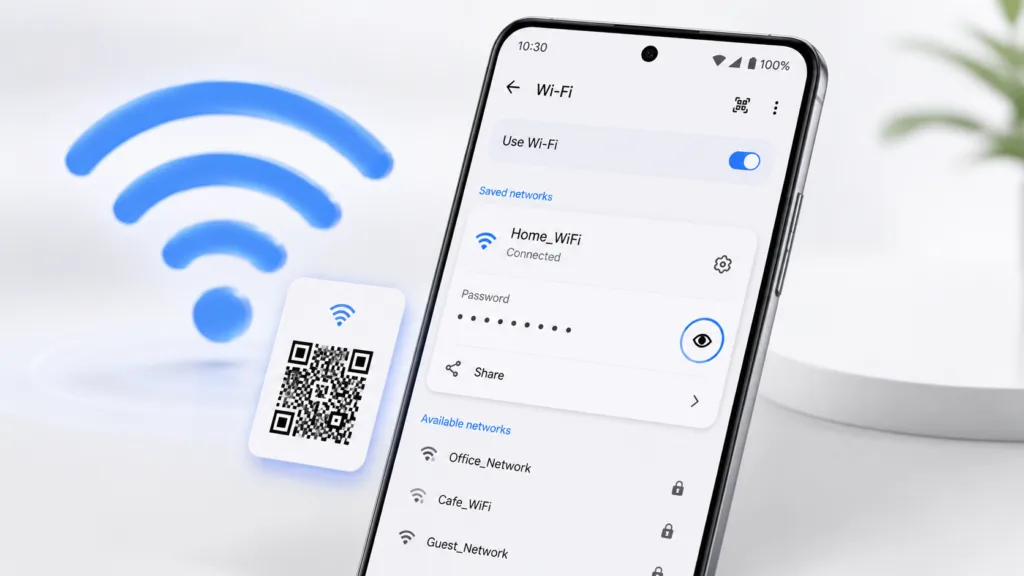
If you’ve ever connected your Android phone to a Wi-Fi network and later forgotten the password, there’s good news. Modern Android devices can show saved Wi-Fi passwords directly from Settings without requiring root access, third-party apps, or complicated workarounds.
Whether you’re setting up a new phone, connecting a laptop, or sharing internet access with friends and family, Android makes the process surprisingly simple.
Android 10 and Above: The Fastest Method
If your phone runs Android 10 or later, finding a saved Wi-Fi password takes less than a minute.
Step 1
Open Settings.
Step 2
Tap Wi-Fi, Network & Internet, or Connections, depending on your device brand.
Step 3
Select the Wi-Fi network you’re currently connected to.
Step 4
Tap Share or the QR Code icon.
Step 5
Verify your identity using your fingerprint, PIN, password, or pattern lock.
Step 6
Android will generate a QR code. Directly beneath the code, you’ll see the saved Wi-Fi password displayed in plain text.
You can either write down the password or let another device scan the QR code to connect instantly.
This feature works similarly to the sharing tools explained in our guide on How to Hide Your Active Status on Instagram (Android and iPhone, 2026), where Android’s built-in privacy settings remove the need for third-party apps.
How to Find Passwords for Previously Saved Networks
You don’t need to reconnect to a network to retrieve its password.
Step 1
Open Settings → Wi-Fi.
Step 2
Tap Saved Networks, Manage Networks, or Known Networks.
Step 3
Choose the network you want.
Step 4
Tap Share.
Step 5
Authenticate using your phone’s security method.
Step 6
The QR code and password will appear on screen.
This is particularly useful when upgrading devices or helping guests connect to your home network.
Android 9 and Older Devices
Older Android versions do not include the built-in password sharing feature.
If your phone runs Android 9 or earlier, the easiest solution is accessing your router settings.
Step 1
Open a browser on a device already connected to the Wi-Fi network.
Step 2
Enter your router’s IP address.
Common examples include:
- 192.168.1.1
- 192.168.0.1
Step 3
Log into the router admin panel.
Step 4
Navigate to:
Wireless Settings → Security Settings
or
Wi-Fi Settings → Security
Step 5
Look for fields named:
- WPA Key
- Wireless Password
- Passphrase
- Security Key
Your Wi-Fi password should be displayed there.
Brand-Specific Wi-Fi Password Paths
Different Android manufacturers use slightly different menu names.
| Brand | Path |
|---|---|
| Samsung | Settings → Connections → Wi-Fi → Network → QR Code |
| Xiaomi / Redmi | Settings → Wi-Fi → Connected Network → Share |
| OnePlus | Settings → Wi-Fi & Network → Wi-Fi → Share |
| Realme | Settings → Wi-Fi → Share Wi-Fi |
| OPPO | Settings → Wi-Fi → Share |
| Vivo | Settings → WLAN → Share |
| Google Pixel | Settings → Network & Internet → Internet → Share |
Common Reasons the Share Option Doesn’t Appear
If you can’t find the Share button:
- Your device may be running Android 9 or older
- Some carrier-customized devices disable the feature
- Your work or school device may have administrator restrictions enabled
- Certain enterprise Wi-Fi networks prevent password sharing
In those situations, checking the router settings remains the most reliable option.
Security Tips Before Sharing Your Password
Viewing a saved Wi-Fi password is safe, but sharing it deserves some caution.
Avoid:
- Posting screenshots publicly
- Sending passwords through unsecured channels
- Sharing credentials with unknown users
If multiple people need access, using Android’s QR code sharing system is usually safer and faster.
You can also improve network privacy by reviewing connected devices periodically and updating your Wi-Fi password when needed.
For additional details about Wi-Fi sharing and network management features, users can visit the official Android Help documentation.
⚡ TechularZtrix Scan
📌 Bottom Line: Android 10 and newer make it incredibly easy to retrieve saved Wi-Fi passwords without root access, technical knowledge, or third-party apps.
🎯 Best For: Android users setting up new devices, sharing home Wi-Fi, or recovering forgotten network credentials.
🏆 Biggest Win: Passwords can be viewed and shared directly from Android Settings within seconds.
⚠️ Biggest Compromise: Android 9 and older devices still require router access or advanced methods.
📈 Why It Matters: Many users forget Wi-Fi passwords after connecting once. Android’s built-in sharing tools eliminate the need for complicated recovery methods.
🔍 Difficulty Level: Easy
⏱️ Time Required: Less than 1 minute
📱 Works On: Samsung Galaxy, Xiaomi, Redmi, POCO, OnePlus, OPPO, Realme, Vivo, Google Pixel, and most Android phones running Android 10 or newer.