YouTube App Not Playing Videos on Android? Reliable Fixes That Actually Help
Quick Highlights
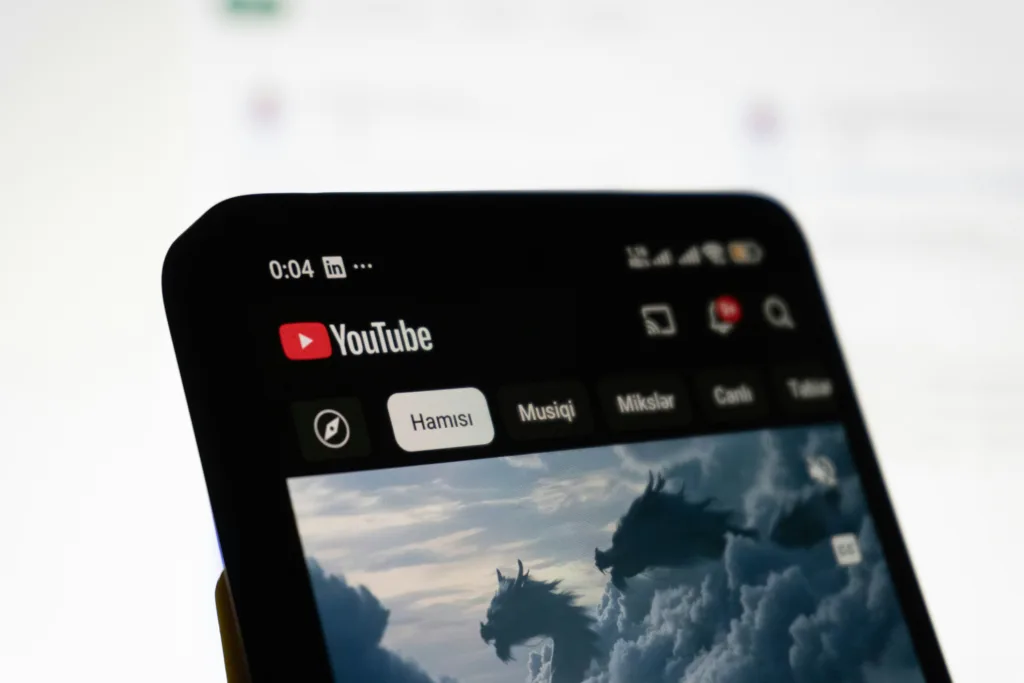
Why YouTube app not playing videos on Android?
If the YouTube app is not playing videos on Android, the problem is not necessarily caused by the phone itself. A video can fail because of a weak connection, an outdated YouTube build, corrupted cached data, a system-level issue or a temporary problem affecting YouTube’s service.
Google’s current troubleshooting guidance recommends starting with the basics: make sure the YouTube app is updated, close and reopen it, restart the Android device, try another internet connection and clear the app’s cache when videos keep buffering or refuse to load.
The useful part is that these checks can be done in a logical order. You don’t need to reset the entire phone just because one YouTube video refuses to play.
First, Identify What Is Actually Wrong
“YouTube isn’t working” can describe several different problems.
The app may open normally but show a spinning loading circle. A video may start and then stop. You might see a black screen, hear audio without video, or get a message such as “Playback error. Tap to retry” or “Something went wrong.” Google lists several such playback errors in its current YouTube troubleshooting documentation.
The symptom helps determine where to start.
If the entire YouTube app is slow, check the network and app installation first.
If only one video fails while everything else works, the problem may be specific to that content.
If YouTube works on Wi-Fi but not mobile data, investigate the connection rather than reinstalling the app.
1. Try a Different Internet Connection
This should be one of the first tests.
If you’re currently using Wi-Fi, switch temporarily to mobile data and try the same video.
If you’re on mobile data, connect to a reliable Wi-Fi network and test again.
Google specifically recommends changing the internet connection when YouTube videos are buffering or not loading correctly.
This simple test can tell you a lot.
If YouTube works immediately after switching connections, your original network becomes the primary suspect. That could mean poor signal, congestion, router problems or a network configuration issue.
You can also test another video service. If several streaming apps are struggling, don’t treat the problem as YouTube-specific.
2. Check Whether Other YouTube Videos Play
Before changing settings, open a few different videos.
If one video fails but several others play correctly, there may be something specific about that content or its availability.
If every video fails, the problem is broader.
Also test different formats. Open a Short, a regular video and, when available, a livestream.
The goal is to establish whether playback itself is broken or whether one specific type of YouTube content is affected.
3. Update the YouTube App
Open the Google Play Store, search for YouTube and check whether an update is available.
Google recommends using the latest version of the YouTube app when troubleshooting playback errors.
This is particularly important if videos stopped working recently.
A newer app build may contain fixes for compatibility or playback problems, so updating is preferable to immediately clearing data or reinstalling the application.
After updating, close YouTube completely and open it again.
4. Close and Reopen YouTube
If the app has become stuck in a bad state, a full restart of the app can be enough.
Close YouTube from your recent-apps screen and reopen it.
Google specifically lists closing and reopening the YouTube app among its recommended Android playback troubleshooting steps.
If you want to take it one step further, you can force stop the app:
Settings → Apps → YouTube → Force stop
The exact menu can differ by Android manufacturer.
Then launch YouTube and try the same video again.
5. Restart Your Android Phone
If restarting the app doesn’t help, restart the phone.
Google’s Android troubleshooting guidance also recommends restarting the device when an installed application isn’t working properly.
This can clear temporary system processes and give the application a clean environment.
After the restart, test YouTube before changing several other settings.
If YouTube works normally after the reboot but the problem keeps returning, continue troubleshooting rather than treating the restart as the final solution.
6. Clear the YouTube App Cache
For persistent buffering or loading problems, clearing YouTube’s cached files is one of the most useful Android-specific steps.
Open:
Settings → Apps → YouTube → Storage
Then choose:
Clear cache
Google’s current YouTube help page specifically recommends clearing the YouTube app cache when videos continue buffering or fail to load on Android.
Clearing the cache is preferable to immediately clearing app data because it removes temporary files without performing the same level of reset.
After clearing the cache, reopen YouTube and try several videos.
7. Check Available Storage
A nearly full phone can create wider app and system problems.
Open your Android storage settings and check how much free space remains.
If your phone is close to being full, remove unnecessary downloads, large video files, unused apps or duplicate media.
You don’t need to clear huge amounts of storage just to troubleshoot YouTube. The important point is to eliminate a critically low-storage condition before assuming that YouTube itself is broken.
8. Check Android for System Updates
Your YouTube installation can be completely current while the Android system underneath it is outdated.
Check the phone’s Software update section and install any appropriate system update.
Google’s Android app troubleshooting guidance includes checking for Android updates when an application isn’t working correctly.
This becomes more relevant if the YouTube problem started after another system change or if several apps are behaving strangely at the same time.
If you’re using a Samsung Galaxy and you’ve recently updated One UI, also consider whether other applications are experiencing similar problems. Our earlier guide How to Fix “System UI Isn’t Responding” or App Crashing Errors on Android (2026 Guide) is more useful when the issue extends beyond YouTube.
9. Check Your Mobile Data Settings
If YouTube works on Wi-Fi but not mobile data, investigate mobile data restrictions.
Open:
Settings → Apps → YouTube
Look for mobile-data or network-related settings and make sure YouTube is not being restricted unexpectedly.
Also check Android’s Data Saver setting if you’ve enabled it.
Google’s YouTube troubleshooting documentation specifically advises checking that YouTube has permission to use device data when troubleshooting playback errors.
A useful test is to disable restrictive data settings temporarily and try the same video again.
If playback returns, you’ve identified a configuration issue rather than an application failure.
10. Turn Off VPN Temporarily
A VPN can change how your connection reaches online services.
If you’re using a VPN, disconnect it temporarily and retry YouTube.
This doesn’t mean a VPN is inherently a problem. It’s simply a useful diagnostic because it removes another networking variable.
If YouTube starts playing immediately after the VPN is disconnected, investigate the VPN server, routing or configuration before changing the YouTube application itself.
11. Check Private DNS
Advanced Android users should also consider Private DNS.
A custom DNS configuration can occasionally affect how services are reached.
You can temporarily switch back to the default or automatic DNS setting and test YouTube again.
The exact location depends on your Android interface, but it is typically found somewhere under network or connection settings.
Google’s YouTube troubleshooting documentation also recommends checking DNS configurations when diagnosing certain playback problems.
This is not the first step to try. Use it when ordinary network tests haven’t explained the issue.
12. Lower the Video Quality Temporarily
If a video starts but constantly buffers, the problem may be bandwidth rather than the application.
Open the video’s quality settings and temporarily select a lower resolution.
Google lists approximate sustained connection speeds of 5 Mbps for 1080p, 2.5 Mbps for 720p, 1.1 Mbps for 480p and 0.7 Mbps for 360p in its YouTube troubleshooting guidance. These are not guarantees because network congestion and other factors still matter.
This test is useful because it separates two different scenarios:
Video won’t play at all versus video plays when the data requirement is reduced.
If lower quality fixes the problem, investigate the connection rather than immediately reinstalling YouTube.
13. Check the Phone’s Date and Time
Incorrect date or time settings can occasionally cause issues with secure connections and authentication.
Make sure Android’s date, time and time zone are correct, ideally using automatic settings.
Google’s general Android app troubleshooting documentation includes syncing device time with Google’s servers among its deeper troubleshooting steps.
It’s not the most likely cause of YouTube playback problems, but it’s simple to verify.
14. Check Whether Battery Saver Is Restricting YouTube
If your phone is using an aggressive battery-saving mode, background network activity can be restricted.
This is more relevant if YouTube behaves differently after being in the background or when battery-saving features are enabled.
Temporarily disable Battery Saver or Power Saving and test YouTube again.
You don’t need to leave battery-saving features disabled permanently. This is primarily a diagnostic step.
15. Try YouTube in Your Mobile Browser
Open youtube.com in your Android browser and play the same video.
This is one of the best ways to determine whether the problem is inside the YouTube app.
If the browser plays videos normally while the YouTube app does not, the application installation or app-specific configuration becomes a stronger suspect.
If the browser also fails to play videos, look harder at the network, account or YouTube service itself.
Google also suggests using the mobile website as an alternative for devices that cannot run a supported YouTube app version.
16. Check Whether Your Android Version Is Too Old
This is easy to overlook on older devices.
YouTube’s current help documentation notes that some older Android versions can no longer support the latest YouTube app. In that situation, updating Android may be necessary before the latest YouTube version can be installed.
If Google Play says your YouTube app cannot be updated, check the phone’s Android version.
This is different from an ordinary playback bug.
If the operating system itself is too old for the current YouTube application, replacing the app repeatedly won’t solve the underlying compatibility problem.
17. Sign Out and Sign Back In
If YouTube opens correctly but particular account-linked content behaves strangely, signing out and back in can be worth testing.
This is not one of the first steps I’d recommend for a basic playback problem, but Google includes signing-in state among some YouTube troubleshooting scenarios.
Use it when:
- Videos work while signed out but not when using your account.
- Library content isn’t behaving correctly.
- Account-specific playback errors appear.
Make sure you know your account credentials before signing out.
18. Reinstall YouTube
If the basic fixes have failed, reinstalling the application may help.
On some Android phones, YouTube is a preinstalled system application, so you may see Uninstall updates or a similar option rather than a complete uninstall.
Google’s general Android troubleshooting guidance lists uninstalling and reinstalling an app among the deeper fixes when other steps fail.
For a system app, the exact process depends on the manufacturer and Android version.
After reinstalling or restoring the latest available YouTube build, restart the phone and test playback again.
19. What If YouTube Plays Audio but Shows a Black Screen?
A black video area with working audio is a different symptom from complete buffering.
Start with:
Restart YouTube → update the app → clear cache → restart the phone → test another video.
Then try the same video through a mobile browser.
If the browser works while the app remains black, the issue is more likely tied to the application or its rendering environment.
If both fail, investigate the network and video itself.
20. What If YouTube Videos Keep Buffering?
Constant buffering usually deserves a network-first diagnosis.
Try another connection.
Then lower the video quality.
Then test another video service.
Google explicitly recommends changing internet connections and adjusting video quality when troubleshooting buffering.
If YouTube works perfectly on another connection, don’t waste time resetting the application until you’ve investigated the original network.
If you’re also seeing general Android performance problems, How to Stop Background Apps on Android Permanently (2026 Method) may be useful for understanding whether aggressive background management is affecting other applications as well.
21. What If Only One YouTube Video Won’t Play?
Don’t assume the phone is broken.
Try a different video.
If every other video works normally, the issue may be related to the specific video, its availability or an account/content restriction.
Google lists several playback errors that can relate to specific content, including unavailable videos and licensing-related errors.
In this situation, reinstalling YouTube would be unlikely to fix the specific video.
22. What If YouTube Is Not Working on Any Device?
If the app fails on your phone, the browser fails too, and the same problem occurs on another device using the same network, think beyond Android.
You may be dealing with a broader YouTube service problem or a network-side issue.
Google’s troubleshooting documentation includes server-related playback errors and recommends testing on a different supported device when the normal troubleshooting steps don’t resolve the problem.
This is the point where repeatedly clearing caches becomes counterproductive.
23. When Should You Report the Problem?
YouTube provides a feedback mechanism inside the app.
After reproducing the problem, you can go to your profile area and use Help & feedback → Send feedback. Google specifically recommends sending feedback after troubleshooting if playback problems continue.
Describe the problem precisely.
For example:
YouTube videos won’t play on Wi-Fi on my Galaxy phone, but they work normally over mobile data.
That’s much more useful than:
YouTube is broken.
Include the phone model, Android version, YouTube version, network type and exact error message when available.
Don’t Factory Reset Your Phone for a YouTube Problem
A YouTube playback issue rarely justifies a factory reset as an early troubleshooting step.
Before considering anything that destructive, you should already have tested:
Network → YouTube update → restart → cache → Android update → data restrictions → VPN/DNS → browser test → reinstall or re-enable YouTube.
If other applications work normally and only YouTube has a problem, resetting the entire phone is excessive.
Read Next
If your troubleshooting started because the phone is also losing battery unusually fast, Why Your Phone Battery Drains Overnight (Android Fix, 2026) covers common causes of background battery drain.
TechularZtrix Scan
📌 Bottom Line
When the YouTube app won’t play videos on Android, start with the network and the app itself. Try another connection, update YouTube, restart the app and phone, and clear the YouTube cache before moving to deeper fixes.
🎯 Target Audience
This guide is for Android users dealing with YouTube playback errors, black screens, buffering, endless loading or videos that simply refuse to start.
🏆 Biggest Win
The most useful diagnostic is switching between Wi-Fi and mobile data. It quickly tells you whether you’re dealing with an application problem or a connection problem.
⚠️ Biggest Compromise
Some fixes can involve a small trade-off. Clearing app data or reinstalling YouTube can reset local app state, while changing network, DNS or battery settings may affect other applications too.
📈 Why It Matters
YouTube is one of the most frequently used video applications on Android, so a playback problem can feel like a device failure when the real cause is much narrower.
A structured diagnosis prevents unnecessary phone resets and makes it easier to identify whether the issue is the app, Android, network or YouTube itself.
🔍 What Happens Next
If YouTube still fails after you have tested another network, updated the app, cleared the cache and tried the browser version, compare the problem on another supported device. If the failure follows the service rather than the phone, YouTube-side troubleshooting or reporting becomes more relevant than further Android changes.