Android Internet Feels Slow Even With Full Signal? Practical Fixes That Help
Quick Highlights
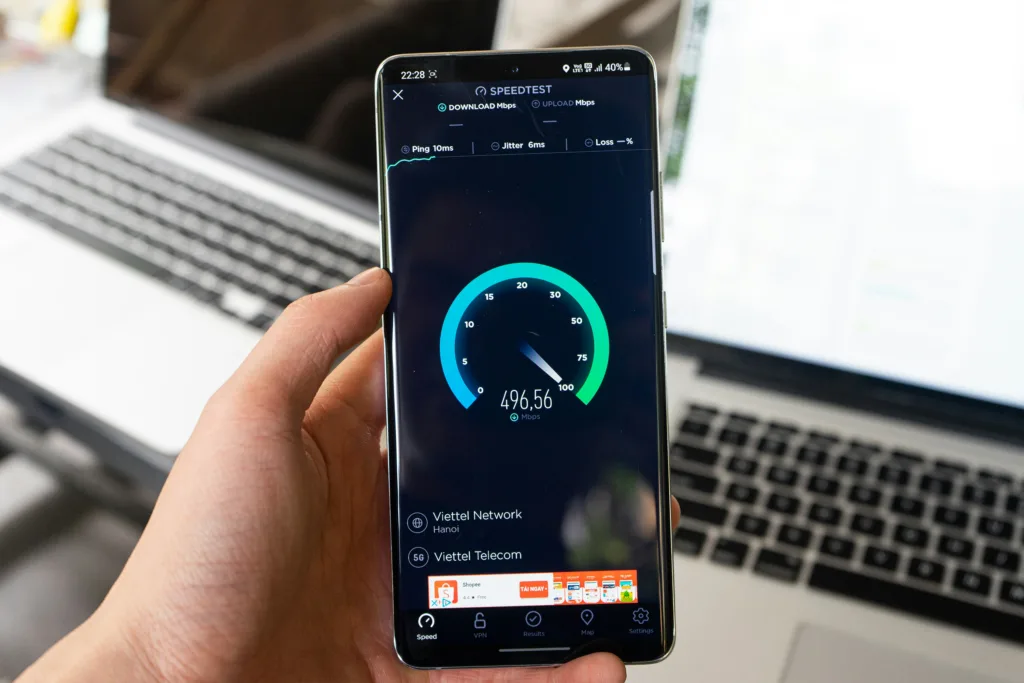
It’s one of the most confusing Android problems: your phone shows a strong signal, yet websites take too long to open, YouTube buffers and apps struggle to refresh.
The reason is simple but easy to miss. Signal strength is not the same as internet speed. A phone can have a strong cellular connection while the local network is congested, or it can have excellent Wi-Fi reception while the broadband connection itself is slow.
Instead of changing every network setting you can find, the better approach is to identify where the slowdown actually starts.
Diagnose the Problem Before Changing Settings
Start with a simple comparison.
Use the same website, video or application and test it first on Wi-Fi, then on mobile data. Don’t compare different tasks because that can give you a misleading result.
| What you observe | What to check first |
|---|---|
| Wi-Fi slow, mobile data normal | Router or broadband |
| Mobile data slow, Wi-Fi normal | Carrier, SIM or mobile settings |
| Both connections slow | Device, DNS, VPN or software |
| Only one app is slow | App-specific problem |
| Same SIM is slow in another phone | Carrier, SIM or local network |
| Another SIM is also slow in your phone | Device or network configuration |
That first test can eliminate a huge amount of unnecessary troubleshooting.
Google’s Android guidance also recommends restarting the device and switching between Wi-Fi and mobile data when investigating internet connection problems.
Switch Wi-Fi and Mobile Data
If Wi-Fi is slow, disable it and test mobile data.
If mobile data is slow, connect to a reliable Wi-Fi network.
If one connection immediately feels normal, you’ve already narrowed the problem down.
For example, if YouTube loads normally over mobile data but struggles on your home Wi-Fi, there’s little reason to change your phone’s cellular settings. Investigate the router and broadband connection instead.
Try Airplane Mode
For a sudden mobile-data slowdown, turn Airplane mode on for around 10 seconds and then turn it off.
This disconnects the phone’s wireless radios and prompts them to reconnect to the available networks.
It’s a useful first recovery step, but not a permanent solution. If the connection repeatedly becomes slow again, move on to the next diagnosis instead of repeatedly toggling Airplane mode.
Check Android’s Network Settings
Once you’ve established that mobile data is the problem, look at the settings that can actually influence the connection.
Check Network Mode
On many Samsung Galaxy phones, the mobile network setting can be found under:
Settings → Connections → Mobile networks → Network mode
The exact path and available options can vary by model, carrier and software version.
Don’t automatically assume that forcing 5G will improve speed.
A congested or unstable 5G connection can perform worse than a stable LTE connection. Compare the real-world performance in the same location rather than judging the connection by the 5G icon alone.
Review Data Saver and App Restrictions
If the entire internet connection isn’t slow but individual apps are struggling, check whether Android is restricting their data use.
Look under the affected app’s settings for its mobile-data and background-data controls.
This matters more when an app is slow to refresh or sync than when every website and service is slow.
Don’t disable Data Saver or other restrictions globally just because one app isn’t loading properly. First establish whether the issue is app-specific.
Test Private DNS
If you’ve manually configured a Private DNS provider, temporarily switch it to Automatic and test the same connection again.
This isn’t a universal speed fix. It’s a diagnostic step that can help identify a problem with a custom DNS configuration.
If nothing changes, restore your preferred setup and move on.
Temporarily Disable Your VPN
A VPN can change the route your traffic takes.
Disconnect it briefly and repeat the same test.
If the connection improves substantially, the VPN or its chosen server may be contributing to the slowdown. Try another server or review the VPN configuration before changing unrelated Android settings.
Find Out Whether the Problem Is the Phone or the Network
Once Android’s basic settings look normal, stop changing settings and start comparing devices.
Test the Same SIM in Another Phone
This is one of the strongest tests for mobile-data problems.
Put the same SIM into another compatible phone and test it in the same location.
If mobile data remains slow, the carrier, SIM or local network becomes the stronger suspect.
If the connection works normally in the second phone, investigate your Android device’s configuration, software or hardware.
Samsung’s current support guidance also recommends testing the same SIM in another device when diagnosing network problems.
You can perform the reverse test as well: put another compatible SIM from a different network into your phone.
If both SIMs perform poorly in the same location, the phone becomes more suspicious.
Test Wi-Fi on Another Device
If the problem is Wi-Fi, connect another phone or computer to the same router.
If both devices are slow, look at the router or broadband service.
If the second device works normally while your Android phone remains slow, focus on the phone.
This is important because full Wi-Fi bars only describe the connection between your device and the router. They don’t tell you whether the broadband connection behind that router is fast.
For home Wi-Fi problems, restarting the router is also a sensible early test.
Three Common Situations Need Different Fixes
5G Is Full but Still Slow
Don’t treat the 5G icon as a guarantee of speed.
Local congestion, network capacity and carrier conditions can all affect performance.
Try the same task on LTE where your phone and carrier allow it. If LTE is consistently more stable, the issue may be the local 5G network rather than the handset.
Wi-Fi Is Full but Internet Is Slow
Test another device on the same Wi-Fi.
If both devices struggle, troubleshoot the router or broadband service.
If only your Android phone is affected, investigate the phone’s network settings.
This simple comparison is far more useful than repeatedly staring at the Wi-Fi indicator.
Only One App Is Slow
If Chrome works, YouTube works and another website works normally while Instagram is struggling, don’t reset your entire network.
The problem may be inside that application.
For YouTube-specific playback issues, see YouTube App Not Playing Videos on Android? Reliable Fixes That Actually Help.
For Instagram video problems, Instagram Reels Not Loading on Android? Effective Fixes That Actually Help is the more targeted guide.
And when an app problem extends beyond connectivity into crashes or freezing, How to Fix “System UI Isn’t Responding” or App Crashing Errors on Android (2026 Guide) covers the broader Android side.
Reset Network Settings Only When the Diagnosis Points There
If both Wi-Fi and mobile connectivity have become unreliable and the simpler tests haven’t identified the cause, a network reset is worth considering.
On many Samsung Galaxy devices, you can find it under:
Settings → General management → Reset
The exact options vary by software version. Some Galaxy models provide a broader Reset network settings option, while newer versions can separate mobile-network settings from Wi-Fi and Bluetooth.
Read the confirmation screen before approving the reset.
On Samsung devices, a network reset can remove saved Wi-Fi, mobile-network and Bluetooth-related settings depending on the reset option available on your model.
You’ll therefore need to reconnect to saved networks and pair Bluetooth accessories again.
Don’t Factory Reset Your Phone
A slow internet connection by itself is not a good reason to factory-reset an Android phone.
A factory reset erases personal data and should be reserved for much broader software problems after backup and other troubleshooting have failed.
Samsung explicitly describes factory reset as a last-resort troubleshooting method.
If your SIM works normally in another phone, your Wi-Fi works on other devices, and the problem survives a network reset, then a deeper device-level diagnosis makes more sense than repeatedly resetting the handset.
When the Carrier Is Probably Responsible
The carrier becomes the stronger suspect when the same SIM remains slow in multiple compatible phones, especially when the issue occurs in locations where that carrier normally provides good coverage.
Local congestion can also create a misleading pattern where the connection works well at one time and becomes extremely slow during busy periods.
In those situations, no Android setting can increase the capacity of a congested mobile network.
When the Android Phone Is Probably Responsible
The phone becomes more suspicious when:
Your SIM works normally in another phone, another compatible SIM performs poorly in your Android, and the problem continues across locations.
At that stage, check for software updates and recently installed apps that may affect networking.
On Samsung Galaxy devices, Safe Mode can also help identify whether a downloaded app is interfering with connectivity. Samsung says Safe Mode disables most third-party applications specifically to help diagnose issues including connectivity problems.
The Fastest Diagnostic Path
You don’t need to change ten settings.
Use this order:
Compare Wi-Fi and mobile data → restart the connection → check network mode → review data restrictions → test Private DNS/VPN → test another device → test the same SIM in another phone → reset network settings if necessary.
Each step answers a different question.
That’s the difference between troubleshooting the problem and simply changing settings until something happens to work.
TechularZtrix Scan
📌 Bottom Line
Full signal doesn’t guarantee fast internet. Compare Wi-Fi and mobile data first, then determine whether the problem follows the network, SIM, app or phone.
🎯 Target Audience
This guide is for Android users dealing with slow Wi-Fi or mobile data despite strong signal indicators, especially when several apps and websites are affected.
🏆 Biggest Win
The same-SIM and same-network tests provide the clearest diagnosis without requiring risky changes to the phone.
⚠️ Biggest Compromise
Some slow connections simply can’t be fixed through Android settings. Carrier congestion, weak broadband service and poor local coverage require a network-side solution.
📈 Why It Matters
Signal bars are only one part of the connectivity picture. Understanding the difference between signal strength and actual internet performance helps avoid unnecessary resets and ineffective speed-boosting apps.
🔍 What Happens Next
If the same SIM is slow on another phone, contact the carrier. If another SIM also performs poorly in your Android under comparable conditions, investigate the device’s network configuration, software and third-party apps.