How to Use Two WhatsApp Accounts on One Phone (Android and iPhone) in 2026: Easy Setup Guide
Quick Highlights
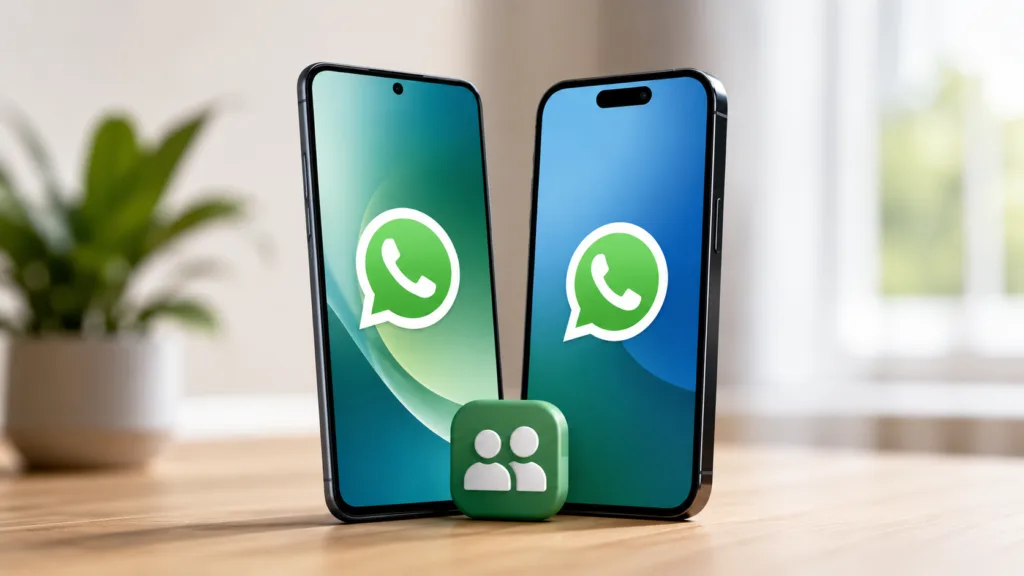
Managing work and personal conversations on the same phone used to mean carrying two devices or relying on unofficial app-cloning tools. That’s no longer necessary.
WhatsApp now allows users to run multiple accounts on a single smartphone, making it easier to keep professional and personal conversations separate while managing everything from one device. The feature is already available on most Android phones and is gradually expanding to iPhone users.
If you’ve been searching for a safe and official way to use two WhatsApp accounts on one phone, this guide explains everything you need to know.
Why Use Two WhatsApp Accounts on One Phone?
There are plenty of reasons why users choose to run two WhatsApp accounts.
Many people use one number for work and another for personal conversations. Freelancers often keep client chats separate from family messages, while small business owners use a dedicated number for customer enquiries and support.
Using two accounts on one device helps keep conversations organised without the inconvenience of carrying multiple phones. It also reduces the chances of missing important messages while maintaining a clearer separation between personal and professional communication.
Important Things to Know
- Each WhatsApp account requires a unique phone number
- Both accounts can receive calls and notifications simultaneously
- Storage usage may increase because each account stores its own media and backups
- Some iPhone users may not yet see native multi-account support
- A second SIM card or eSIM is required for most setups
Before starting, make sure you’re running the latest version of WhatsApp and have access to receive SMS or voice-call verification on your second number.
Method 1 — Use WhatsApp’s Built-In Multi-Account Feature
This is the easiest and most reliable option if the feature is available on your device.
Step 1 — Open WhatsApp Settings
Launch WhatsApp and open the Settings menu.
On Android, tap the three-dot menu in the upper-right corner and select Settings. On iPhone, tap the Settings tab located at the bottom of the screen.
Step 2 — Tap the Account Menu
At the top of the Settings page, tap the small arrow next to your profile name.
If multi-account support is enabled on your device, you’ll see an Add Account option.
Step 3 — Add Your Second Number
Tap Add Account and enter your secondary phone number.
Complete the verification process using the SMS code or voice call. Once verification is successful, WhatsApp will create a separate account within the same application.
Step 4 — Switch Between Accounts
You can switch between accounts at any time from the account menu.
Both accounts maintain separate chats, groups, calls, notifications, media files, privacy settings, and backup data. Notifications from both accounts continue to work normally and are clearly labelled.
Users can learn more about account support, verification requirements, and compatibility through the official WhatsApp Help Center.
Method 2 — Use WhatsApp and WhatsApp Business Together
If you don’t see the built-in multi-account feature, this remains the best alternative.
Download the official WhatsApp Business app and register your secondary phone number.
You can then use WhatsApp Messenger for your primary number and WhatsApp Business for your secondary number.
Both applications run independently and work seamlessly on the same device. For many iPhone users, this remains the most dependable multi-account solution in 2026.
Method 3 — Use Android App Cloning Features
Many Android manufacturers include built-in app-cloning tools.
Samsung devices offer Dual Messenger, Xiaomi, Redmi, and POCO phones include Dual Apps, OnePlus, OPPO, and realme devices provide Parallel Apps, while vivo and iQOO smartphones feature Clone Apps.
Enable the appropriate cloning feature in your phone’s settings, create a second WhatsApp installation, and register your secondary phone number.
This method remains useful for users whose devices don’t yet support WhatsApp’s native multi-account feature or those who prefer completely separate app installations.
Common Problems and Fixes
Can’t Find the Add Account Option?
Make sure WhatsApp is updated to the latest version.
If the feature still isn’t visible, it may not have reached your device yet. WhatsApp continues to roll out support gradually across different regions and devices.
OTP Verification Isn’t Working
Check that your second SIM or eSIM is active and able to receive calls and messages.
If SMS verification fails, request a verification call instead.
Notifications Aren’t Appearing
Ensure notification permissions are enabled and battery optimisation settings aren’t restricting WhatsApp in the background.
Storage Usage Is Increasing Quickly
Each WhatsApp account stores its own media files and backups.
Regularly deleting unnecessary photos, videos, and documents can help manage storage usage over time.
Things to Know Before Using Multiple Accounts
Every WhatsApp account requires a separate phone number, and running multiple accounts will naturally consume more storage because each account maintains its own chat database, media library, and backup files.
If you’re switching devices, our How to Transfer WhatsApp Chats to a New Phone (Android and iPhone) guide can help move your conversations safely without losing messages or media.
Before upgrading to a new smartphone, it’s also worth reading How to Recover Deleted WhatsApp Messages on Android and iPhone, especially if important chats are missing from your backups.
Users looking for additional privacy can also check out How to Lock Individual WhatsApp Chats With a Secret Code to better secure sensitive conversations.
Users can learn more about account management, verification requirements, and supported devices through the official WhatsApp Help Center.
TechularZtrix Take
📌 Bottom Line: WhatsApp’s multi-account support finally makes it practical to manage work and personal conversations on a single phone without relying on unofficial cloning apps or carrying multiple devices.
⏱ Difficulty Level: Easy
⌛ Time Required: 3–5 minutes
✅ Best For: Professionals, freelancers, creators, students, and small business owners who use separate phone numbers for work and personal communication.
🔍 Why It Matters: Native multi-account support keeps chats, notifications, backups, and media separated while avoiding the security, privacy, and reliability concerns often associated with third-party cloning tools.
💡 Best Option Right Now: Android users should use WhatsApp’s built-in multi-account feature whenever available. iPhone users who haven’t received native multi-account support yet will get the most reliable experience by using WhatsApp Messenger alongside WhatsApp Business.
No. Each WhatsApp account requires a unique phone number.
Yes. This is currently one of the most popular and reliable ways to run two WhatsApp accounts on the same device.
Yes. Calls, messages, and notifications work independently for each account.
Both accounts can access your phone’s contact list, but chats, groups, settings, and backups remain completely separate.
No. You only need access to a second phone number through a SIM card or eSIM.
Yes. WhatsApp’s official multi-account feature is fully supported by Meta and is significantly safer than relying on unofficial cloning tools or modified applications.