How to Transfer WhatsApp Chats to a New Phone (Android and iPhone, 2026)
Quick Highlights
Switching to a new phone is exciting until you start thinking about everything stored inside WhatsApp. Years of conversations, family photos, work messages, voice notes, and important documents can feel impossible to replace if something goes wrong during the move.
Fortunately, WhatsApp has dramatically improved its migration tools over the last few years. Whether you’re moving from Android to Android, iPhone to iPhone, or even switching between operating systems, the process is now much simpler than it used to be.
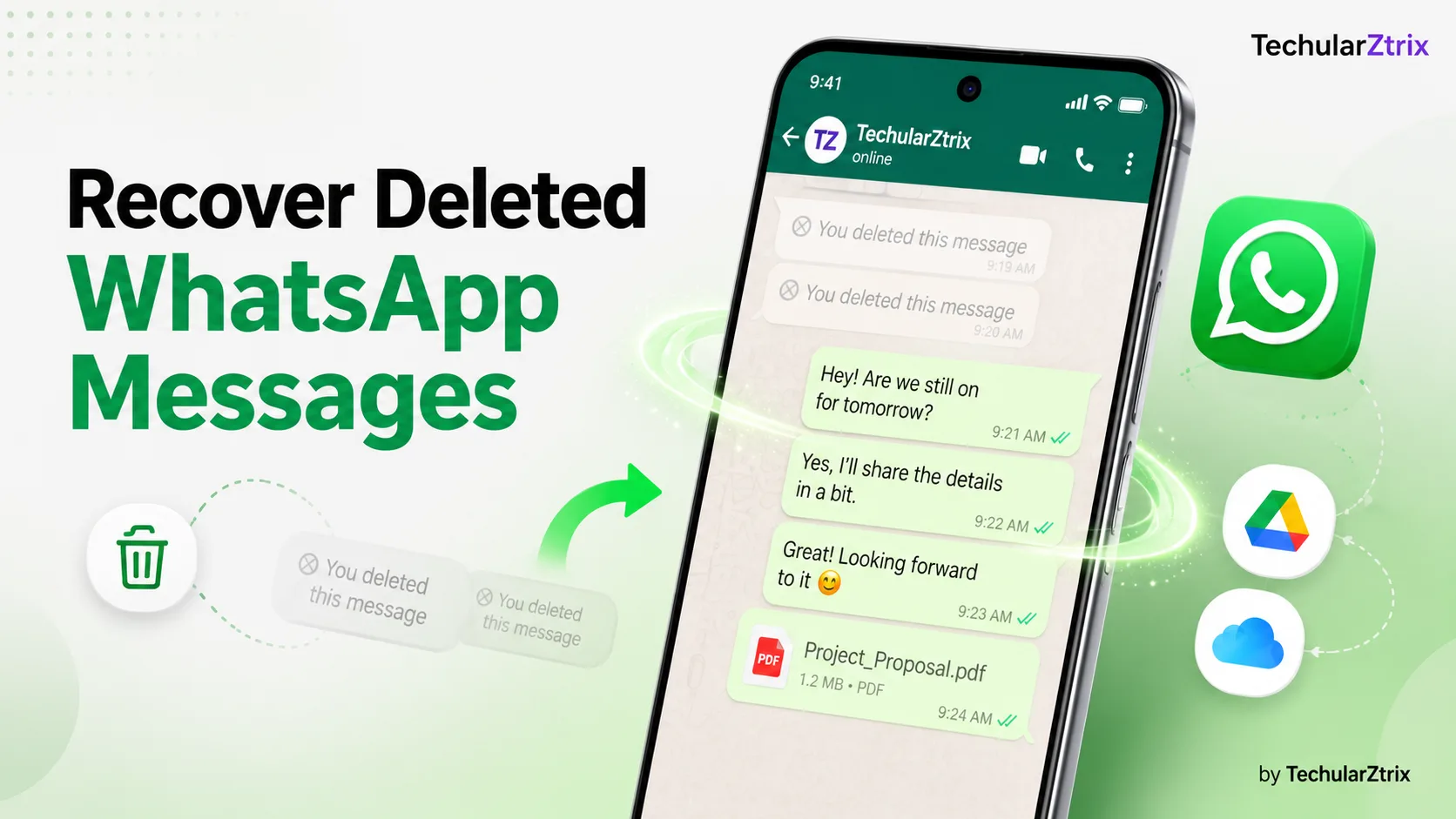
Before starting, make sure both phones are charged, connected to Wi-Fi, and running the latest version of WhatsApp. If you’re concerned about accidentally losing messages, our guide on How to Recover Deleted WhatsApp Messages on Android and iPhone (2026) explains the available recovery options.
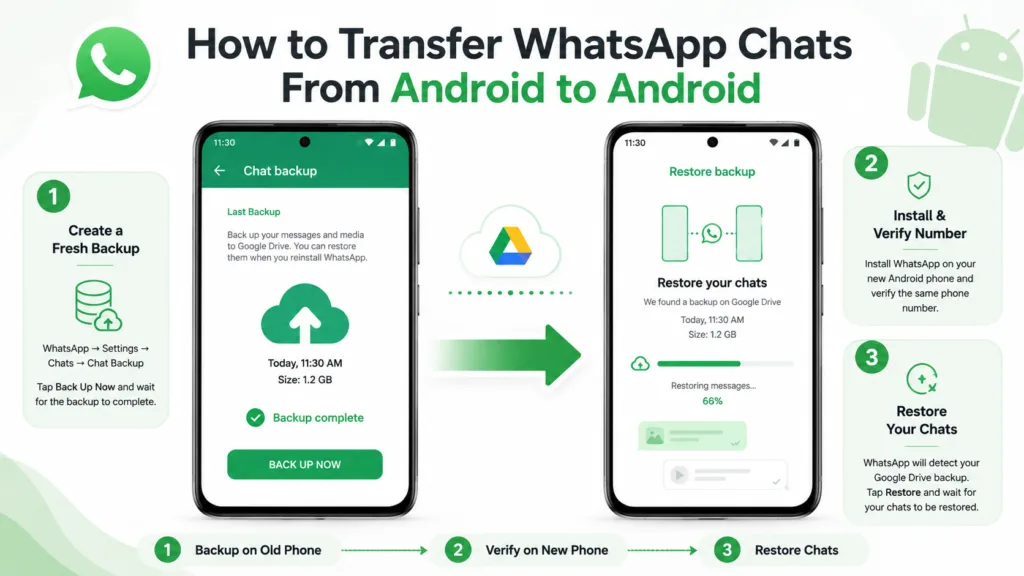
How to Transfer WhatsApp Chats From Android to Android
Moving WhatsApp between two Android phones is the easiest migration method because Google Drive handles most of the heavy lifting.
Step 1: Create a Fresh WhatsApp Backup
On your current Android phone, open:
WhatsApp → Settings → Chats → Chat Backup
Tap Back Up Now and wait until the backup completes successfully.
Creating a fresh backup ensures your latest conversations are included before you switch devices.
Step 2: Install WhatsApp on Your New Phone
Download WhatsApp from the Google Play Store on your new Android phone.
Open the app and verify the same phone number you used on your previous device.
Step 3: Restore Your Chats
During setup, WhatsApp will automatically detect your Google Drive backup.
Tap Restore when prompted.
The app will begin downloading your conversations, groups, photos, videos, and documents. Depending on the size of your backup, this may take several minutes.
How to Transfer WhatsApp Chats From iPhone to iPhone
Apple users can restore WhatsApp using iCloud backups.
Step 1: Back Up WhatsApp to iCloud
On your old iPhone, open:
WhatsApp → Settings → Chats → Chat Backup
Tap Back Up Now and wait for the upload to finish.
Step 2: Set Up Your New iPhone
Sign in using the same Apple ID and install WhatsApp from the App Store.
Step 3: Restore Your Chat History
Verify your phone number and wait for WhatsApp to detect the iCloud backup.
Tap Restore Chat History.
After the restoration process finishes, all your conversations and media files should appear exactly as they did on your previous iPhone.
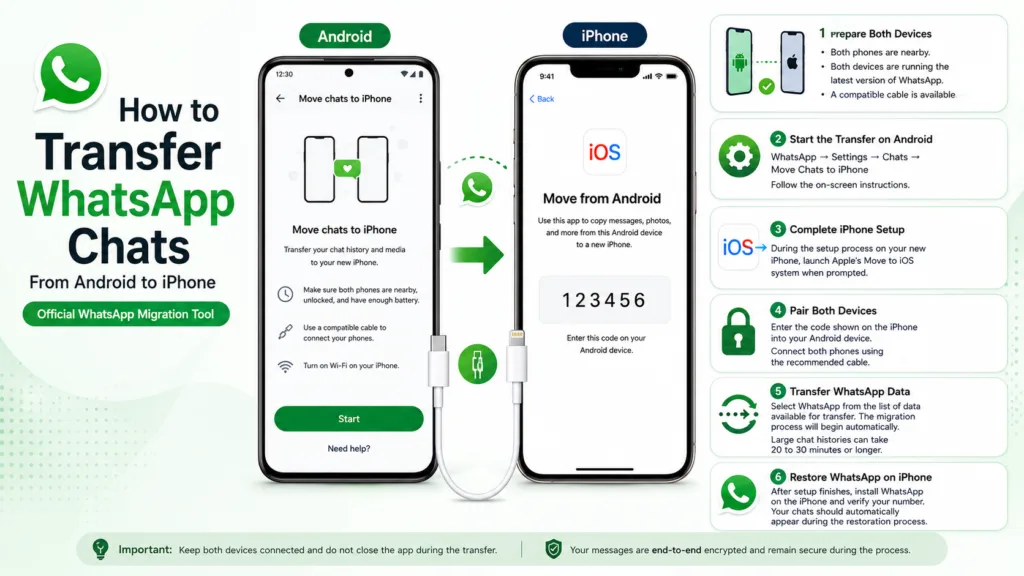
How to Transfer WhatsApp Chats From Android to iPhone
Moving from Android to iPhone used to be frustrating, but WhatsApp now includes an official migration tool that handles the process.
Step 1: Prepare Both Devices
Make sure:
- Both phones are nearby.
- Both devices are running the latest version of WhatsApp.
- A compatible cable is available.
Step 2: Start the Transfer on Android
On your Android phone, open:
WhatsApp → Settings → Chats → Move Chats to iPhone
Follow the on-screen instructions.
Step 3: Complete iPhone Setup
During the setup process on your new iPhone, launch Apple’s Move to iOS system when prompted.
A verification code will appear.
Step 4: Pair Both Devices
Enter the code shown on the iPhone into your Android device.
Connect both phones using the recommended cable.
Step 5: Transfer WhatsApp Data
Select WhatsApp from the list of data available for transfer.
The migration process will begin automatically.
Large chat histories containing years of media can take 20 to 30 minutes or longer.
Step 6: Restore WhatsApp on iPhone
After setup finishes, install WhatsApp on the iPhone and verify your number.
Your chats should automatically appear during the restoration process.
How to Transfer WhatsApp Chats From iPhone to Android
WhatsApp now supports transfers to most modern Android devices without requiring a specific manufacturer.
Step 1: Start the Transfer on iPhone
Open:
WhatsApp → Settings → Chats → Move Chats to Android
Follow the instructions displayed on screen.
Step 2: Set Up WhatsApp on Android
Install WhatsApp on your new Android device.
During setup, choose the option to transfer data from an iPhone.
Step 3: Scan the QR Code
Your Android phone will display a QR code.
Use your iPhone to scan it.
Step 4: Connect Both Phones
Attach the devices using a compatible cable and begin the transfer process.
Step 5: Wait for Migration to Finish
Depending on the size of your chat history, the process may take anywhere from a few minutes to half an hour.
Step 6: Verify Your Number
Once complete, verify your phone number on Android.
Your conversations, groups, photos, and documents should now be available on the new device.
Common Problems and Fixes
WhatsApp Cannot Find My Backup
Check that you’re signed into the correct Google account or Apple ID used for the original backup.
Transfer Stops Midway
Restart both phones and begin the process again. Ensure both devices remain unlocked and connected throughout the migration.
Photos and Videos Are Missing
Media files may still be downloading in the background. Keep WhatsApp open and connected to Wi-Fi until the process finishes.
TechularZtrix Take
WhatsApp transfers have finally reached the point where most users no longer need third-party software, complicated workarounds, or risky backup tricks. The built-in migration tools are reliable, relatively fast, and work across both Android and iPhone ecosystems. The most important thing is not rushing the process. Creating a fresh backup before switching devices and keeping both phones connected throughout the transfer can save hours of troubleshooting later. For anyone upgrading their smartphone in 2026, moving WhatsApp is now one of the easiest parts of the process.
WhatsApp also provides detailed migration instructions through its official Help Center, which can be useful if your specific phone model encounters compatibility issues during setup
Yes. WhatsApp transfers media files alongside chat history when using official migration tools.
Yes. Direct Android-to-iPhone and iPhone-to-Android transfers use WhatsApp’s built-in migration system and do not rely entirely on cloud backups.
Most users finish within 10 to 30 minutes, though large chat histories can take longer.
No. Once WhatsApp is activated on the new device, the old device is automatically logged out.
Yes. Using the same phone number makes the transfer process much smoother and more reliable.