Easy Guide: How to Lock WhatsApp With Fingerprint or Face Unlock in 2026
Quick Highlights
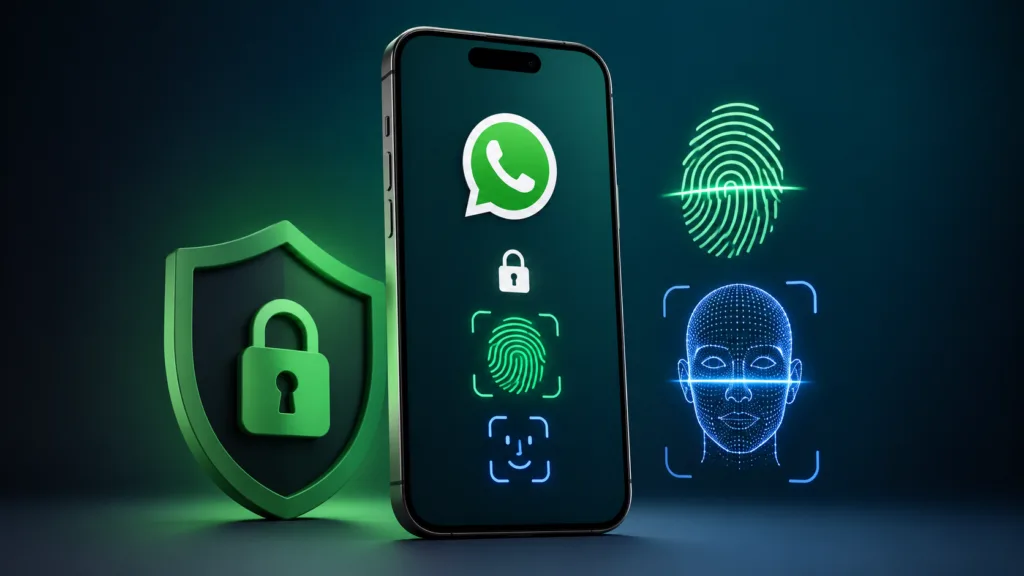
Privacy has become more important than ever, especially when smartphones contain everything from personal conversations to banking alerts and work-related messages. If you occasionally hand your phone to family members, friends, or colleagues, enabling WhatsApp’s biometric lock is one of the easiest ways to add an extra layer of protection.
The good news is that WhatsApp already includes a built-in app lock feature. You don’t need to install a separate security app or rely on third-party tools that may compromise privacy.
If you’re wondering how to lock WhatsApp with fingerprint or Face ID, here’s the safest and easiest method in 2026.
Important Things to Know Before You Start
Before enabling WhatsApp’s biometric lock, keep these points in mind:
- Your device must already have fingerprint, Face ID, or Touch ID set up
- WhatsApp uses your phone’s built-in biometric security system
- Incoming WhatsApp calls continue to work even when the app is locked
- You can choose how quickly WhatsApp locks after closing the app
- Locked chats and app lock are separate features
How to Lock WhatsApp With Fingerprint on Android
Step 1 — Open WhatsApp Settings
Launch WhatsApp and tap the three-dot menu in the top-right corner.
Select Settings.
Step 2 — Open Privacy Settings
Tap Privacy and scroll to the bottom of the page.
Step 3 — Enable App Lock
Tap App Lock.
Turn on Unlock with biometric.
Step 4 — Verify Your Fingerprint
Place your registered fingerprint on the fingerprint sensor when prompted.
Once verified, WhatsApp will enable biometric protection.
Step 5 — Choose Your Lock Timer
WhatsApp allows you to decide how quickly the app locks after being closed.
Available options include:
- Immediately
- After 1 minute
- After 30 minutes
For maximum privacy, selecting Immediately is recommended.
How to Lock WhatsApp With Face ID on iPhone
Step 1 — Open WhatsApp Settings
Launch WhatsApp and tap Settings from the bottom navigation bar.
Step 2 — Open Privacy
Tap Privacy.
Step 3 — Enable App Lock
Select App Lock.
Turn on Require Face ID.
Older iPhones equipped with Touch ID will display Require Touch ID instead.
Step 4 — Select a Lock Timer
Choose how quickly WhatsApp should require authentication again:
- Immediately
- After 1 minute
- After 15 minutes
- After 1 hour
Once enabled, Face ID or Touch ID will be required whenever you reopen WhatsApp after the selected timeout period.
How to Lock Individual WhatsApp Chats
App Lock protects the entire application, but some users may prefer additional protection for specific conversations.
WhatsApp’s Chat Lock feature allows selected chats to remain hidden behind biometric authentication.
Step 1 — Open the Chat
Open the conversation you want to secure.
Step 2 — Open Contact Information
Tap the contact name or group name at the top of the chat.
Step 3 — Enable Chat Lock
Scroll down and tap Chat Lock.
Turn on Lock This Chat.
Step 4 — Authenticate
Confirm using your fingerprint, Face ID, or Touch ID.
The conversation will move into a dedicated Locked Chats folder, which can only be opened using biometric authentication.
If you want even more WhatsApp privacy features, you can also read How to Use Two WhatsApp Accounts on One Phone (Android and iPhone) and How to Recover Deleted WhatsApp Messages on Android and iPhone.
For official feature availability and compatibility information, users can visit the official WhatsApp Help Center.
Common Problems and Fixes
Fingerprint Lock Is Not Appearing
Make sure:
- Your phone supports fingerprint authentication
- A fingerprint is already registered in device settings
- WhatsApp is updated to the latest version
Face ID Is Not Working
Check that:
- Face ID is enabled for WhatsApp inside iPhone settings
- The front camera is unobstructed
- Face ID works normally for device unlocking
WhatsApp Keeps Asking for Authentication
This usually happens when the lock timer is set to Immediately.
Switching to After 1 Minute may provide a better balance between security and convenience.
⚡ TechularZtrix Scan
📌 Bottom Line: Learning how to lock WhatsApp with fingerprint takes less than a minute and adds a valuable layer of privacy to one of the most-used apps on your phone.
⏱ Difficulty Level: Easy
⌛ Time Required: 1–2 minutes
✅ Best For: Anyone who shares their phone, uses WhatsApp for work, or wants stronger privacy protection.
🔍 Why It Matters: Sensitive conversations, business chats, and personal information remain protected even if someone gains access to your unlocked phone.
💡 Best Option Right Now: Enable WhatsApp’s built-in biometric lock and combine it with Chat Lock for conversations that require additional privacy.
The feature prevents casual access but cannot stop someone who already knows your device PIN or passcode.
No. App Lock only protects the mobile application. WhatsApp Web sessions remain separate.
WhatsApp falls back to your phone’s passcode or PIN authentication system.
Yes. Many users enable both features for an additional layer of privacy.
Yes. Incoming voice and video calls continue to work normally.