Easy Guide: How to Use WhatsApp on Two Phones at the Same Time in 2026
Quick Highlights
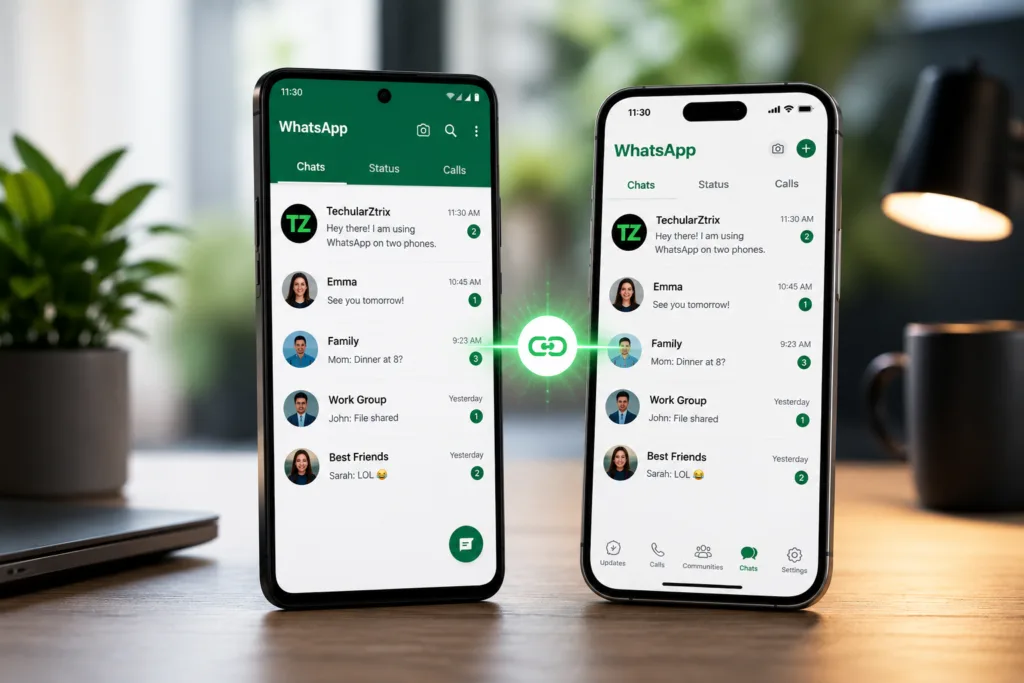
For years, using WhatsApp on multiple phones meant relying on unofficial workarounds, third-party apps, or constantly switching devices. That’s no longer necessary.
WhatsApp’s Companion Mode allows users to access the same WhatsApp account on multiple smartphones simultaneously. Whether you carry a work phone and a personal phone, frequently switch devices, or simply want access to your chats from a backup handset, Companion Mode offers an official solution.
If you’re wondering how to use WhatsApp on two phones at the same time, here’s everything you need to know.
Important Things to Know Before You Start
Before linking a second phone, keep these points in mind:
- Your primary phone must already have WhatsApp set up
- The secondary phone only needs an internet connection
- No second SIM card is required
- You can link up to four additional devices
- Messages remain protected with end-to-end encryption
- Your primary device must reconnect periodically to maintain linked devices
What Is WhatsApp Companion Mode?
Companion Mode is WhatsApp’s official multi-device feature that allows the same account to run on more than one smartphone.
Unlike using two separate WhatsApp accounts, Companion Mode mirrors your existing account across devices. Your chats, groups, media, contacts, and call history remain synchronized automatically.
This makes it ideal for users who want access to the same conversations from multiple phones.
How to Use WhatsApp on Two Phones at the Same Time
Step 1 — Open Linked Devices on Your Primary Phone
On Android:
Open WhatsApp and tap the three-dot menu.
Select Linked Devices.
Tap Link a Device.
On iPhone:
Open WhatsApp.
Go to Settings → Linked Devices.
Tap Link a Device.
You’ll be asked to verify your identity using Face ID, fingerprint authentication, or your device passcode.
Step 2 — Prepare Your Secondary Phone
Install WhatsApp on the second phone.
If WhatsApp is already logged into another account, uninstall and reinstall the application first.
Open WhatsApp and remain on the initial setup screen.
Step 3 — Enable Companion Mode
On Android:
Tap the three-dot menu on the setup screen.
Select Link a Device.
On iPhone:
Tap Link This Phone as Companion Device.
A QR code scanner will appear.
Step 4 — Scan the QR Code
Use the secondary phone to scan the QR code displayed on your primary device.
Once scanned, WhatsApp will begin syncing your account.
Step 5 — Wait for Synchronization
Depending on the size of your chat history, synchronization may take a few moments.
After setup is complete, your chats, groups, media, and contacts will appear automatically.
You can now use the same WhatsApp account on both phones simultaneously.
What Works on the Linked Phone?
The secondary phone supports nearly all core WhatsApp functions, including:
- Sending and receiving messages
- Voice calls
- Video calls
- Group chats
- Media sharing
- Voice notes
- Notifications
- Status viewing
For most users, the experience is nearly identical to using WhatsApp on the primary device.
What Doesn’t Work on a Linked Phone?
A few account-management features still require the primary device.
These include:
- Certain account settings
- Some privacy controls
- Payment-related features in supported regions
- Certain profile management functions
For major account changes, use your primary phone.
How to Remove a Linked Phone
If you no longer need access on a secondary device, unlinking takes only a few seconds.
From Your Primary Phone
Open:
WhatsApp → Linked Devices
Select the phone you want to remove.
Tap Log Out.
The device will be disconnected immediately.
From the Secondary Phone
Open:
WhatsApp → Settings → Linked Devices
Select This Device.
Tap Log Out.
Common Problems and Fixes
QR Code Won’t Scan
Make sure:
- Both devices have internet access
- The QR code is fully visible
- Camera permissions are enabled
Chats Are Not Syncing
Allow additional time for synchronization.
Large media libraries can take longer to appear.
Linked Device Logged Out Automatically
WhatsApp may disconnect linked devices if the primary phone remains offline for an extended period.
Reconnect the main phone to the internet and relink the device if necessary.
Related WhatsApp Guides
If you’re improving your WhatsApp setup, you may also want to read:
For official device-linking requirements and feature availability, users can visit the official WhatsApp Help Center.
⚡ TechularZtrix Scan
📌 Bottom Line: WhatsApp Companion Mode makes it easy to use the same WhatsApp account on two phones without needing a second number or unofficial apps.
⏱ Difficulty Level: Easy
⌛ Time Required: 2–5 minutes
✅ Best For: Users who carry multiple phones, switch devices frequently, or want a backup phone with full WhatsApp access.
🔍 Why It Matters: Companion Mode removes one of WhatsApp’s biggest limitations by allowing a single account to stay synchronized across multiple smartphones while maintaining end-to-end encryption.
💡 Best Option Right Now: Use WhatsApp’s official Companion Mode instead of third-party cloning tools. It’s more secure, fully supported, and keeps messages synchronized automatically across all linked devices.
Yes. Companion Mode allows the same WhatsApp account and phone number to be used across multiple devices.
No. An internet connection is enough.
Yes. Companion Mode works between Android and iPhone in any combination.
Yes. Messages, calls, notifications, and media synchronize across linked devices.
WhatsApp currently allows one primary phone plus up to four linked devices.