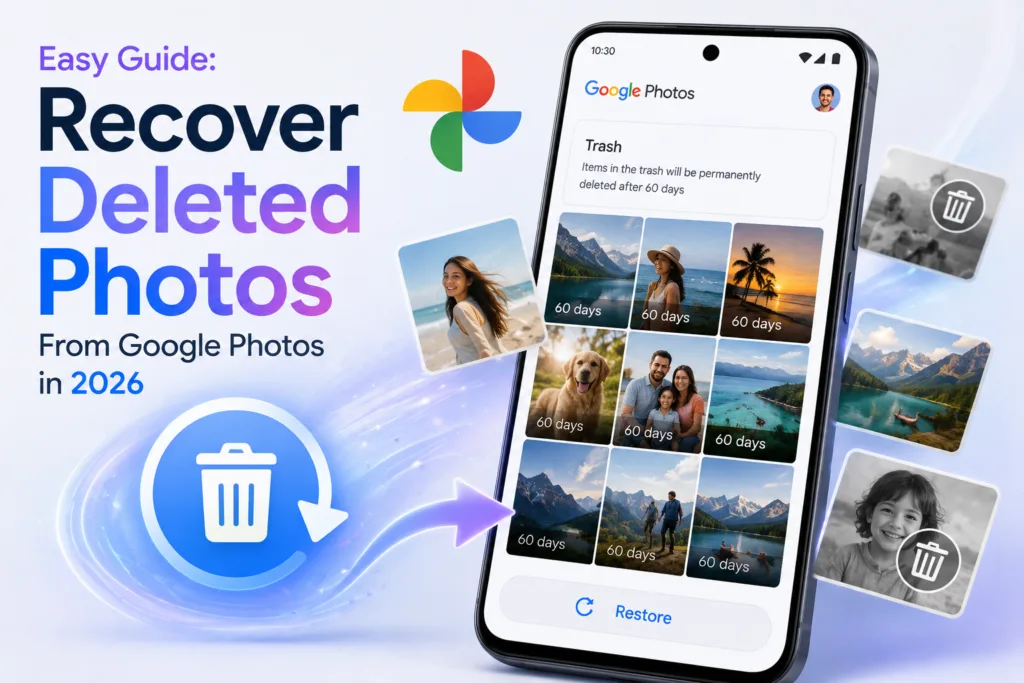
Easy Guide: How to Recover Deleted Photos From Google Photos in 2026
Accidentally deleting photos can be stressful, especially when they contain important memories, work files, or travel pictures. Fortunately, Google Photos doesn't immediately erase deleted images. Instead, it moves them to a Trash folder where they remain recoverable for a limited…
TechularZtrixEDITORIAL DESK · UPDATED
ON THIS PAGE · 6 SECTIONS
Quick Highlights & Key Takeaways
Google Photos keeps deleted photos in Trash for up to 60 days
Recovery works on Android, iPhone, and the web
Photos can often be restored in less than a minute
Deleted device photos may still exist in Google Photos cloud backup
After 60 days, recovery becomes significantly more difficult
Google Drive backups may help in some situations
Accidentally deleting photos can be stressful, especially when they contain important memories, work files, or travel pictures. Fortunately, Google Photos doesn’t immediately erase deleted images. Instead, it moves them to a Trash folder where they remain recoverable for a limited period.
If you’ve recently deleted a photo, there’s a good chance you can restore it within seconds. Even if the image isn’t visible in Trash anymore, there are still a few places worth checking before assuming it’s gone forever.
This guide explains how to recover deleted photos from Google Photos on Android, iPhone, and desktop browsers.
Recover Deleted Photos From Google Photos Trash
The easiest recovery method is through the built-in Trash folder.
Google Photos stores deleted photos for up to 60 days before permanently removing them.
On Android
Open Google Photos and tap Library.
Select Trash (or Bin on some devices).
Locate the photo you want to recover.
Tap and hold the image, then select Restore.
The photo will immediately return to your Google Photos library and, if syncing is enabled, back to your phone gallery.
On iPhone
Open Google Photos.
Navigate to Library → Trash.
Select the deleted image and tap Restore.
On Desktop
Visit Google Photos in your browser and sign in.
Open Trash from the left sidebar.
Select the photos you want and click Restore.
Check If the Photo Still Exists in Google Photos
Sometimes users delete a photo from their phone but not from Google Photos.
In these situations, the image may still exist safely in cloud storage.
Open Google Photos and use the search bar.
Try searching using:
Date
Location
Person
Object
Event
For example, search terms like:
Beach
Birthday
Dog
June 2025
If the image appears in search results, it is still stored in your Google Photos account and can be downloaded again.
Can Google Drive Backups Help?
If you’ve enabled Android device backups through Google One, some photo data may exist within your backup.
Open Google Drive and navigate to Backups.
You may see a device backup associated with your account.
However, Google Drive backups do not allow users to browse individual photos directly. They are designed primarily for restoring an entire device during setup.
Because of this limitation, Google Photos Trash remains the most practical recovery option.
What Happens After 60 Days?
Once a photo is permanently removed from Google Photos Trash, Google generally cannot restore it.
At that point, your remaining options include:
Check Other Cloud Services
Many users unknowingly sync photos to multiple services.
Check:
Microsoft OneDrive
Dropbox
Amazon Photos
Apple iCloud Photos
The image may still exist there.
Check Other Devices
If you’ve connected your phone to a PC or Mac before, your photos may have been automatically imported.
Look inside:
Windows Photos
Mac Photos
External hard drives
Backup folders
Check Messaging Apps
Photos shared through apps such as:
WhatsApp
Telegram
Gmail
Messenger
may still exist inside media folders or conversations.
Professional Recovery Services
For highly valuable images such as family photos, wedding pictures, or business files, professional recovery services may be worth considering.
Success is not guaranteed and costs can be substantial, but some deleted data can occasionally be recovered directly from storage hardware.
How to Prevent Photo Loss in the Future
The best recovery strategy is prevention.
Open Google Photos and verify that Backup is enabled.
Go to:
Google Photos → Profile Picture → Photos Settings → Backup
Make sure the status shows Backup is On.
Also verify your available Google storage space.
If your account runs out of storage, new photos may stop backing up automatically.
Regularly reviewing backup status can help prevent permanent data loss.
If your deleted photo is still inside Google Photos Trash, recovery usually takes less than a minute.
Difficulty Level
Easy
Time Required
1–3 Minutes
Best For
Android users, iPhone users, and anyone who accidentally deleted important photos.
Why It Matters
Photos often contain irreplaceable memories and important information. Knowing how recovery works can save valuable data before it is permanently deleted.
Best Option Right Now
Always check Google Photos Trash first. If the image isn’t there, search your library, other cloud services, and device backups before considering professional recovery options.



 Ai Lab